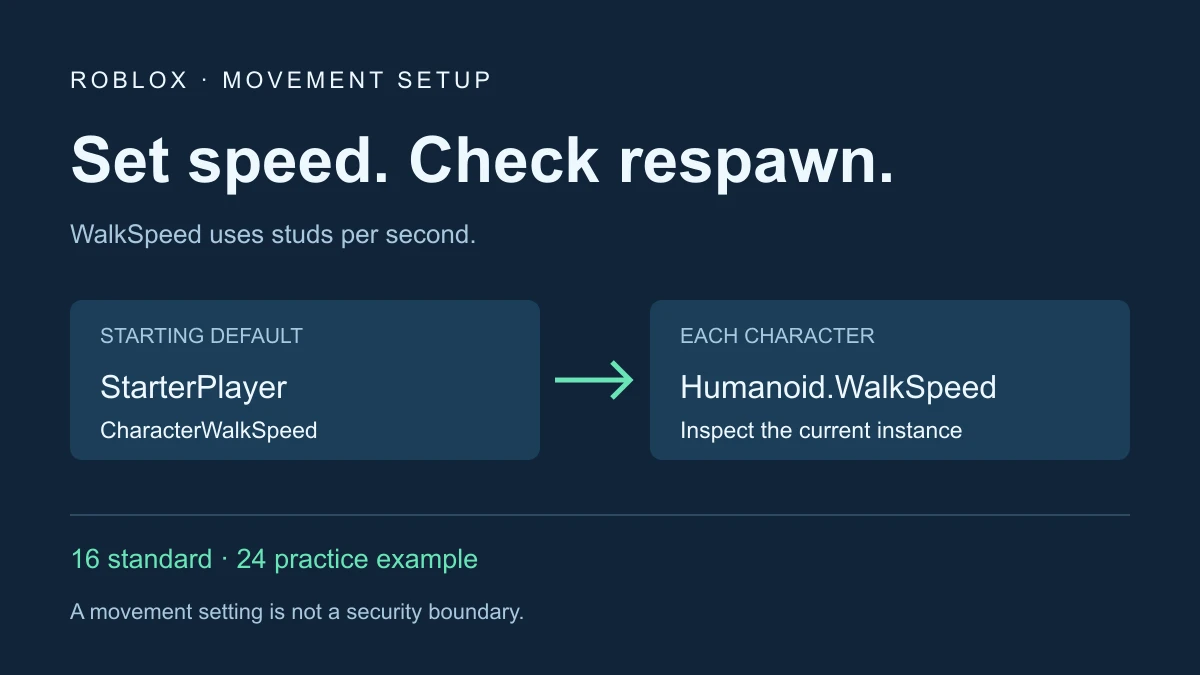
To change walking speed in your own Roblox place, set StarterPlayer’s CharacterWalkSpeed for newly spawned characters, or set a character Humanoid’s WalkSpeed in a script. WalkSpeed is measured in studs per second. Roblox’s standard default is 16; this guide uses 24 as an optional practice value, not a recommended speed for every game.
Change the default in Studio without a script
- Open a spare copy of your place and select StarterPlayer in Explorer.
- In Properties, find CharacterWalkSpeed and enter your intended starting speed.
- Start a play test so a new player character is created.
- Inspect that character’s Humanoid and its WalkSpeed. Test again after resetting the character.
The StarterPlayer reference identifies the starting setting. Treat it separately from the Humanoid that already exists during a running test. Editing one live character does not establish what the next character will receive.
A Roblox WalkSpeed script that handles respawning
For a scripted exercise, put one regular Script in ServerScriptService. Use it in a test place where another sprint, stun, or movement system is not also writing WalkSpeed. This example applies 24 once per character and prints the assigned value.
-- Regular Script in ServerScriptService, in your own test place.
-- Documentation-reviewed; not executed in Studio for this guide.
local Players = game:GetService("Players")
local PRACTICE_SPEED = 24
local connected = setmetatable({}, {__mode = "k"})
local attempted = setmetatable({}, {__mode = "k"})

local function applySpeed(player, character)
    if attempted[character] then return end
    attempted[character] = true
    task.spawn(function()
        local humanoid = character:WaitForChild("Humanoid", 10)
        if player.Parent ~= Players or player.Character ~= character then return end
        if not humanoid or not humanoid:IsA("Humanoid") then
            warn("Practice character has no Humanoid")
            return
        end
        humanoid.WalkSpeed = PRACTICE_SPEED
        print("Practice speed set", player.Name, humanoid.WalkSpeed)
    end)
end

local function connectPlayer(player)
    if connected[player] or player.Parent ~= Players then return end
    connected[player] = true
    player.CharacterAdded:Connect(function(character)
        applySpeed(player, character)
    end)
    if player.Character then applySpeed(player, player.Character) end
end

Players.PlayerAdded:Connect(connectPlayer)
for _, player in Players:GetPlayers() do connectPlayer(player) end
The CharacterAdded event lets the setup run for replacement characters. Connecting the event alone can miss a character that already exists when the script begins, so the example also checks current players and their current characters.
The two weak-key tables prevent duplicate setup attempts without intentionally retaining old player or character objects. After waiting for a Humanoid, the identity check rejects an old character if the player has already respawned. The ten-second timeout produces a warning for a missing Humanoid rather than waiting forever. A timed-out character is not retried by this small example.
This is a once-per-spawn assignment. It does not continuously overwrite other movement systems. It also does not save a speed upgrade between sessions, check a purchase, or implement a sprint button. The script has been reviewed against the API documentation; it has not been executed in Studio for this guide.
WalkSpeed is a setting, not a measured result
The Humanoid reference notes that partial thumbstick input on mobile or gamepad can produce slower walking. It also warns that WalkSpeed can be changed locally and must not be the sole protection against unwanted movement. Setting it to zero blocks default walking input; it is not a complete security boundary.
For a simple comparison, mark a straight, unobstructed 48-stud test lane. At a constant 16 studs per second, the arithmetic is 3 seconds; at 24, it is 2 seconds. Those are ideal calculations, not recorded play-test timings. Input, the route, and the character’s actual movement must still be tested.
Use the studs converter only when you need equivalent length units. A physical-looking unit conversion does not prove how the character controller will behave.
Why the speed changes back
| Observation | First check |
|---|---|
| Works until reset | Did the code set only the previous character’s Humanoid? |
| Changes back while alive | Search for other WalkSpeed assignments, including sprint and status effects. |
| Assigned value is right but movement is slow | Compare full movement input and an unobstructed test lane. |
| Missing Humanoid warning | Inspect your custom character’s actual hierarchy and creation timing. |
| Animation looks wrong | Inspect animation setup separately from the speed assignment. |
Use Find All in Studio to search for WalkSpeed. Identify which system should own the final value. For example, a sprint release handler restoring a hard-coded 16 can undo a different base speed. Resolve that ownership instead of adding an endless loop that fights the other script.
Verify the change before adding sprint or upgrades
- Start with one player and inspect the server-side Humanoid value and Output line.
- Reset the character, inspect the new Humanoid, and confirm the assignment runs for that replacement.
- Run a two-client Studio test and check each player’s current character independently.
- Compare keyboard input with full and partial thumbstick input on your target devices.
- Re-enable movement-related systems one at a time and identify any conflicting assignment.
Keep animation work separate: the custom walking animation guide covers replacing animation IDs. For a later client-requested sprint mechanic, review RemoteEvents and server validation before introducing messages or client-selected values.
Documentation reviewed November 17, 2026. The checks above are a proposed Studio test plan, not captured multiplayer or device results.