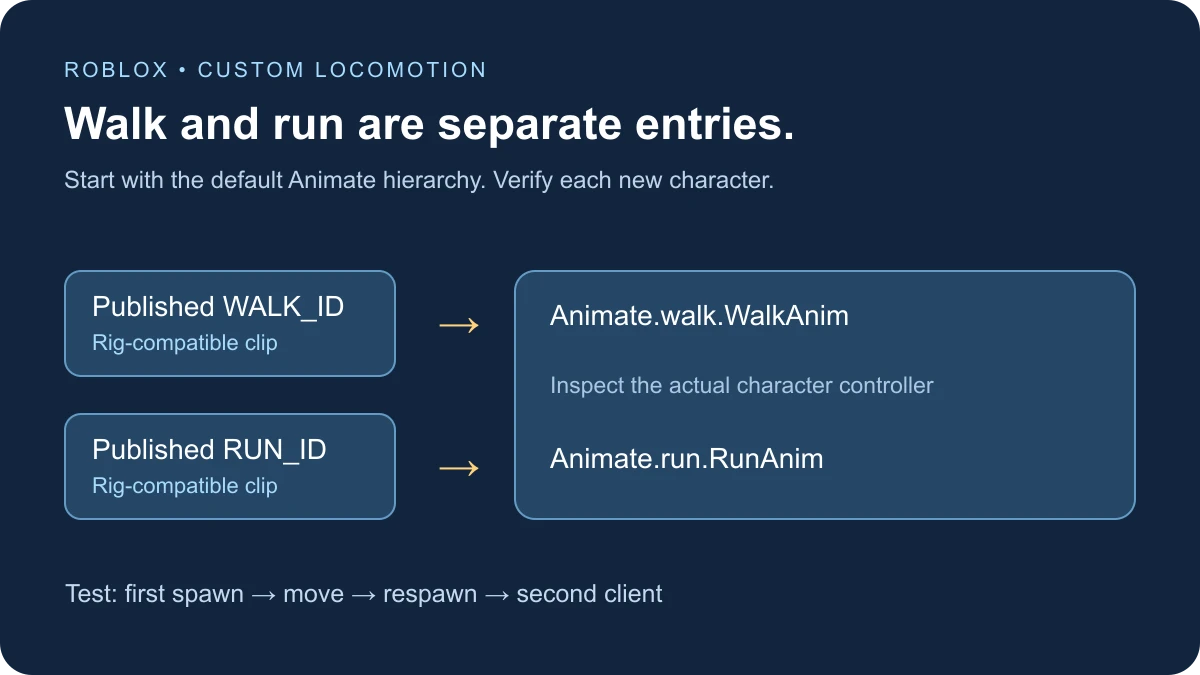
To put a custom walking animation in Roblox Studio, publish a rig-compatible clip, obtain its animation ID, and replace the walk entry used by your character’s animation controller. In the default Animate structure, that entry is Animate.walk.WalkAnim.AnimationId. Check the run entry separately when testing locomotion.
Define which animation you are replacing
This guide is for a developer changing locomotion in their own experience. Buying or equipping an avatar animation pack is a different workflow. A one-off gesture played by a Tool also differs from the character controller choosing a walking clip as the player moves.
The sample below assumes the conventional default character Animate hierarchy documented by Roblox. If your place uses a custom character, a replacement controller, or an animation graph, inspect that system’s configuration rather than creating similarly named folders and hoping it will read them.
Prepare the clips before writing the replacement script
- Create the walk animation for the same rig type and joint structure as your test character.
- Preview the cycle and check how the first and last poses meet.
- Publish the clip and copy its animation asset ID. A saved local editing sequence is not the published ID.
- Confirm the experience is permitted to use the asset.
- Prepare a run clip as well, or deliberately use the same compatible locomotion clip in both slots for a first diagnostic test.
For posing and publishing your first clip, use the Animation Editor guide. This page focuses on wiring an existing permitted clip into locomotion and verifying that the change survives a new character spawn.
Locate the default walk and run entries
Roblox’s Use animations guide documents separate walk.WalkAnim and run.RunAnim Animation objects under Animate. Its replacement workflow uses a server Script and the character appearance-loaded event.
Inspect a live test character in Explorer to confirm those objects exist in your project. Use this observation to understand the hierarchy; editing an instance created during play does not by itself establish a persistent source configuration.
Apply both IDs on each character appearance
In a spare place with default player characters, add a regular Script to ServerScriptService. Replace both zero placeholders with numeric animation IDs. The sample applies once per character, checks the expected objects, and also handles players already present when the Script starts.
This is an initial-spawn prototype. It stops current tracks immediately before changing the two entries, following the basic replacement approach in Roblox’s guide. That can interrupt any action already playing. Do not reuse this setup function as an unrestricted mid-combat animation switch.
The code has been reviewed against the documentation but has not been executed in Studio for this guide. Its Output message proves only that assignments were reached; the movement, respawn, and two-client checks below remain necessary.
-- Regular Script in ServerScriptService, for a spare default-character place.
-- Documentation-reviewed example; not executed in Studio for this guide.
local Players = game:GetService("Players")
local WALK_ID = "0" -- Replace with your permitted walk clip's numeric ID.
local RUN_ID = "0" -- Replace with your permitted run clip's numeric ID.

local function validId(id)
    return id:match("^%d+$") ~= nil and id:match("[1-9]") ~= nil
end
if not validId(WALK_ID) or not validId(RUN_ID) then
    warn("Set both WALK_ID and RUN_ID to permitted numeric animation IDs")
    return
end

local seenPlayers = setmetatable({}, {__mode = "k"})
local configuredCharacters = setmetatable({}, {__mode = "k"})
local function configureCharacter(player, character)
    if configuredCharacters[character] then return end
    configuredCharacters[character] = true
    local humanoid = character:WaitForChild("Humanoid", 10)
    local animate = character:WaitForChild("Animate", 10)
    if not humanoid or not humanoid:IsA("Humanoid") or not animate then
        warn("Expected default Humanoid and Animate; inspect your character system")
        return
    end
    local animator = humanoid:WaitForChild("Animator", 10)
    local walk = animate:WaitForChild("walk", 10)
    local run = animate:WaitForChild("run", 10)
    local walkClip = walk and walk:WaitForChild("WalkAnim", 10)
    local runClip = run and run:WaitForChild("RunAnim", 10)
    if not animator or not animator:IsA("Animator")
        or not walkClip or not walkClip:IsA("Animation")
        or not runClip or not runClip:IsA("Animation") then
        warn("Default walk/run Animation objects or Animator missing")
        return
    end
    if player.Character ~= character then return end

    -- Initial spawn setup only: interrupts currently active tracks.
    for _, track in ipairs(animator:GetPlayingAnimationTracks()) do
        track:Stop(0)
    end
    walkClip.AnimationId = "rbxassetid://" .. WALK_ID
    runClip.AnimationId = "rbxassetid://" .. RUN_ID
    print("Configured walk/run for", player.Name)
end

local function bindPlayer(player)
    if seenPlayers[player] then return end
    seenPlayers[player] = true
    player.CharacterAppearanceLoaded:Connect(function(character)
        configureCharacter(player, character)
    end)
    -- Also support players already present when this Script starts.
    if player.Character and player:HasAppearanceLoaded() then
        task.spawn(configureCharacter, player, player.Character)
    end
end
Players.PlayerAdded:Connect(bindPlayer)
for _, player in ipairs(Players:GetPlayers()) do
    bindPlayer(player)
end
Test the result in stages
| Stage | Action | Evidence to collect |
|---|---|---|
| First spawn | Start a play test | Configured message and both expected IDs in the character |
| Movement | Stand, move, stop, and move again | Visible clip and clean return to idle |
| Walk/run behavior | Try the movement speeds used by your game | Which locomotion clip or blend is visible |
| New character | Respawn through your normal test flow | New character receives both IDs again |
| Second client | Watch the moving player from another client | Visibility from both player views |
Do not infer which slot is active solely from the character’s speed. The actual controller decides when clips are selected or blended. If changing only the walk slot seems ineffective, inspect the run entry and active tracks before concluding that the walk asset is broken.
Why a custom walking animation may not work
- The script warns about IDs: replace both zero placeholders with numeric animation asset IDs. The format check does not verify permissions or asset type.
- Animate or its entries are missing: compare the project’s character controller with the documented default hierarchy. The sample intentionally refuses to fabricate a replacement system.
- The IDs change but motion does not: check asset access, rig compatibility, the currently selected run or walk clip, and competing tracks.
- It works once but disappears after respawn: inspect whether your original code configured one character instance instead of each new spawn.
- The value changes back: search for another script applying a character description or animation configuration later.
- The feet slide: inspect the authored stride and playback behavior against the movement in your game; priority alone does not correct a mismatched cycle.
The sample marks each character as attempted before waiting for its components. If it warns that the required structure is missing, fix the setup and start a fresh character test. It does not keep polling indefinitely or repeatedly stopping tracks while you debug.
Inspect competition without raising every priority
A walk clip that plays alone can look different when another clip poses the same joints. Use the priority reference and running-track inspector to see the current tracks and weights. Separate loading problems from overlap problems.
The priority documentation recommends Movement for developer locomotion, while Roblox’s default and catalog animations use Core. Choose priorities as a project policy. Turning every locomotion and action clip into the highest tier leaves you with a different conflict.
Know the sample’s boundaries
The Player reference documents CharacterAppearanceLoaded as a server-only event. It is part of this default-character approach. It is not a universal event contract for every custom rig or character-loading system. Use the lifecycle supported by your actual controller when adapting the pattern.
Waiting for an Animator here does not create one or prove replication. The AnimationTrack guide separates actor setup, loading, playback, and multiplayer checks. Test both clients with your own published assets before calling the feature finished.
Keep one owner for animation configuration. Once the controlled example works, integrate the two IDs into that owner rather than leaving several startup scripts competing to rewrite them.
Documentation reviewed November 17, 2026.
To change the character’s movement setting rather than its animation IDs, use the Roblox WalkSpeed guide for defaults, respawn handling, and conflicting speed assignments.