How to make your own Roblox game: the short answer
To make your own Roblox game, install Roblox Studio on a supported Windows or Mac computer, open a small template, build one repeatable player action, add any Luau scripts the loop needs, test it as both a client and server, then publish it through Creator Hub. Your first game should be finishable in hours or days, not a dream project that takes a year.
There are three honest starting paths in 2026:
| Path | Best for | What happens next |
|---|---|---|
| Roblox Studio | Full control over building, Luau, testing, and publishing | Start and finish in the official desktop editor |
| Roblox Build | Eligible creators who want an official mobile prompt-to-game workflow | Create and publish in the Roblox app; availability varies by account, device, and country |
| Obby | Creators who want a browser-based AI scaffold | Describe and preview the first loop, then export to Studio for final editing and publishing |
This guide uses the complete Studio path and points out where AI can remove setup work. If you are deciding between workflows, read the current Roblox Build guide or the AI Roblox game builder overview.
If you want a learning sequence rather than a single tutorial, use the 90-day Roblox development roadmap. If cost is the main concern, the zero-budget Roblox game guide separates free creation and testing from current public-publishing eligibility.
What you need before you start
- A Roblox account: Free at roblox.com
- Roblox Studio: The free official development application for supported Windows and Mac computers
- One small game loop: For example, collect ten coins, reach the end of an obby, or survive one short round
- A test checklist: Write down what must work before you add another feature
You do not need paid software or prior coding experience for a first project. Luau becomes important when you want custom behavior, secure multiplayer systems, saved progress, or monetization.
Step 1: Download and Install Roblox Studio
Roblox Studio is the official full development environment for Roblox experiences. It gives you the deepest control over building, Luau, testing, collaboration, and publishing; newer workflows such as Roblox Build can create some games without starting in Studio.
- Open the official Roblox Studio setup guide
- Download the correct installer for Windows or macOS
- Run the installer and let Studio update
- Launch Studio and log in with your Roblox account
As of August 31, 2026, Roblox documents Windows 10 and macOS 10.14 as the minimum supported desktop operating systems. Check the setup page before installing because requirements can change.
Step 2: Choose Your Starting Template
Roblox Studio includes starter templates you can edit without prior experience. The available template names can change, so choose by the mechanic you want to learn:
- Baseplate: A blank project for learning parts, properties, and your own game structure.
- Platformer: A playable movement project with collectibles and platforming mechanics.
- Laser Tag: A multiplayer example with rounds, teams, and blasters.
- Racing: A driving example with checkpoints and a modular course.
If you are completely new, start with a playable template and change one mechanic. If you want to learn how every piece connects, start from Baseplate and follow the official first-experience curriculum.
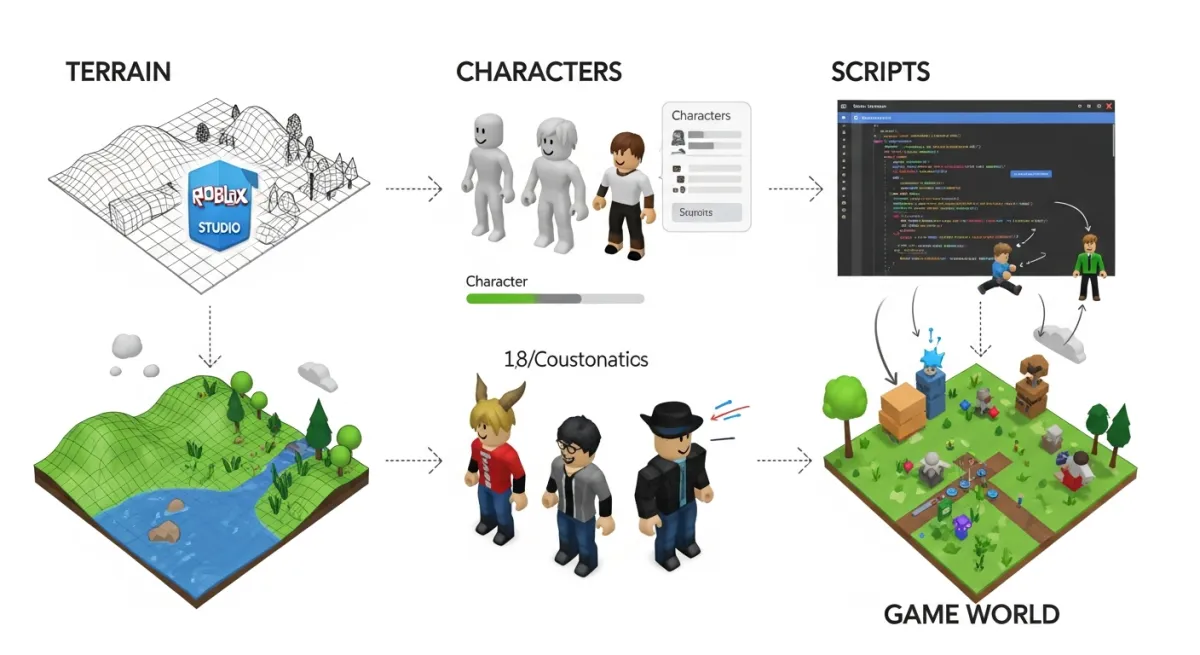
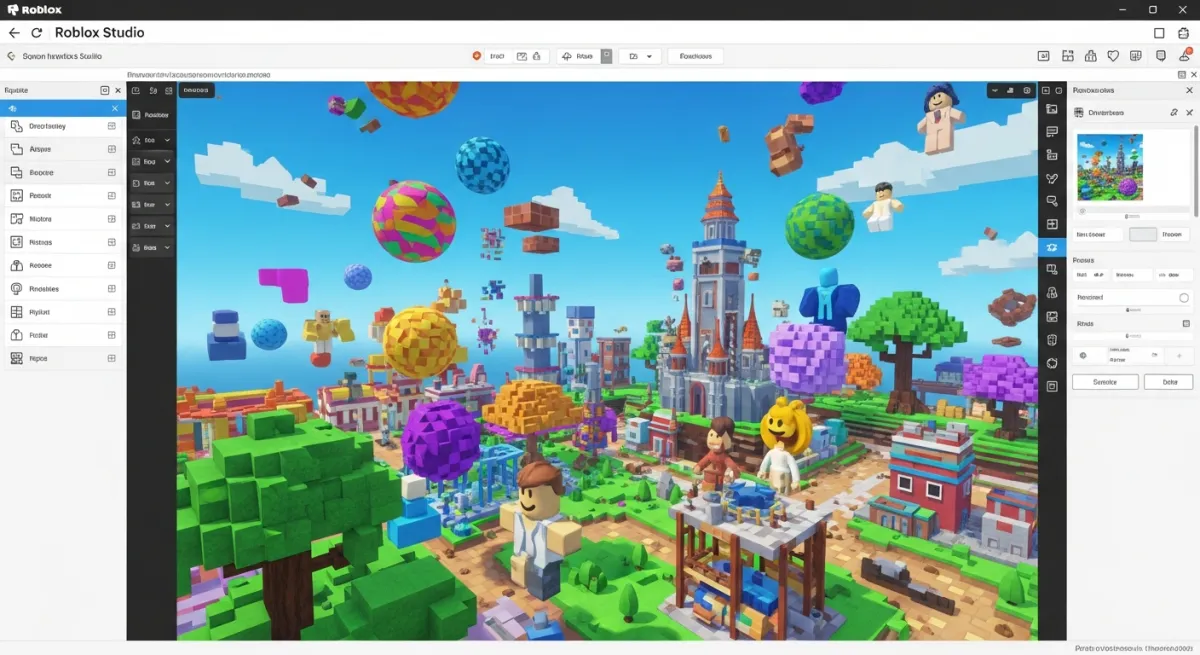
Step 3: Learn the Roblox Studio Interface
Before you start building, spend 15 minutes getting comfortable with the interface. The key panels:
- Viewport (center): Your 3D game world. Navigate with W/A/S/D + right-click to look around.
- Explorer (right panel, top): The hierarchy of every object in your game. Think of it as your game's file tree.
- Properties (right panel, bottom): Shows all attributes of the selected object — size, position, color, material, physics settings.
- Toolbox (left panel): Browse millions of free community assets, plugins, and models.
- Output (bottom): Shows script print statements and errors during playtesting. Keep this visible while testing.
The four most-used building tools (keyboard shortcuts: V, W, E, R):
- Select (V): Click to select objects
- Move (W): Drag to reposition
- Scale (E): Resize selected parts
- Rotate (R): Spin selected parts
Step 4: Build Your Game World
Roblox's building system is based on Parts — 3D primitives (blocks, spheres, cylinders, wedges) that you combine to create environments. Here's how most developers approach world building:
Insert Parts
Right-click in the Viewport or go to the Model tab and click Part. A new block appears at the center of the screen. You can resize, move, and color it using the Properties panel.
Use the Terrain Editor for Landscapes
For natural environments, switch to the Terrain Editor (Home tab). You can paint terrain types (grass, sand, water, rock, snow), raise and lower ground, and generate smooth or blocky terrain automatically. This is dramatically faster than building terrain from individual parts.
Anchor Your Parts
One of the most common beginner mistakes: forgetting to anchor parts. Select a part, go to Properties, and check Anchored. Without anchoring, parts fall through the floor when the game runs because Roblox's physics engine simulates gravity on all unanchored parts.
Use Community Assets from the Toolbox
The Toolbox has millions of free 3D models — trees, buildings, vehicles, weapons, characters — contributed by the Roblox community. Using quality assets speeds up development dramatically. Search for what you need, hover over results to preview, and click to insert.
Step 5: Add Scripts to Make Your Game Interactive
A beautiful world without interactivity isn't a game — it's a diorama. Scripts are what make your game actually work. Roblox uses Luau (a typed variant of Lua) for all scripting.
Where Do Scripts Go?
- ServerScriptService: Scripts here run on the server and affect all players. Use for game logic, DataStore saves, game pass checks, combat damage — anything that must be secure.
- StarterPlayerScripts: Scripts run on each player's device when they join. Use for player-specific UI, camera control, and client-side effects.
- StarterGui: Contains UI elements (menus, HUD, shops) that copy to each player when they join.
How to Add a Script
- Right-click on ServerScriptService in the Explorer
- Select Insert Object
- Choose Script
- Double-click the new Script to open the code editor
A Simple Example: Kill Brick
Here's a script that kills any player who touches a part. Put this inside a Script object parented to the part:
local part = script.Parent

part.Touched:Connect(function(hit)
  local humanoid = hit.Parent:FindFirstChildOfClass("Humanoid")
  if humanoid then
    humanoid.Health = 0
  end
end)
Keep code that changes health, currency, purchases, or saved progress on the server. A client can request an action, but the server should validate it before changing trusted state. The Roblox Studio scripting tutorial explains the next Luau concepts to learn.
Your first finishable project: a five-stage obby
A five-stage obby is a better first project than an open-world RPG because it gives you a complete loop you can finish and test:
- Create a safe spawn platform and five short obstacle sections.
- Anchor every platform and leave forgiving gaps for the first two stages.
- Add one kill brick using the script above.
- Add visible checkpoints so players do not restart from the beginning.
- Add a finish platform with clear feedback, then ask one friend to play without instructions.
Once this version works, add one improvement at a time: a timer, saved best time, coins, or another stage. For a deeper genre walkthrough, use the complete Roblox obby tutorial.
Step 6: Set Up Core Game Systems
Most games need these fundamental systems beyond basic scripts:
- Leaderboard / Stats: Track points, coins, kills, or any custom metric visible to all players
- Spawn Points: Where players respawn after dying — drag a SpawnLocation part from the Model tab
- DataStore: Save player progress between sessions using
DataStoreService - Game Loop: A round timer, win condition, and reset sequence for competitive games
- Teams: Assign players to competing factions with different spawn points and colors
Building all these systems from scratch takes significant scripting effort. This is where an AI tool like Obby dramatically accelerates the process — it can generate these entire systems from a description in seconds.
Step 7: Playtest and Debug
Testing is how you find the gap between what you intended and what you built. Use Studio's built-in playtest modes:
- Test (F5): Start a client and server simulation with your avatar at a spawn point.
- Test Here: Spawn near the camera to check one area quickly.
- Server & Clients: Simulate multiple players before trusting multiplayer, remotes, shops, or round logic.
- Device Emulator: Check small screens, touch controls, orientation, and UI scaling.
Watch the Output window while testing. Errors show the script and line that failed, and client/server labels help you see where a message came from. Roblox's official testing modes guide covers multiplayer, device, controller, and network simulation.
Step 8: Configure Game Settings
Before publishing, set up your game's metadata in Studio (File > Game Settings) and in the Creator Dashboard:
- Name: Choose something descriptive and searchable. Many players find games through search — your name matters for discovery.
- Description: Explain what your game is and what makes it fun. Use keywords players might search for.
- Genre: Roblox uses genre to recommend games. Choose the closest match.
- Icon: A square image (512x512 recommended). This is the first thing players see in search results.
- Thumbnails: Showcase gameplay. High-quality thumbnails dramatically improve click-through rates from the discovery page.
Step 9: Publish Your Game
- In Studio, use File > Publish to Roblox or Publish to Roblox As
- Fill in name, description, and genre if not already done
- Publish the place, then open its game dashboard in Creator Hub
- Open Creator Hub, complete the content questionnaire, and check your Eligibility and Audience Reach requirements
Publishing a file and making it public are not the same step. Personal use, trusted friends and age-checked users 16+, and all-ages distribution have different eligibility rules. All-ages distribution currently adds ID verification, 2FA, an evaluation, and a qualifying fee or subscription path. Follow the current publishing guide before assuming the game is visible to every audience.
How Long Does It Actually Take?
Realistic timelines for first-time game creators:
- Simple obstacle course (obby): 1–3 days
- Basic competitive game with a leaderboard: 1–3 weeks
- A simulator or tycoon with save data and a shop: 1–3 months
- A full RPG with quests, combat, and progression: 3–12 months
With AI tools like Obby, these timelines compress significantly. What takes a beginner months can take days when AI handles the scripting and system building. You describe what you want, and Obby builds it.
Tips That Will Save You Hours
- Save constantly: Use Ctrl+S and also File > Publish regularly. Studio can crash and your work may not auto-save.
- Start smaller than you think: Scope is the silent killer of first games. Build a version that's 20% of your original vision, launch it, then expand based on player feedback.
- Organize the Explorer from day one: Use folders to group related parts and scripts. A disorganized Explorer becomes a nightmare once your game grows.
- Playtest frequently: Don't spend two weeks building before you first hit Play. Test after every significant change.
- Join the DevForum: devforum.roblox.com is the best community resource for answers, feedback, and staying updated on platform changes.
What to learn after your first Roblox game
Do not jump randomly between tutorials. Use this order: improve the core loop, learn enough Luau to understand your scripts, add safe saved progress, test on multiple devices, then study game design, monetization, and discovery. If you want an AI client to inspect, edit, and playtest the open Studio project, continue with the Roblox Studio MCP guide.