Roblox animation priority controls how tracks on the same Animator compete for animated joints. The order from highest to lowest is Action4, Action3, Action2, Action, Movement, Idle, then Core. Check which joints the clips affect and their current weights before changing every animation to Action4.
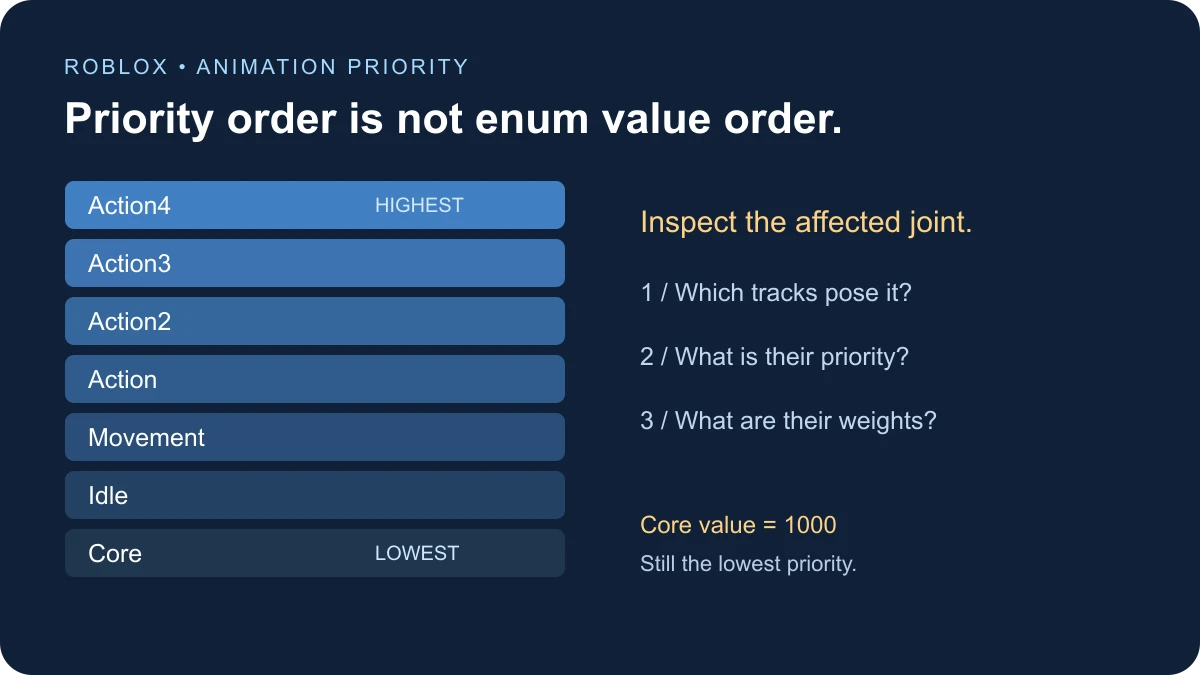
Roblox animation priority order
| Priority | Typical role | Enum value |
|---|---|---|
| Action4 | Highest action override | 5 |
| Action3 | Above Action2 | 4 |
| Action2 | Above Action | 3 |
| Action | Actions over locomotion | 2 |
| Movement | Locomotion | 1 |
| Idle | Idle motion | 0 |
| Core | Roblox default and catalog animations | 1000 |
The official enum reference places Core last. Its numeric value of 1000 does not make it stronger than Action4. When writing a diagnostic sorter, use an explicit ranking rather than sorting the Value property.
Check joint overlap before declaring a winner
For each joint, Roblox evaluates overlapping tracks from higher to lower priority until the accumulated weight reaches one. Tracks at the same priority blend according to their weights. The practical question is therefore which tracks influence the joint you are watching, not simply which track exists at the highest priority.
For example, plan a greeting that poses the arm while a locomotion clip poses the legs. An unexpected frozen lower body is a reason to inspect the greeting’s keyed joints. Increasing its priority again will not remove unintended leg poses from the asset.
Inspect the tracks that are actually running
Use this small diagnostic in a spare test place. Put a LocalScript under StarterPlayer → StarterCharacterScripts. It waits for the character’s existing Humanoid and Animator, then prints one snapshot after five seconds. During that window, move the character or trigger the action you want to inspect.
The inspector does not load an asset, stop a track, change priority, or create an Animator. It reports the local character only. It has been reviewed against the API documentation but has not been executed in Studio for this guide. Verify the printed result in your own play test.
-- LocalScript in StarterPlayer > StarterCharacterScripts.
-- Read-only snapshot after a short observation window.
-- Documentation-reviewed; not executed in Studio for this guide.
local character = script.Parent
local humanoid = character:WaitForChild("Humanoid", 10)
if not humanoid then
    warn("No Humanoid found for priority inspection")
    return
end
local animator = humanoid:WaitForChild("Animator", 10)
if not animator or not animator:IsA("Animator") then
    warn("No existing Animator found; this inspector does not create one")
    return
end

-- Explicit ranking: Enum values are not priority order.
local rank = {
    [Enum.AnimationPriority.Action4] = 7,
    [Enum.AnimationPriority.Action3] = 6,
    [Enum.AnimationPriority.Action2] = 5,
    [Enum.AnimationPriority.Action] = 4,
    [Enum.AnimationPriority.Movement] = 3,
    [Enum.AnimationPriority.Idle] = 2,
    [Enum.AnimationPriority.Core] = 1,
}

task.wait(5) -- Move or trigger the action you want to inspect during this window.
local tracks = animator:GetPlayingAnimationTracks()
table.sort(tracks, function(a, b)
    return (rank[a.Priority] or 0) > (rank[b.Priority] or 0)
end)
print("Playing-track snapshot:", #tracks)
for _, track in ipairs(tracks) do
    local animation = track.Animation
    print(
        animation and animation.AnimationId or "(no Animation reference)",
        track.Priority.Name,
        "playing:", track.IsPlaying,
        "weight:", track.WeightCurrent,
        "target:", track.WeightTarget
    )
end
The Animator reference notes that this list includes fading-out tracks even when IsPlaying is false. Read the weight columns alongside that flag.
A one-time snapshot is deliberately limited. A short action may finish before it is captured; adjust the observation timing to your test. No rows means no tracks were returned at that instant, not that the character can never animate. A track’s presence also does not prove that it poses the joint you care about.
Read priority and weight together
The AnimationTrack API exposes Priority, WeightCurrent, and WeightTarget. AdjustWeight changes the target, with a fade interval controlling the transition. Inspect the current weight when diagnosing what is visible during a fade.
As a same-priority thought experiment, compare two clips that pose the same joint. With current weights of 0.25 and 0.75, their relative contributions are one to three. With weights of one and one, they have equal relative contributions. These are blending examples, not a promise that rotations can be understood by averaging displayed Euler angles.
A track can be playing while its visible influence is small or zero. Conversely, a fading track can still influence the pose during its transition. Avoid treating a boolean playback flag as a complete explanation of what the player sees.
Set the playback track you intend to control
After loading a track through Animator:LoadAnimation, set its Priority deliberately before starting the action. For a developer-controlled action that should sit above locomotion, the assignment is:
track.Priority = Enum.AnimationPriority.ActionThis line assumes you already have the intended track. It is not a complete animation loader. Follow the AnimationTrack loading and playback guide for a full NPC example with an asset placeholder and repeated-trigger policy.
If the playback script keeps loading another copy, editing an older track will not necessarily affect the new one. Record where LoadAnimation is called and which returned handle is later played. Use Find All in Studio to locate duplicate playback code.
Run a controlled comparison
- Choose one actor and a rig-compatible idle or movement clip that works by itself.
- Choose one short action clip and note exactly which joints you intended it to pose.
- Play each alone before testing overlap. A clip that fails alone needs a loading, access, or rig investigation first.
- Run both and capture their priorities and weights during the visible conflict.
- Change one variable: priority, weight, fade time, or the action’s keyed joints.
- Repeat the same motion and compare the affected joint, rather than relying on a vague impression that the character looks better.
Keep the default animation system present for the first realistic overlap test. Removing it can hide the interaction you are trying to understand. In a separate isolated rig test, clearly record which competing tracks you removed so you can reproduce the result later.
Why Action4 does not fix every problem
- The clip does not load: priority does not establish asset permission or correct an invalid asset ID.
- The rig is incompatible: compare the animation’s intended joints with the actor before adjusting playback order.
- The wrong limbs stop moving: inspect poses authored into the action and the joint overlap.
- Two actions still mix: check whether they share priority and examine current weights.
- A restart changes the result: find the code that creates and configures the new track.
- Only one player sees it: investigate Animator creation and playback context separately from pose priority.
Animation priority is a presentation control. It does not by itself grant invulnerability, authorize a hit, disable movement, or define when a server-side action is valid. Connect those gameplay rules to an explicit state system and use the animation as feedback.
Choose a priority policy for your project
Write down which actions may interrupt which other actions. A readable policy such as “greeting yields to combat, combat yields to a scripted stun” is easier to maintain than assigning the highest tier to every new clip. Map that policy to the available priorities, then test the transitions with your actual assets.
If you need to change what a clip poses, return to the Animation Editor workflow. If you need to change which playback instance runs, work on the loader and action state. Keeping those tasks separate makes priority bugs much easier to reproduce.
To replace default locomotion slots rather than inspect track competition, follow the custom walking animation guide.
Documentation reviewed November 17, 2026.