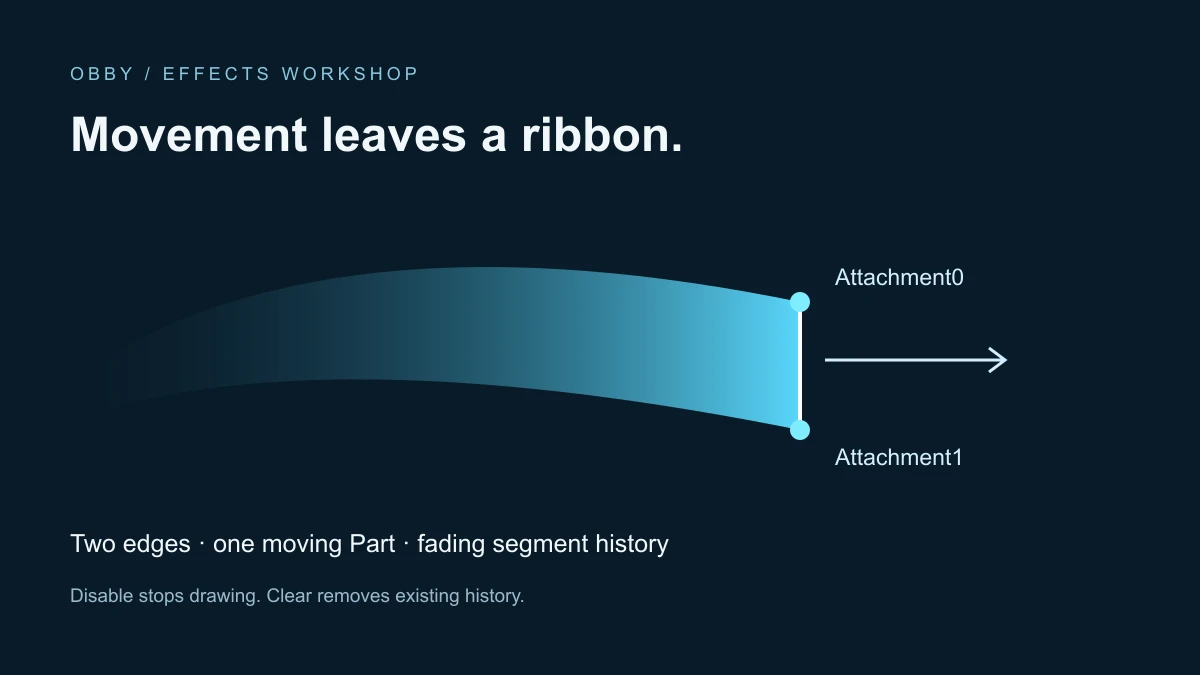
A Roblox Trail draws a ribbon behind two moving Attachments. Start with an untextured effect on one anchored Part so you can isolate attachment spacing, movement, and cleanup before adding a sword, vehicle, or character.
Build the smallest useful trail
Insert two Attachments and a Trail into a Part. Assign different attachments to Attachment0 and Attachment1, separate their positions, and move the Part. The official trails guide explains this setup. A still Part is a poor first test because the effect depends on movement.
For the exercise below, the attachments sit one stud above and below the Part’s center. Their separation provides a two-stud starting width. The Part moves horizontally so that width is easy to compare against its direction of travel.
Run a two-pass comparison
In a spare place, add a regular Script to ServerScriptService and paste the example. Start Play and watch the object at height six near the origin. It creates its own TrailPractice folder and leaves your existing objects alone. This example has been checked against documentation, but has not been executed in Studio for this guide.
The first pass stops drawing and gives the ribbon time to disappear. The second stops drawing and clears its history immediately. The initial delay gives you time to look toward the practice area; it does not establish that every client has loaded the objects.
-- Proposed Studio exercise: regular Script in ServerScriptService.
-- Documentation-reviewed; not executed in Roblox Studio.
local TweenService = game:GetService("TweenService")
local folder = Instance.new("Folder")
folder.Name = "TrailPractice"
folder.Parent = workspace

local mover = Instance.new("Part")
mover.Name = "TrailMover"
mover.Size = Vector3.new(1, 1, 1)
mover.Anchored = true
mover.CanCollide = false
mover.Position = Vector3.new(-12, 6, 0)
mover.Parent = folder

local upper = Instance.new("Attachment")
upper.Name = "UpperEdge"
upper.Position = Vector3.new(0, 1, 0)
upper.Parent = mover
local lower = Instance.new("Attachment")
lower.Name = "LowerEdge"
lower.Position = Vector3.new(0, -1, 0)
lower.Parent = mover

local trail = Instance.new("Trail")
trail.Enabled = false
trail.Attachment0 = upper
trail.Attachment1 = lower
trail.Lifetime = 1
trail.MinLength = 0.05
trail.FaceCamera = true
trail.Color = ColorSequence.new(Color3.fromRGB(100, 210, 255))
trail.Transparency = NumberSequence.new(0, 1)
trail.WidthScale = NumberSequence.new(1, 0)
trail.Parent = mover

local function moveTo(position)
    local tween = TweenService:Create(mover,
        TweenInfo.new(2, Enum.EasingStyle.Linear), { Position = position })
    tween:Play()
    tween.Completed:Wait()
end

task.wait(2) -- Observation delay, not a client-readiness guarantee.
trail.Enabled = true
print("Pass 1: draw, then let the trail age")
moveTo(Vector3.new(12, 6, 0))
trail.Enabled = false
task.wait(1.2)

-- Reposition with drawing disabled and remove any retained history.
mover.Position = Vector3.new(-12, 6, 0)
trail:Clear()
task.wait(1)
trail.Enabled = true
print("Pass 2: draw, then clear immediately")
moveTo(Vector3.new(12, 6, 0))
trail.Enabled = false
trail:Clear()
print("Practice finished; remove the TrailPractice folder to clean up")
Check each pass separately
| Phase | Setup | Expected observation |
|---|---|---|
| First movement | Enabled, moving Part | A ribbon follows the attachment pair |
| First stop | Disabled, wait longer than Lifetime | Existing history ages away |
| Second stop | Disabled, then Clear | Existing history is removed immediately |
Use the Output messages to identify the phase, rather than judging both passes from memory. If you miss one, restart the playtest. Remove the practice folder after testing, or stop Play to discard the runtime objects.
Separate width, age, and distance
Attachment spacing sets the reference width; WidthScale multiplies it over a segment’s life. In this example the scale falls from one to zero, while transparency rises from opaque to clear. These are age curves, not a schedule for the Script itself.
Lifetime controls segment age in seconds. At a steady speed, a longer lifetime generally leaves more visible history; it does not make the Part travel faster. MinLength controls how much the attachments must move before a new segment is created. Avoid adjusting every property together: first compare widths, then age, then sampling distance.
The Trail API reference documents that disabling stops new segments while existing ones expire. Clear removes existing segments and does not disable future drawing. Changing a Trail’s Lifetime also affects existing segments. Do not assume the same lifetime behavior as a ParticleEmitter.
Add texture only after the ribbon works
This exercise needs no image asset. With no texture assigned, the Trail displays a colored plane. Once the movement is readable, try a texture you own or have permission to use. Record its asset ID and keep an untextured version for comparison.
Inspect the result from the player’s likely camera angles and at different graphics quality levels. FaceCamera is enabled here to make the practice ribbon easier to see; evaluate that choice separately for the intended effect.
Fix an invisible or unwanted trail
- Nothing appears: verify both attachment references, distinct positions, Enabled, and actual movement.
- The ribbon looks too thin: inspect attachment spacing and WidthScale.
- It disappears from one angle: compare FaceCamera and the viewing direction.
- History returns after Clear: stop drawing with Enabled=false before clearing if the effect should remain off.
- A long jump crosses the scene: disable drawing before repositioning and clear old history before restarting.
For a sword prototype, keep this visual test separate from hit detection. A visible ribbon does not establish which target was hit or authorize damage. Use the raycasting guide for a separate query workflow, and the dust particles guide when you need emitted particles instead of a continuous movement ribbon. Documentation reviewed November 17, 2026.