A Roblox CFrame stores a position and an orientation. Use it when an object needs both a location and a facing direction, or when you want to place something relative to another object. Keep world-space coordinates, local offsets, points, and directions distinct; many confusing placement bugs come from mixing those meanings.
Start with position and rotation separately
Roblox’s CFrames guide introduces positioning, rotation, facing a point, and offsets. CFrame.new with three numbers creates a frame at an X, Y, Z position. CFrame.Angles creates a rotation using radians, so convert a degree value with math.rad when that is how you want to specify it.
Give the two ingredients separate names while learning: a position frame and a rotation frame. Then combine them deliberately. Record the position and the intended facing direction before testing, so an unexpected result has something concrete to compare against.
Inspect a local point in a rotated frame
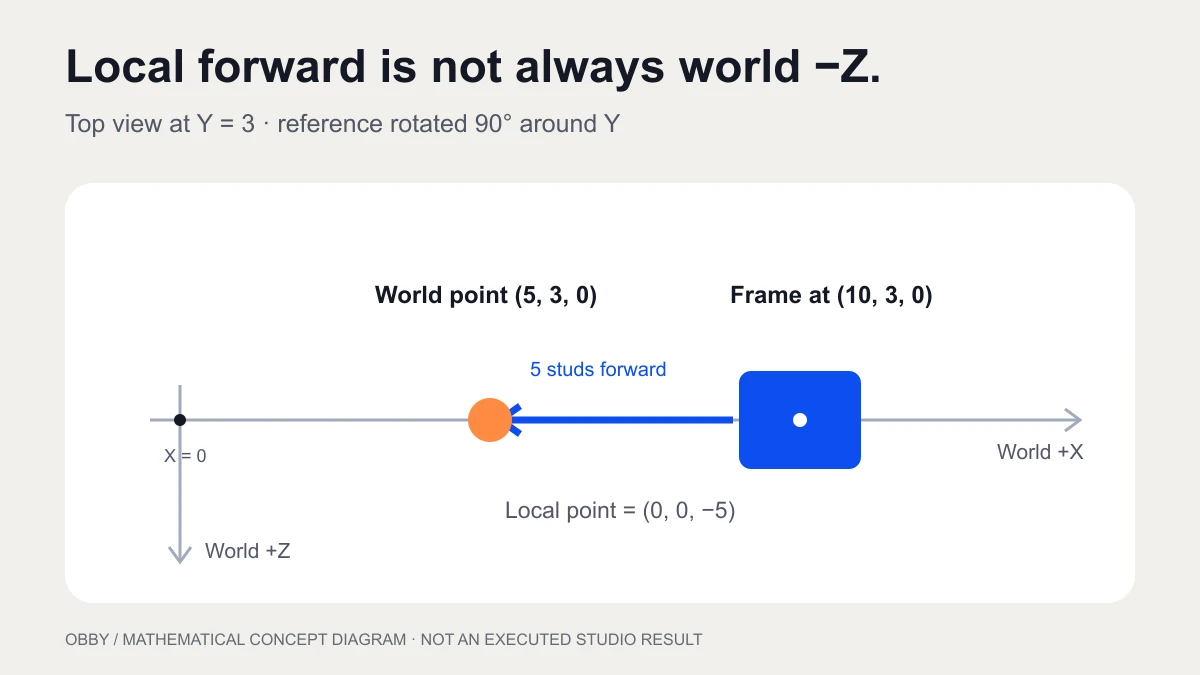
Insert a regular Script in ServerScriptService in a practice place. This exercise creates a blue reference Part and an orange marker. Both are anchored and non-collidable so you can inspect the geometry without adding a physics interaction.
local frame = CFrame.new(10, 3, 0)
    * CFrame.Angles(0, math.rad(90), 0)

local framePart = Instance.new("Part")
framePart.Name = "CoordinateFrameDemo"
framePart.Size = Vector3.new(2, 2, 4)
framePart.Anchored = true
framePart.CanCollide = false
framePart.Color = Color3.fromRGB(13, 78, 241)
framePart.CFrame = frame
framePart.Parent = workspace

local localPoint = Vector3.new(0, 0, -5)
local worldPoint = frame:PointToWorldSpace(localPoint)

local marker = Instance.new("Part")
marker.Name = "LocalPointMarker"
marker.Shape = Enum.PartType.Ball
marker.Size = Vector3.new(1, 1, 1)
marker.Anchored = true
marker.CanCollide = false
marker.Color = Color3.fromRGB(255, 139, 67)
marker.Position = worldPoint
marker.Parent = workspace

print("World point:", worldPoint)
print("Local round trip:", frame:PointToObjectSpace(worldPoint))
print("World displacement:", frame:VectorToWorldSpace(localPoint))
For this setup, the mathematical expectation for worldPoint is approximately (5, 3, 0): the local forward offset is five studs along negative local Z, and the frame has a 90-degree Y rotation. Small floating-point differences around zero are normal in a numerical result. The round trip should return approximately the original local point, (0, 0, -5).
First try the same exercise with the rotation removed. Then restore the rotation and compare the marker’s placement. Keep the position and local offset fixed so the experiment isolates the frame’s orientation.
Choose a point method or a vector method
The CFrame API reference provides separate methods for points, vectors, and complete coordinate frames. A point represents a location. A direction or displacement should not gain the frame’s position as part of its conversion.
| Task | Method | Input meaning |
|---|---|---|
| Place a local point in the world | PointToWorldSpace | Vector3 location relative to the frame |
| Express a world point locally | PointToObjectSpace | Vector3 world location |
| Rotate a local direction into world space | VectorToWorldSpace | Vector3 direction or displacement |
| Convert a full local transform | ToWorldSpace | CFrame with position and orientation |
Compare the two printed world results in the exercise. PointToWorldSpace includes the frame’s location. VectorToWorldSpace transforms the displacement without adding that location. Write “point” or “direction” beside a variable when its intended meaning is easy to lose in a larger script.
Keep composition order intentional
The BasePart reference includes CFrame composition examples. Multiplying two CFrames is ordered: swapping their order can change both the position and orientation you obtain.
Read a frame multiplied by a local offset as placing that offset relative to the frame. Try one visibly rotated reference object before applying the same expression across a whole course. A formula that seems correct when everything faces the world axes can reveal its wrong assumption only after rotation.
Face a point with lookAt
For a facing operation, give CFrame.lookAt a world origin and a world target point. LookVector represents the frame’s forward direction, corresponding to negative local Z. It is a direction, not another world-space destination.
Add the following continuation beneath the first exercise in the same Script. It moves the orange marker eight studs along world positive Z from the reference Part, then faces the Part toward it.
local origin = framePart.Position
local target = origin + Vector3.new(0, 0, 8)

if (target - origin).Magnitude > 0.000001 then
    marker.Position = target
    framePart.CFrame = CFrame.lookAt(origin, target)
    print("Facing direction:", framePart.CFrame.LookVector)
end
The chosen target differs from the origin. For a target supplied by gameplay, check that difference before asking for a facing direction. Begin with an easy horizontal target and inspect the result before testing vertical or unusual orientations.
Apply the transform to the intended instance
A Part has a CFrame property. A Model uses a pivot workflow when you want its pieces to move together. The Model tween guide demonstrates GetPivot and PivotTo with a separate CFrame driver.
A CFrame expression gives you a transform; an assignment applies it. A smooth transition needs its own animation controller. Use the TweenService guide for a finite Part exercise and the TweenInfo generator for configuration settings.
To query along a finite world-space segment, try the raycasting practice scene. A local direction must be converted deliberately before you use it as a world displacement.
Debug one coordinate assumption at a time
- Print the origin, input value, and resulting world point.
- Check whether each input is a point, direction, or full CFrame.
- Confirm radians versus degrees for the rotation constructor.
- Compare the same offset before and after rotating the reference.
- Check composition order and the instance receiving the result.
- Use a round-trip point conversion as a small diagnostic.
For repeated obstacle placement, use a short static course from the obby prototype briefs and make the coordinate rule visible before adding timing or shared player state. The code above was reviewed against current documentation but has not been executed here inside Studio. For zero vectors, displacement, and guarded direction calculations, see the Vector3 guide. Use the interactive CFrame space converter to compare point and vector transformations, inspect the reference axes, and export a numerical exercise. Documentation checked November 8, 2026.