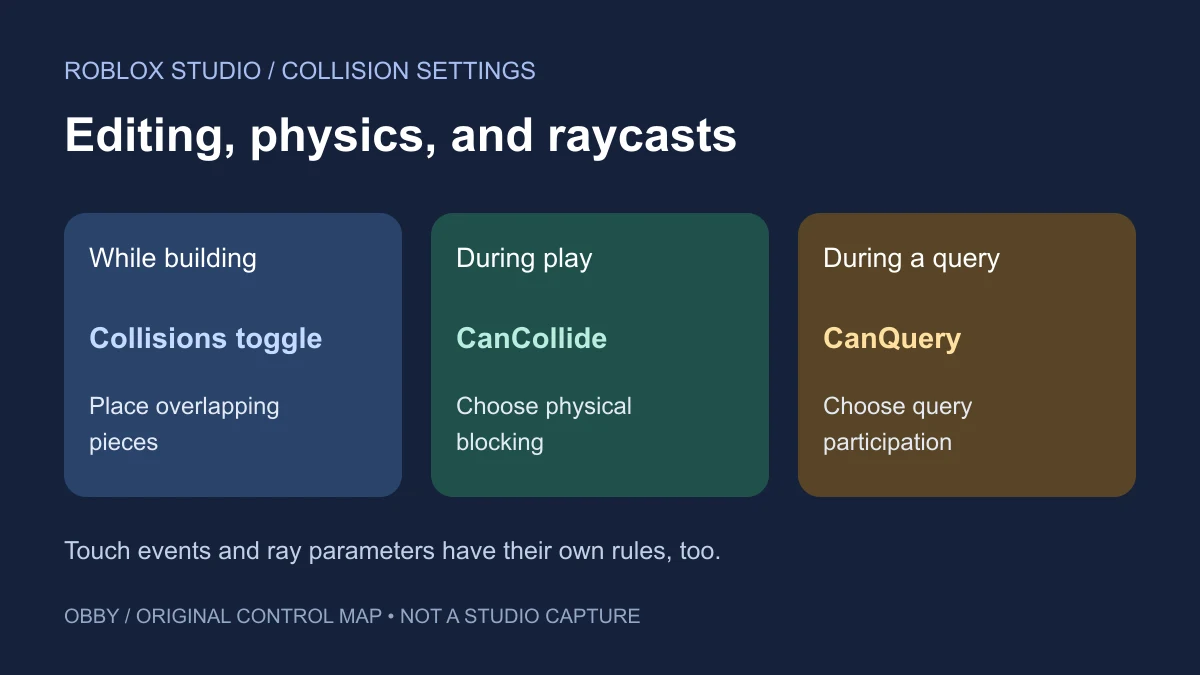
To let objects overlap while you position them in Roblox Studio, disable Collisions in the Studio toolbar. To let objects pass through a Part during play, select that Part and turn CanCollide off in Properties. These controls answer different questions: how you place a build, and how its Parts behave when the game runs.
Turn off placement collisions while building
The current modular-environment tutorial tells builders to disable Collisions in the toolbar when preparing snapping behavior. Use that editing control when overlapping or assembling pieces is the immediate task.
Select the piece you want to position, use the toolbar’s Collisions setting, and then move the piece into the intended overlap. Toolbar layouts can vary, so follow the current labeled control rather than assuming an older tutorial’s exact tab arrangement.
After positioning the build, check its runtime properties separately. Being able to place two objects together is not a test of whether a character can pass through them during play.
Turn off a Part’s physical blocking during play
- Select the actual Part or other BasePart in Explorer, including the relevant child if it belongs to a Model.
- In Properties, locate CanCollide and disable it for the selected Part.
- Keep Anchored configured for the object’s intended lifetime and movement.
- Start a play test and inspect the intended contact in the runtime scene.
The Parts guide separates Anchored, CanCollide, and Transparency. A transparent wall can still block movement. An anchored wall can still be made walk-through. An unanchored, non-collidable object can fall, so treat anchoring and blocking as independent choices.
If a Model contains several Parts, changing one child does not establish that every other child has the same settings. Inspect the object actually blocking the route before changing unrelated pieces.
Separate blocking, touch events, and spatial queries
| Setting | Question | Important distinction |
|---|---|---|
| CanCollide | Should this Part physically block other Parts? | Disabling blocking can still leave touch events and queries enabled |
| CanTouch | Can this Part participate in touch events? | Both touching Parts must allow touch events |
| CanQuery | Should this Part be considered by spatial queries? | Disable CanCollide for CanQuery=false to take effect |
| RaycastParams.RespectCanCollide | Should this ray use CanCollide in preference to CanQuery? | The query’s configuration changes what its result means |
The BasePart reference documents the three Part flags. The RaycastParams reference defines RespectCanCollide. Check both the candidate Part and the query parameters when a walk-through object still appears in a raycast.
Create a three-wall practice scene
Use a new practice place with default collision-group rules. Put this complete code in a regular Script in ServerScriptService and open Output. It creates three anchored walls near the origin and filters its rays to the practice folder. It does not change the rest of your map or award player progress.
local folder = Instance.new("Folder")
folder.Name = "CollisionSettingsPractice"
folder.Parent = workspace

local specs = {
    {name = "SolidWall", x = -8, collide = true, touch = true, query = true},
    {name = "WalkThroughWall", x = 0, collide = false, touch = true, query = true},
    {name = "QueryIgnoredWall", x = 8, collide = false, touch = false, query = false},
}
local colors = {
    Color3.fromRGB(80, 135, 255),
    Color3.fromRGB(75, 200, 165),
    Color3.fromRGB(240, 180, 85),
}

for index, spec in ipairs(specs) do
    local part = Instance.new("Part")
    part.Name = spec.name
    part.Size = Vector3.new(6, 6, 1)
    part.Position = Vector3.new(spec.x, 4, 0)
    part.Anchored = true
    part.CanCollide = spec.collide
    part.CanTouch = spec.touch
    part.CanQuery = spec.query
    part.CollisionGroup = "Default"
    part.Transparency = 0.25
    part.Color = colors[index]
    part.Parent = folder

    local params = RaycastParams.new()
    params.IncludeInstances = {folder}
    params.CollisionGroup = "Default"
    params.RespectCanCollide = false
    local origin = part.Position + Vector3.new(0, 0, -8)
    local direction = Vector3.new(0, 0, 16)
    local queryHit = workspace:Raycast(origin, direction, params)
    params.RespectCanCollide = true
    local collideHit = workspace:Raycast(origin, direction, params)
    print(part.Name, "query hit:", queryHit ~= nil,
        "respect-collision hit:", collideHit ~= nil)

    if part.CanTouch then
        local reported = false
        part.Touched:Connect(function(otherPart)
            if reported then
                return
            end
            reported = true
            print(part.Name, "first physical touch:", otherPart.Name)
        end)
    end
end
The two query results for each wall are predicted below. These values have been checked against the current documentation, but this example has not been executed here in Roblox Studio.
| Wall | RespectCanCollide=false | RespectCanCollide=true |
|---|---|---|
| SolidWall | true | true |
| WalkThroughWall | true | false |
| QueryIgnoredWall | false | false |
Each ray runs along Z through its wall’s center. The walls are separated along X, and the IncludeInstances filter restricts the candidates to their folder. The test therefore avoids using an unrelated object elsewhere in the place as its intended result.
Read the touch observations separately
The code connects Touched only on walls whose CanTouch is true. It reports only the first physical contact observed on each connected wall. That small guard keeps repeated contacts from flooding the practice output; it is not a reward or player cooldown system.
During a play test, approach the walls and inspect the output alongside their properties. Touch observations depend on physical contact, both Parts’ CanTouch settings, and applicable collision-group behavior. Do not treat a missing touch message as proof that a raycast or blocking flag has the same meaning.
The reference also states that connecting a touch event while CanTouch is false throws an error. Configure that property before connecting the event, as the exercise does, and inspect later code that changes it when debugging a controller.
Use collision groups for selective physical rules
When the desired rule is “players pass through players but still stand on the map,” a category-based collision rule is a different task from making an individual decoration non-collidable. Use the collision-groups guide for that workflow.
Group rules can also affect spatial queries, and touch behavior can be configured to respect groups. The practice scene explicitly uses Default and asks for an unmodified test place so those additional rules do not become an invisible part of the example.
Debug the setting that matches the symptom
- A piece will not overlap during editing: inspect the toolbar placement control and transform/snapping settings.
- A character is blocked during play: inspect the contacted BasePart, CanCollide, and the relevant group rule.
- A walk-through wall is still hit by a ray: inspect CanQuery, RespectCanCollide, and the query filters.
- A touch event does not report: inspect both Parts, contact conditions, CanTouch, and applicable group behavior.
- An invisible wall still blocks: separate visibility from the physical blocking property.
For a complete spatial-query exercise, continue with Roblox raycasting. For limiting repeated accepted events, use the debounce and cooldown guide. For comparing object and world coordinates before casting, try the CFrame space converter. Documentation checked November 9, 2026.