To open your Roblox account inventory in a browser, open Roblox's menu and choose Inventory, then select an item category. If you mean tools inside a game, use that experience's tool icons or its own inventory menu instead. Your account's owned assets and a game's backpack are different collections.
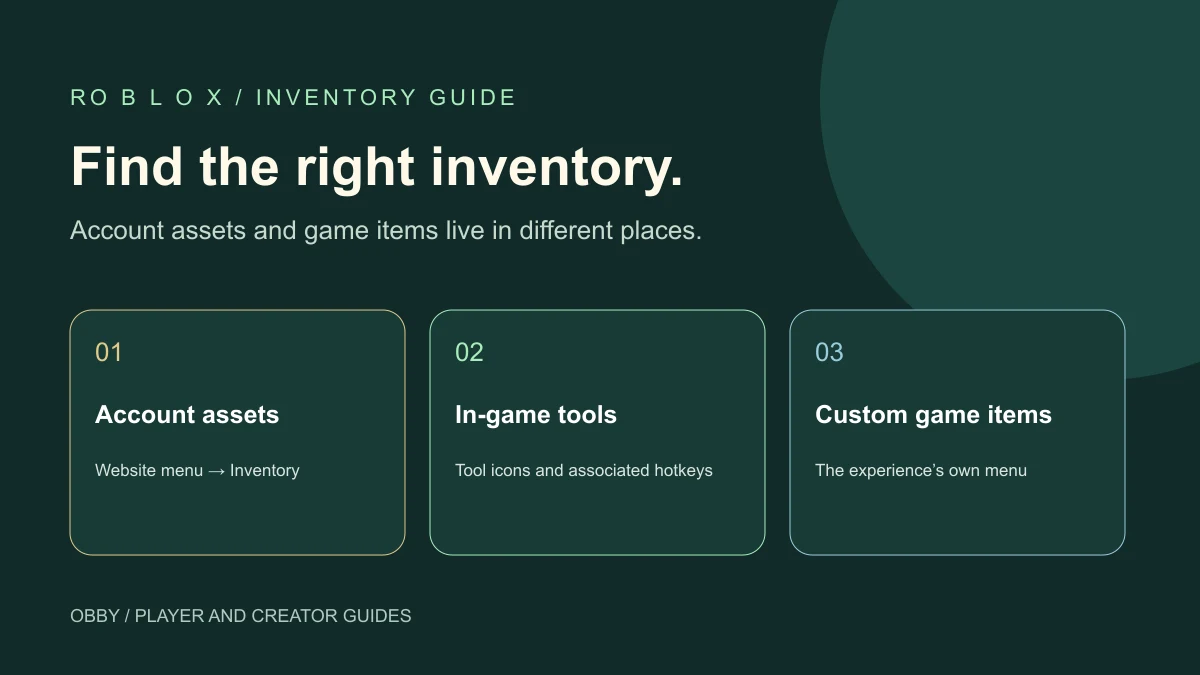
Which Roblox inventory are you trying to open?
| You want to find | Start here | What to expect |
|---|---|---|
| An owned account asset | Roblox website menu → Inventory | Categories and item detail pages |
| A tool supplied by an experience | That game's tool icons or hotkeys | An item you can equip during play |
| A game's pets, materials, or quest items | The game's own inventory button | Creator-defined categories and controls |
A sword shown in a game's shop is not automatically an account-owned avatar item. Likewise, owning an avatar accessory does not mean every experience will add it to a tool slot. Use the context in which you acquired the item to choose your starting point.
Open your account inventory in a web browser
- Open the Roblox website and confirm you are using the intended account.
- Open the menu at the upper left and choose Inventory.
- Select the appropriate category and, where offered, subcategory.
- Browse the available pages using the navigation arrows.
- Select an item image to open its details.
Roblox's official browser inventory instructions describe an owned-item indicator on the item's page. Compare the item's identity and category rather than relying only on a familiar thumbnail. Similar images can refer to different assets.
This is the website inventory route. It is useful when you are looking for an account item rather than trying to use something in an active game. You do not need to join a particular experience to browse this collection.
Open or select tools inside a Roblox game
For experiences using the standard tool system, Roblox documents selecting a tool through its inventory icon or the associated numbered hotkey, such as 1 or 2. Start by selecting an icon you can actually see. A numbered shortcut selects the corresponding tool; it is not a universal command for every custom inventory screen.
Creators can build different interfaces. A game may show its own bag, equipment, items, or pets button instead of using the standard layout. Follow its visible labels and tutorial. If a guide names a key that does nothing, check whether it refers to this exact experience and your current input device.
Roblox's in-game tools guide explains the developer-side relationship between StarterPack and Backpack. That mechanism supplies tools for an experience; it does not describe your entire Roblox account inventory.
What about mobile inventory buttons?
First decide whether you are on the website or inside an experience. For account assets in a browser, use the website inventory route above. Inside a game, look for its visible tool icons or creator-provided inventory control. A phone-shaped button can belong to that game's own interface; its appearance alone does not establish a platform-wide inventory shortcut.
If a button is covered by another menu, close that menu and inspect the game's normal play screen again. If the game supplies control instructions, use the mobile version of those instructions. Avoid substituting a desktop hotkey for an on-screen control that the game does not expose.
This guide does not claim that every mobile experience has the same inventory button or layout. When asking for help, include the experience name, device, screen, and the specific item you are trying to find.
If the inventory opens but the item is missing
- Confirm the account. An item bought on another account will not be explained by changing categories on the current one.
- Check the collection. Account assets, in-game tools, and custom game items follow separate ownership rules.
- Check category and pagination. A first page or different subcategory is not a complete inventory search.
- Read the item or purchase description. Establish what was supplied before assuming that it should appear as an equippable tool.
- Record the exact item. Keep its item page or game-specific name when reporting a problem.
For a purchased account item, Roblox has a separate missing Robux-purchased item help page. For a game's custom reward, follow that creator's support route. Changing inventory privacy is not a substitute for finding the right collection.
Viewing inventory and changing privacy are separate actions
Opening your own inventory does not require making it public. If you want to change who can see it, use our inventory visibility guide, which distinguishes account inventory settings from badge and profile assumptions.
A private inventory is not a missing-button problem. This page does not offer a private-inventory bypass or require you to give a third-party viewer your account credentials. Use supported viewing permissions when looking at another account.
To add a custom panel and server-owned session items, continue with the inventory system example.
For creators: make inventory controls easy to understand
Label the collection a button opens. If your experience has both tools and a separate materials bag, give them distinct names and show the selected item clearly. Test the controls with touch and your intended desktop inputs instead of relying on a keyboard-only shortcut.
For your first standard Tool, follow the Tool creation and activation guide. Verify that the item appears, equips, activates, and unequips as separate steps. An inventory icon alone does not prove that its gameplay behavior works.
When starting an Obby project, describe which items players collect, how they open the inventory, and what selecting an item should do. Review those behaviors in Studio before publishing.
Official instructions reviewed November 21, 2026. No account item, visibility setting, or purchase was changed for this guide.