To make a day and night cycle in Roblox Studio, choose how many real seconds represent one full game day, then advance Lighting.ClockTime from shared timing data. This guide uses a ten-minute cycle, a starting hour of 06:00, and two small scripts: the server publishes the timing, and each client draws the visual clock.
Choose a cycle length before writing the loop
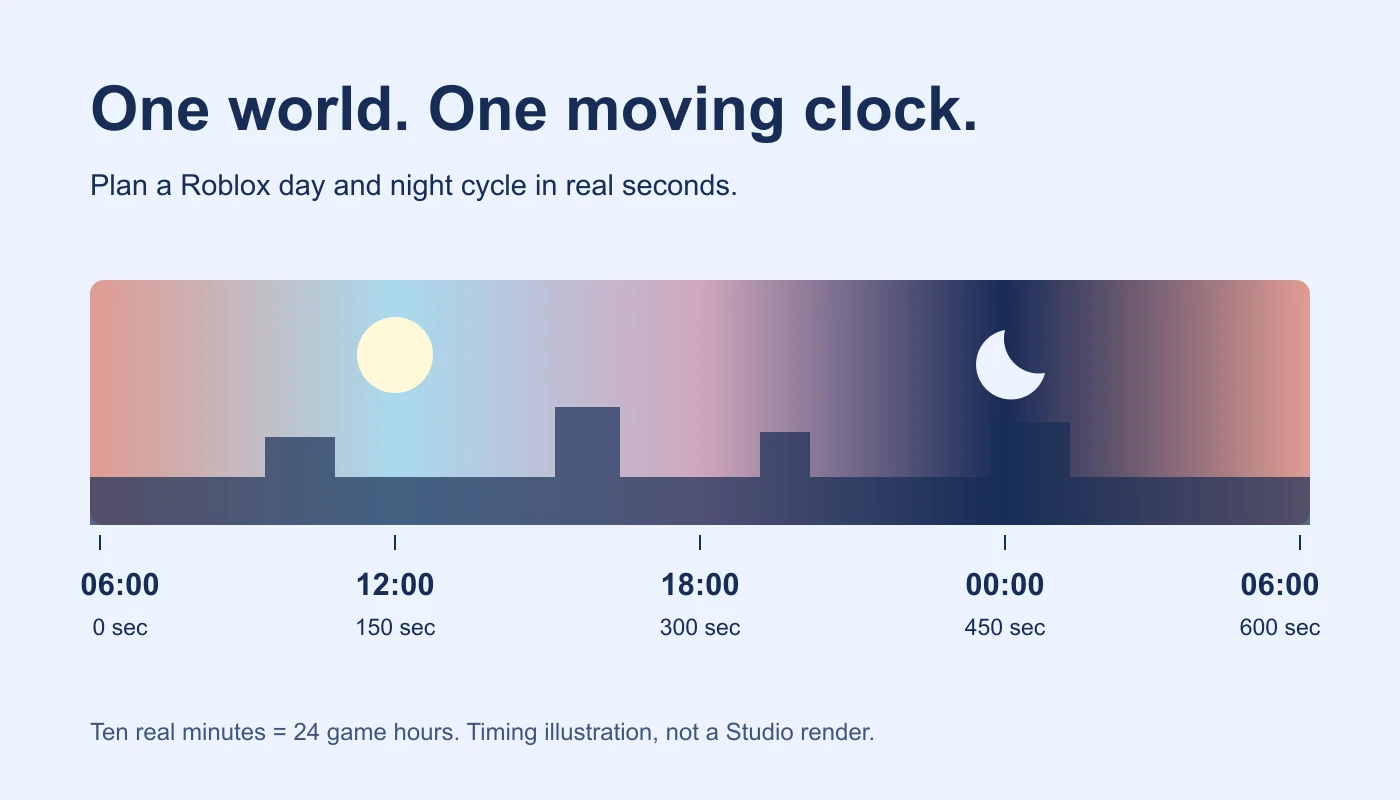
Use the calculator above to compare durations. A full cycle means all 24 game hours, including both day and night. With 600 real seconds per cycle, one game hour takes 25 real seconds. Starting at 06:00, the clock reaches 12:00 after 150 seconds, 18:00 after 300, and 00:00 after 450.
The example has uniform speed throughout the cycle. It does not give daytime and nighttime separate durations. Keep that simple model for the first test; otherwise a pacing change and a visual problem can look like the same bug.
Prepare a clean practice place
- Use a spare place or a saved copy. Record your original lighting values and active effects.
- Put a wall, doorway, colored object and local lamp in one small outdoor test area.
- Find existing scripts that write ClockTime, TimeOfDay or SetMinutesAfterMidnight. Test this exercise with one lighting controller.
- Create a regular Script in ServerScriptService, named PracticeCycleConfig.
- Under StarterPlayer → StarterPlayerScripts, create a LocalScript named PracticeCycleVisual. Keep the default camera and character control scripts.
These scripts are documentation-reviewed and checked with mocked services. They have not been executed in Roblox Studio for this tutorial. Replication, visible lighting and device behavior still need the playtest below.
Publish the timing from the server
Download the server timing script. Paste it into PracticeCycleConfig. The server creates a dedicated PracticeDayNight Folder in ReplicatedStorage. It records the cycle duration, starting hour, and the server-time timestamp at which the cycle begins.
The script stops if the Folder already exists. That guard makes a duplicate controller visible instead of silently replacing another configuration. In this spare setup, keep one server Script and one client LocalScript. Stop the playtest before changing their settings.
-- Regular Script in ServerScriptService. Use a spare practice place.
-- Documentation-reviewed; Roblox Studio execution is not yet verified.
local ReplicatedStorage = game:GetService("ReplicatedStorage")
local CYCLE_SECONDS = 600 -- Ten real minutes for one full 24-hour cycle.
local START_HOUR = 6
assert(CYCLE_SECONDS > 0 and CYCLE_SECONDS < math.huge, "Use a positive finite cycle duration")
assert(START_HOUR >= 0 and START_HOUR < 24, "Start hour must be from 0 up to, but not including, 24")
if ReplicatedStorage:FindFirstChild("PracticeDayNight") then
    warn("PracticeDayNight already exists; remove the duplicate controller in your practice place")
    return
end
local config = Instance.new("Folder")
config.Name = "PracticeDayNight"
config:SetAttribute("CycleSeconds", CYCLE_SECONDS)
config:SetAttribute("StartHour", START_HOUR)
config:SetAttribute("Epoch", workspace:GetServerTimeNow())
config.Parent = ReplicatedStorage
Calculate the visual clock on each client
Download the client lighting script. Paste it into PracticeCycleVisual. It waits up to ten seconds for the Folder, waits for usable numeric attributes by checking again on each frame, and then derives the current hour from elapsed server time.
The Lighting reference marks ClockTime as not replicated. This example therefore sets the visual property locally instead of relying on that property itself as the shared clock. ClockTime is an hour value; it does not advance automatically.
-- LocalScript in StarterPlayer > StarterPlayerScripts, named PracticeCycleVisual.
-- Requires the companion server Script. Visual time only, not gameplay authority.
local Lighting = game:GetService("Lighting")
local RunService = game:GetService("RunService")
local ReplicatedStorage = game:GetService("ReplicatedStorage")
local config = ReplicatedStorage:WaitForChild("PracticeDayNight", 10)
if not config then warn("PracticeDayNight missing; check the server Script and Output") return end
local warned = false
local function finite(value)
    return type(value) == "number" and value == value and math.abs(value) < math.huge
end
local function updateClock()
    local seconds = config:GetAttribute("CycleSeconds")
    local startHour = config:GetAttribute("StartHour")
    local epoch = config:GetAttribute("Epoch")
    if not finite(seconds) or seconds <= 0 or not finite(startHour)
        or startHour < 0 or startHour >= 24 or not finite(epoch) then
        if not warned then warn("Waiting for valid PracticeDayNight timing attributes") end
        warned = true
        return -- A child can arrive before all its attributes; try on the next frame.
    end
    warned = false
    local elapsed = math.max(0, workspace:GetServerTimeNow() - epoch)
    Lighting.ClockTime = (startHour + (elapsed % seconds) * 24 / seconds) % 24
end
updateClock()
RunService.Heartbeat:Connect(updateClock)
Workspace:GetServerTimeNow() supplies a client's approximation of server time. Clients can calculate roughly the same phase even when they join at different moments. This is approximate visual synchronization, not frame-perfect agreement.
Understand the formula and midnight rollover
The formula is (startHour + (elapsed % cycleSeconds) * 24 / cycleSeconds) % 24. First, the elapsed-time remainder identifies the position inside this cycle. Multiplying by 24 converts that fraction into game hours. The final remainder keeps the result in the 0–24 hour interval when the clock passes midnight.
For example, a late join at 300 elapsed seconds calculates 18:00 in the default setup. It does not start a fresh 06:00 cycle for that player. After 600 seconds the result returns to 06:00. A delayed frame recalculates from the timestamp rather than adding a fixed amount per frame, so frame count does not define cycle speed.
| Elapsed real time | Game clock | Check |
|---|---|---|
| 0 seconds | 06:00 | Starting phase |
| 150 seconds | 12:00 | Quarter cycle |
| 300 seconds | 18:00 | Half cycle |
| 450 seconds | 00:00 | Midnight rollover |
| 600 seconds | 06:00 | Complete cycle |
Test two clients and a late join
- Start a server-and-clients Studio test. Inspect server Output for duplicate or setup warnings.
- In each client context, inspect Lighting.ClockTime and the PracticeDayNight attributes. Confirm that the clock advances.
- Compare clients at the same moment. Record their approximate phase and any noticeable visual difference.
- Join an additional client after the cycle has advanced. Confirm it joins the existing phase instead of restarting at 06:00.
- Watch the midnight rollover and full-cycle return. Compare with the timing table.
- Walk through the doorway at the darkest-looking phase. Test the intended devices and quality settings before publishing.
The browser calculator tests the arithmetic, not this multiplayer workflow. A passing code check cannot replace checking both client views in Studio.
Change the speed without changing the art direction
Change CYCLE_SECONDS in the server Script: 300 gives a five-minute cycle; 1200 gives a twenty-minute cycle. START_HOUR accepts 0 through values below 24. Restart the playtest after editing. Changing calculator inputs does not edit the downloaded files or your place.
Keep the initial lighting style, exposure and sky fixed while evaluating timing. For scene appearance, use the realistic lighting workflow or retro lighting guide. Clock time alone does not determine whether a scene is bright, readable or convincing.
Troubleshoot a frozen or conflicting clock
- The Folder is missing: confirm the regular Script is in ServerScriptService and inspect server Output. The client warns after its ten-second wait.
- The attributes warning appears: inspect CycleSeconds, StartHour and Epoch. A missing attribute may arrive later; invalid values must be corrected in the server configuration.
- Nothing runs on the client: use a LocalScript inside StarterPlayerScripts, not a LocalScript left in ReplicatedStorage.
- The clock jumps backward or flickers: look for another controller writing time. Keep one owner of the visual clock.
- The clock moves but the scene stays bright: inspect ambient light, local sources, exposure and effects separately.
- Players disagree: compare their timing attributes and active controllers in a multi-client test. Do not treat the server Properties view as proof of what clients render.
Keep gameplay decisions on the server
The sample changes appearance only. Do not award rewards, open a valuable shop or decide enemy spawning from a player's local ClockTime. Build those decisions on the server and test them as a separate system. The shared timestamp helps draw a scene; it does not make a client trustworthy.
This exercise resets when a new server starts. It does not persist time, coordinate every server, switch lamps, change weather or provide unequal day/night lengths. If your game needs those features, define their rules before expanding the controller.
For an Obby project, describe the full cycle length, the start hour, which areas must remain readable, and whether the cycle is visual or controls server gameplay. Review the implementation and test the result in Studio. Documentation reviewed November 21, 2026.