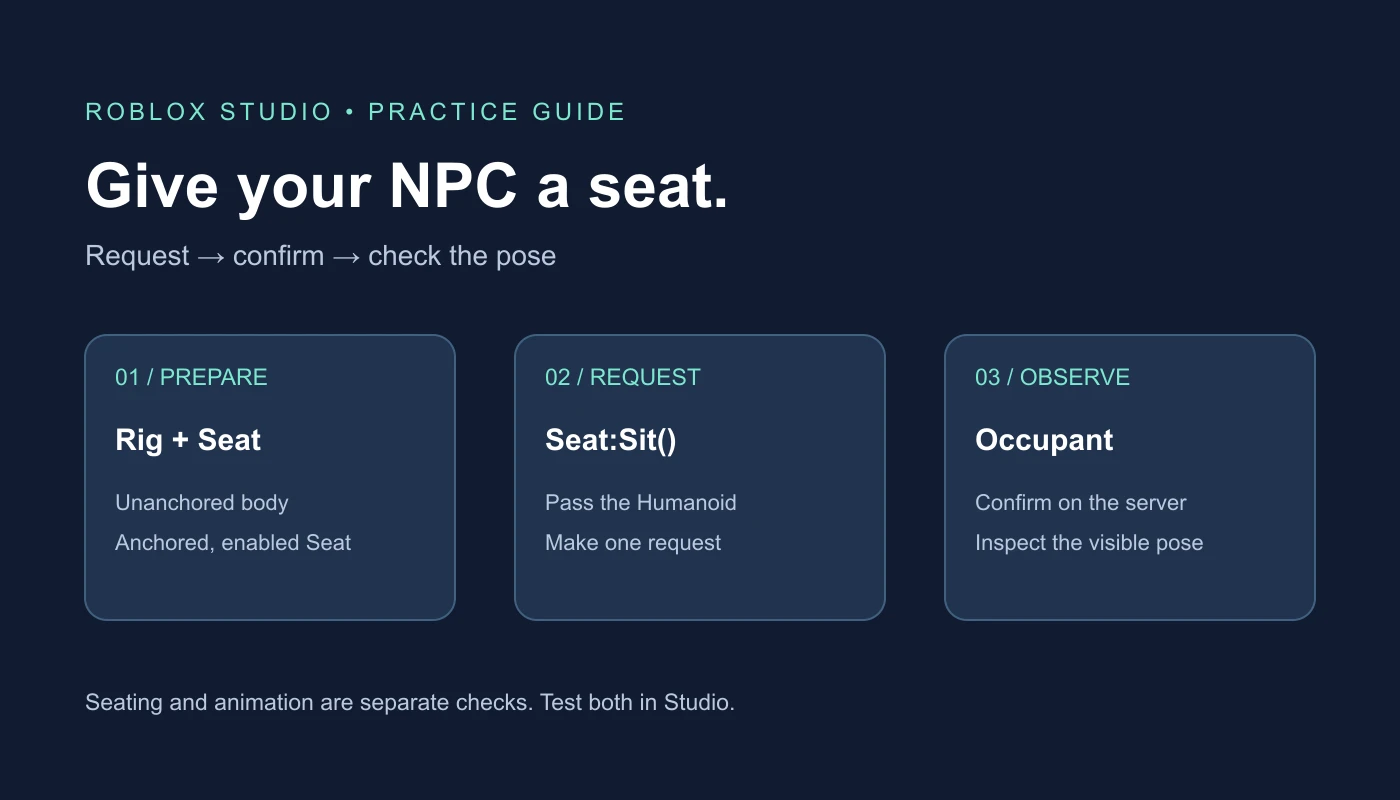
To make an NPC sit in a specific Roblox Studio seat, call seat:Sit(humanoid) from a server Script, passing the NPC's Humanoid. Then check that the Seat's Occupant is that Humanoid. A sitting-looking animation and a confirmed seat occupant are different observations.
Set up one NPC and one Seat
- Open a spare place with a supporting floor.
- Use the toolbar's Home or Avatar tab, choose Character, and insert a standard rig. Rename the Model PracticeNPC under Workspace.
- Keep its Humanoid, HumanoidRootPart, body parts, and joints together. For this exercise, make the rig's body parts unanchored.
- Insert an actual Seat under Workspace and name it PracticeSeat. Set Anchored to true and Disabled to false.
- Place the Seat in clear space near the rig, with enough room for its body and legs.
- Insert one regular Script in ServerScriptService and paste the full example below.
The current Rig Generator guide calls the toolbar control Character. If an older video shows a different menu, use the controls in your installed Studio and check the generated rig in Explorer rather than recreating a character from unrelated loose Parts.
A decorative chair Model or ordinary Part is not automatically a Seat. You can build a chair around a Seat later, after the smallest seating test works. Start with the functional object visible so its position is easy to inspect.
Copy the server seating script
The example checks its setup, leaves another occupant alone, requests seating once, and watches the server-side Occupant property. It does not continuously force the NPC back into the chair. Download the same seat-npc.lua file if you prefer to copy from a separate file.
The script passed syntax checks and 13 checks using mocked Roblox objects. It has not been executed in Studio for this guide; real seating physics, rig behavior, and animation remain playtest requirements.
-- Regular Script in ServerScriptService, in a spare practice place.
-- Create Workspace.PracticeNPC (rig) and Workspace.PracticeSeat (Seat) first.
-- Documentation-reviewed; not executed in Studio for this guide.
local rig = workspace:FindFirstChild("PracticeNPC")
local seat = workspace:FindFirstChild("PracticeSeat")
assert(rig and rig:IsA("Model"), "Add a rig Model named PracticeNPC under Workspace")
assert(seat and seat:IsA("Seat"), "Add a Seat named PracticeSeat under Workspace")
local humanoid = rig:FindFirstChildOfClass("Humanoid")
local root = rig:FindFirstChild("HumanoidRootPart")
assert(humanoid, "PracticeNPC needs its rig Humanoid")
assert(root and root:IsA("BasePart"), "PracticeNPC needs a BasePart named HumanoidRootPart")
if humanoid.Health <= 0 then warn("Use a living practice Humanoid") return end
if not seat.Anchored then warn("Anchor the practice Seat for this exercise") return end
if seat.Disabled then warn("PracticeSeat is disabled") return end
for _, part in ipairs(rig:GetDescendants()) do
    if part:IsA("BasePart") and part.Anchored then
        warn("Unanchor the practice rig's body parts before this test:", part.Name)
        return
    end
end
if seat.Occupant == humanoid then
    print("PracticeNPC is already the seat occupant")
    return
end
if seat.Occupant then warn("PracticeSeat already has another occupant") return end

local function reportOccupant()
    if seat.Occupant == humanoid then
        print("Confirmed on server: PracticeNPC is PracticeSeat's occupant")
    elseif seat.Occupant then
        warn("PracticeSeat now has a different occupant")
    else
        print("PracticeSeat has no occupant")
    end
end
seat:GetPropertyChangedSignal("Occupant"):Connect(reportOccupant)
seat:Sit(humanoid) -- Request seating. Do not assign the read-only Occupant property.
task.delay(1, function()
    if not seat.Parent or not humanoid.Parent then return end
    if seat.Occupant ~= humanoid then
        warn("Not confirmed after one second; inspect setup, physics, and Output")
    else
        reportOccupant()
    end
end)
Confirm the result on the server
Start a player playtest and inspect server Output. The expected confirmation names PracticeNPC as PracticeSeat's occupant. In the server Explorer and Properties context, compare the Seat's Occupant with the NPC's Humanoid. Do not compare it with the entire PracticeNPC Model.
The Seat reference documents Occupant as read-only and not replicated. This is why the example observes it from a server Script instead of assigning it or treating a client-side display as proof of the server's state.
Also inspect the NPC Humanoid's SeatPart and the visible scene. These help you distinguish the seat relationship from how the body appears. Record the actual values and pose you observe; an absence of script errors is not a completed seating test.
The one-second warning is a diagnostic snapshot, not a universal physics deadline. If confirmation is delayed or missing, inspect the rig, Seat, and Output before changing several settings. Do not turn the warning into an every-frame reseating loop.
Seat:Sit versus Humanoid.Sit
| Control or observation | What it tells you | Do not assume |
|---|---|---|
| Seat:Sit(humanoid) | A seating request aimed at this Seat | The function call alone proves success |
| Seat.Occupant | The Humanoid occupying the Seat in the context inspected | It should be assigned to the NPC Model |
| Humanoid.Sit | A boolean property, not the Seat's method | It is a function accepting a chair |
| Visible pose | How the rig currently looks | A sitting animation proves the seat relationship |
The Humanoid reference lists Sit and SeatPart separately from the Seat method. Use the Seat as the method receiver and pass the Humanoid from the intended rig.
If the NPC is seated but its pose looks wrong
First preserve the confirmed seat relationship while investigating appearance. Check the rig's joints and the animation setup that actually controls this NPC. A generated NPC rig is not a promise that your game's player animation controller is attached to it or playing the desired seated pose.
If you need a custom sitting animation, create and test a clip compatible with that rig through the animation workflow. Test the clip and its playback separately before combining it with the seat logic. Avoid solving an animation problem by rebuilding a working seat relationship or anchoring all body parts.
Troubleshoot the first failure
- The setup assertion fails: check the exact Workspace names and classes. The script expects a Model and a Seat as direct children.
- No Humanoid or root part: inspect the generated rig and its structure. Renaming a loose Part does not recreate missing joints or a functioning character.
- The rig is anchored: in your spare practice copy, unanchor its body parts while keeping the joints intact. The script reports the first anchored part it finds.
- The Seat is disabled: inspect Disabled. This exercise stops instead of silently changing your configuration.
- Another occupant is present: clear the practice setup deliberately. The example does not eject a player to place the NPC.
- A movement script keeps standing the NPC up: identify that controller and test in isolation. Competing movement and seating owners can undo each other.
- Reseating after standing is inconsistent: the Seat reference notes cooldown behavior can change. Test the current result rather than relying on a hard-coded timing promise.
Run a short acceptance checklist
- Test the clean rig and enabled, empty Seat.
- Record the server Occupant result and the visual pose independently.
- Repeat with Disabled enabled and confirm the script stops with its warning.
- Test with another occupant and confirm it is left alone.
- Restart with the clean setup, then compare the result after adding chair geometry.
- Only then connect an NPC interaction or movement controller, and retest its reset behavior.
This exercise does not create dialogue, pathfinding, rewards, or persistent NPC state. For an interaction prompt, see the ProximityPrompt guide. For a larger scene in Obby, describe which NPC should use which seat, how it gets up, and which system owns those transitions. Review and test the result in Studio before publishing.
Official documentation reviewed November 21, 2026.