To make a Roblox loading screen UI, put a LocalScript in ReplicatedFirst, build a ScreenGui for the local player, then remove the default screen after your replacement exists. The downloadable starter below checks a small list of selected image IDs, waits for initial game data, and includes both a skip button and a 20-second timeout.
Download the complete loading-screen LocalScript. It generates the interface with built-in UI objects. No plugin, image pack or external module is required. You supply any image IDs you want to preload; the default configuration selects none.
Keep the loading screen honest
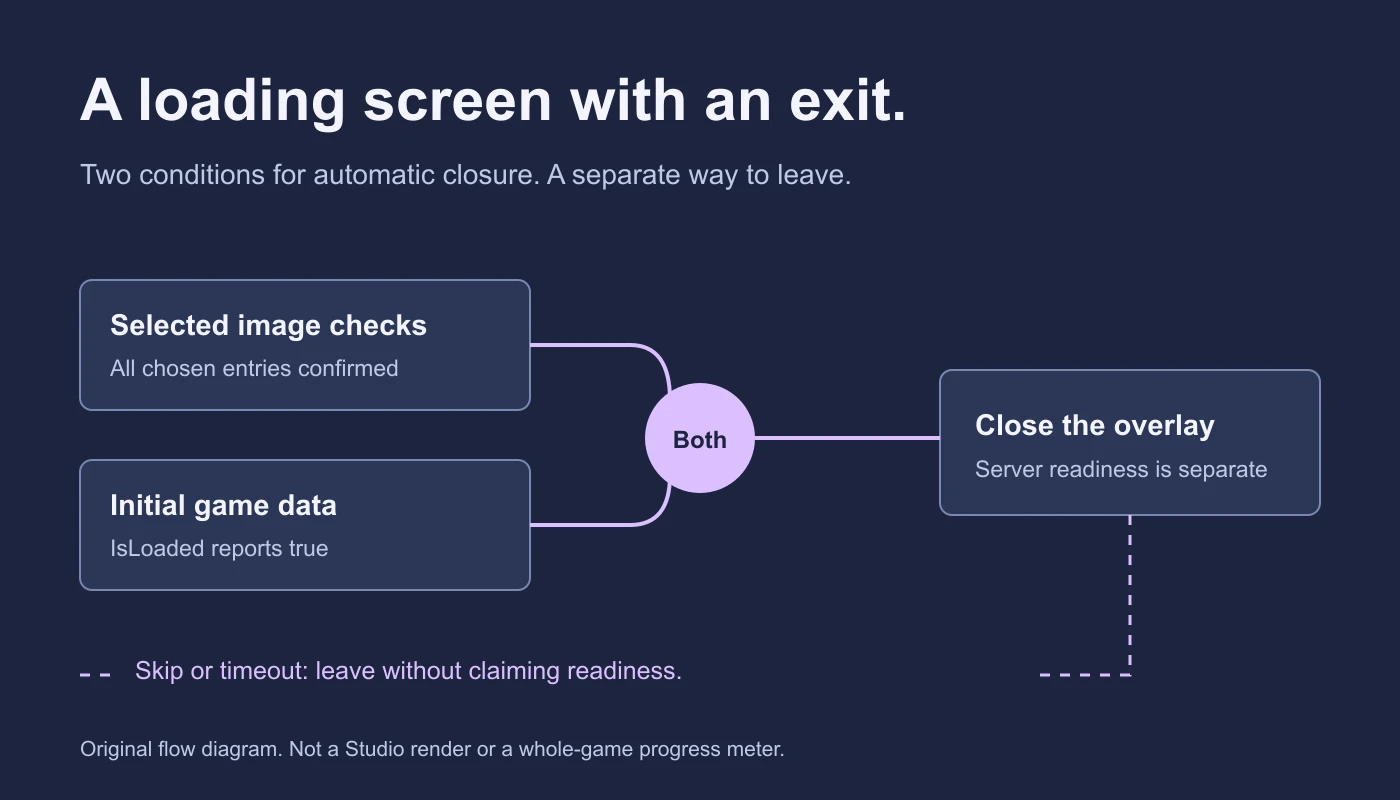
A screen can show three different things: whether a chosen image request finished, whether initial place data arrived, and whether your own game systems are ready. This starter handles the first two. It does not measure the whole world, terrain streaming, saved player data or server-owned round setup.
Its label says how many selected image IDs have been checked and how many remain unconfirmed. There is no simulated percentage that climbs with a timer. If you leave the optional image list empty and initial data is already loaded, the overlay can close immediately. That is expected behavior, not a reason to add an artificial delay.
Install the starter in a spare place
- Save a spare place or a copy of your project.
- In Explorer, find ReplicatedFirst and insert a LocalScript.
- Name it PracticeLoadingController and paste in the entire downloaded file.
- Keep one copy of this controller. Do not also run a second custom loader over it.
- Run a player playtest with the image list empty first.
- Inspect Output for the overlay's closure reason and any setup warnings.
Roblox's loading-screen guide uses ReplicatedFirst for an initial-join loading screen. Teleport loading screens are a separate workflow. The ReplicatedFirst reference also explains why early scripts must wait for required objects.
The starter waits up to ten seconds for PlayerGui. It then builds the replacement before calling RemoveDefaultLoadingScreen. Roblox can also remove its default automatically after objects are placed in ReplicatedFirst, so the custom screen should not depend on it remaining indefinitely.
Add only the images needed for the first scene
The optional configuration is a String attribute named ImageIds on the LocalScript. It is read once at startup. In the Script's Properties, add that attribute and enter your image content IDs, separated by commas. Each entry must use rbxassetid:// followed by a positive numeric asset ID.
- Choose an image the experience is allowed to use, such as an opening menu graphic.
- Find its actual content ID through your asset workflow.
- Put that full content ID in ImageIds. Add another with a comma only if it is needed early.
- Stop and restart the test after editing the configuration.
- Inspect the runtime attribute, request result and visible image in your actual interface.
The script removes duplicate exact entries and reports malformed entries in Output. A correctly formatted ID is not proof that an asset exists, is an image, has finished moderation or can be used by this experience. An empty list intentionally means no selected-image requests.
For image objects and the asset workflow, use the image placement guide. To understand the configuration field, see Roblox attributes.
Understand what PreloadAsync confirms
The ContentProvider reference documents PreloadAsync and its final-status callback. The starter creates a temporary ImageLabel for one selected ID at a time, checks its reported status, then destroys that temporary object. A failed request need not throw, so a successful protected call alone is insufficient evidence.
The counter advances after an entry's request returns. It records an unconfirmed entry if the request throws, no success callback is observed, or a non-success status is reported. This is progress through the selected list, not bytes downloaded or a measurement of every dependency in the experience.
Roblox advises preloading essential assets rather than all of Workspace and warns against using RequestQueueSize as a loading bar. Preloading also does not guarantee that an unused texture remains resident in memory. Test the image where it is actually displayed.
Read the starter's exit rules
| Condition | What the starter does | What it does not prove |
|---|---|---|
| Initial data loaded and selected checks confirmed | Closes automatically. | Server game systems are ready. |
| Selected checks finish with an unconfirmed image | After initial data loads, offers Continue without images. | The missing image was repaired. |
| Player selects Skip this screen | Closes the overlay immediately. | All data or assets have loaded. |
| Twenty seconds elapse after the overlay starts | Closes and logs the timeout reason. | The pending request was cancelled. |
The timeout applies after the replacement screen is prepared. It is not a universal limit on connecting to Roblox or a guarantee about total join time. The earlier PlayerGui wait is a separate setup step.
Skip and timeout stop the overlay, not an in-flight request
The closure function is idempotent: repeated exit signals do not destroy the screen twice. It disconnects the initial-data listener. The worker checks the closed flag before another request and again after a request returns, so it does not update destroyed UI or start the next selected entry after closure.
An already running PreloadAsync call may still return later. The script does not claim to cancel it. Closing this overlay also does not freeze or enable character controls, release a server lobby or grant access to a round. Those features need their own implementation.
Customize the UI after the state rules work
The title, progress, status and note labels are created near the middle of the file. The panel owns its colors, relative dimensions, maximum size and padding. A vertical layout separates controls, labels can grow vertically, and a scrolling panel is intended to keep the final control reachable on a short viewport.
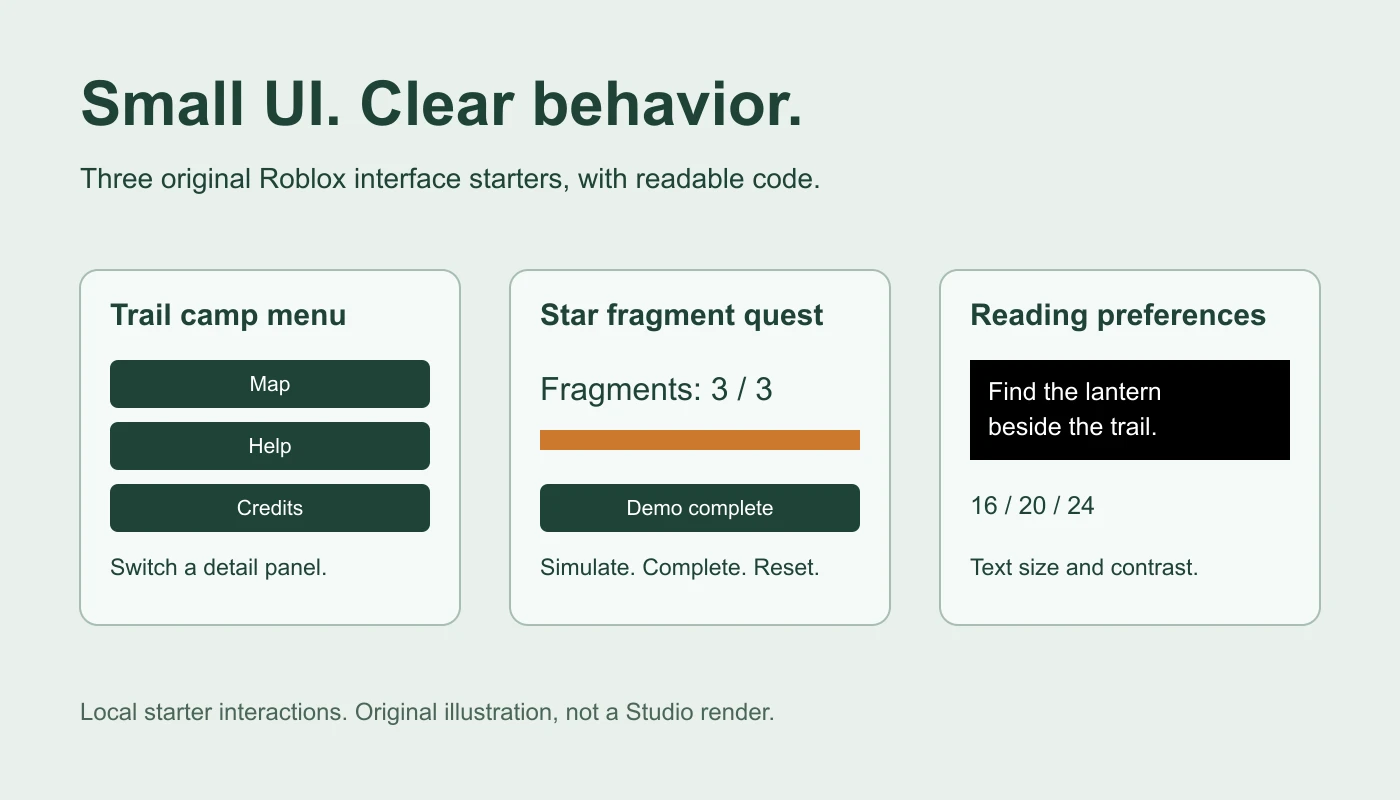
Start by changing the title and two colors. Keep the status text and skip control readable before adding a full-screen illustration or animation. Use the GUI tutorial for hierarchy basics and the UI starter pack for other local interface patterns.
Test the full set of outcomes in Studio
- No selected images: verify there are no custom preload requests and the overlay exits after initial data is loaded.
- One usable image: inspect the callback status and the image in its real display location.
- An inaccessible or unsuitable image: inspect Output, the unconfirmed count and Continue without images.
- Skip: close the overlay while work is pending and check that it stays closed.
- Timeout: test a delayed request or controlled test harness and confirm the timeout does not claim readiness.
- Screen and input checks: inspect a narrow portrait view, a short landscape view, scrolling and the skip button with the target input methods.
- Actual join: test a published spare place too, since a warm Studio session may load much faster.
The published script passed syntax checks and 32 mocked checks covering its state, guards and scheduled exits. Those checks do not execute Roblox rendering, network requests, replication or real input. This guide has not executed the example in Studio; complete the engine tests before adopting it.
If your loading screen seems stuck
As a creator, inspect which condition is pending: PlayerGui setup, initial data, or a selected request. Check whether ImageIds is a String attribute on the correct LocalScript, whether there is another loader, and whether Output reports an asset issue. Do not replace those observations with a counter that always announces 100%.
This tutorial changes an experience you own. It is not a player-side fix for Roblox connection, account or platform problems, and it does not change Roblox's own application loading screen.
For an Obby project, describe the first scene, the small set of critical images, the skip behavior and the separate server conditions needed to start play. Review the code and test the complete join flow in Studio. Documentation reviewed November 21, 2026.