To control who can browse your Roblox badge inventory, check the account’s Inventory visibility setting. Roblox documents hiding the inventory from other users, and it places earned experience badges in that inventory. The cited support guidance does not describe a separate hide switch for one individual badge, so do not confuse an inventory setting with a verified per-badge privacy feature.
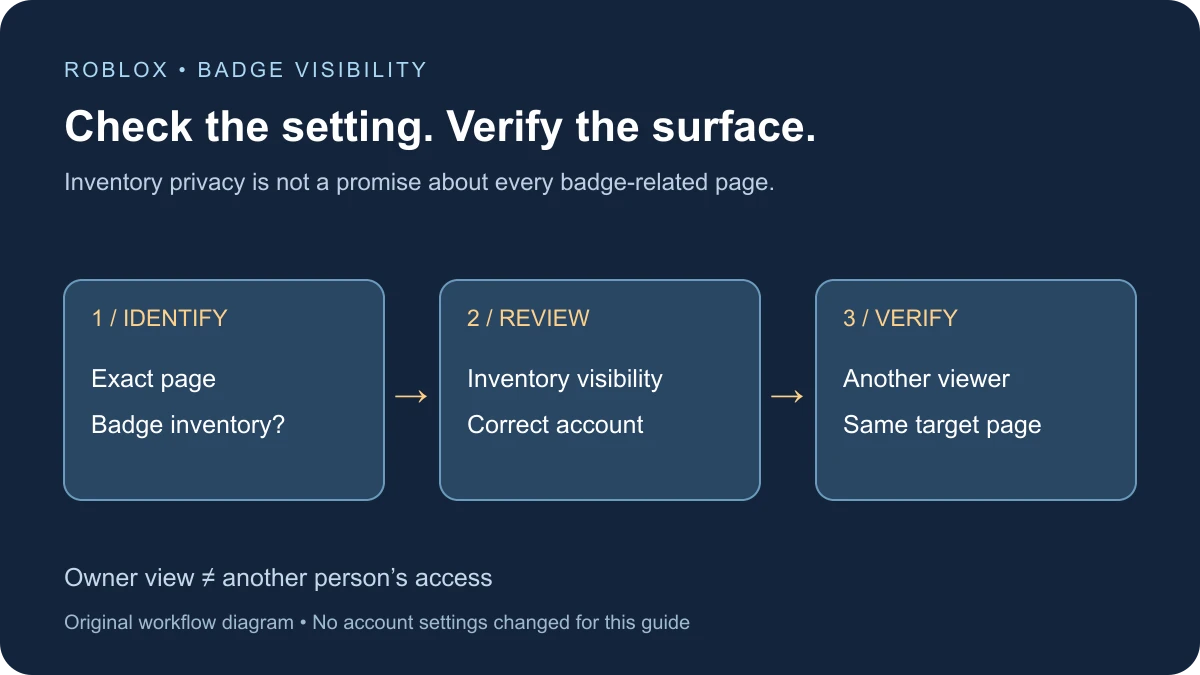
Start with the page you want to hide
People use “hide badges” to mean several different things: stop another user browsing their earned-badge inventory, remove something from a profile view, change a badge’s creator-side availability, or alter an in-game display. Write down which page you mean before changing a setting.
This guide focuses on earned experience badges and the documented inventory control. A verified-account mark is a different feature. Creating or awarding an experience badge is also a separate developer task.
Where Roblox says earned badges appear
The official What are Badges? article says earned experience badges can be viewed in the Badges section of your inventory. Selecting one lets you read its description.
That establishes the relevant inventory category. It does not establish that every other place displaying badge-related information uses the same visibility rule. Keep a distinction between the inventory page you are checking and a profile, experience page, or game interface.
Find the documented inventory visibility control
Roblox’s browser inventory guide gives this settings path:
- Open your Roblox account Settings.
- Select Privacy & content restrictions.
- Open Trading & inventory.
- Under Inventory visibility, review who is allowed to view your inventory.
- Choose No one if your intention is to hide the inventory from other users.
Make sure you are signed into the intended account. Read the available choices in your own settings rather than relying on an old screenshot. This is an inventory-wide control, so consider the other inventory categories you want people to be able to browse before changing it.
The support article documents the browser workflow. If your app arranges the menus differently, use the current account settings and look for the same visibility concept. Do not assume a similarly named in-experience inventory button controls the website inventory.
Check the result from the intended viewer’s side
Seeing your own inventory after changing visibility is not a useful privacy test by itself. The account owner’s view and another person’s view serve different purposes.
- Record the exact page and category you want to check.
- Review the setting you selected on the intended account.
- Ask a trusted person to open that same page from their own account without sharing your sign-in details.
- Have them report what the page actually displays.
- If a separate profile or in-game panel is your concern, test that surface separately.
A signed-out browser can provide another perspective, but a sign-in prompt does not prove what a signed-in friend can see. Match the test to the audience you care about.
What the setting does not prove
| Observation | Reasonable conclusion | Still unproven |
|---|---|---|
| Inventory visibility shows No one | You selected the documented inventory restriction | Every other badge-related surface uses it |
| Another account cannot browse the inventory | That tested inventory view is restricted for that viewer | A separate profile or in-game display is hidden |
| You can still see your own badges | Your owner view remains accessible | Other accounts see the same thing |
| An old badge image appears elsewhere | That image or page remains visible in that context | The current inventory setting failed |
Do not interpret “hidden inventory” as a promise that every existing screenshot, shared image, or unrelated interface disappears. Verify the current Roblox surface you can actually inspect.
Can you hide only one badge?
The official inventory and badge articles cited here explain category viewing and inventory visibility. They do not document an individual earned-badge hide toggle. That is the limit of the evidence used for this guide; it is not a claim that every future Roblox interface must remain unchanged.
If your current account exposes a badge-specific control, read its exact label and explanation and test its stated scope. Avoid treating a creator-side option for managing a badge as an account-level privacy feature.
If a parent manages the account
Roblox’s Parental Controls Overview documents a linked-child route: open Parental controls, choose the child’s account, find Settings you manage, then Trading & inventory and Inventory visibility.
Use the supported account-management route. If a control is unavailable or managed elsewhere, do not use an extension or third-party service as a supposed substitute. Record the missing control and compare it with the current Roblox support guidance.
Troubleshoot a confusing visibility result
- You changed a setting but checked another account: confirm the account name on both the settings page and target inventory.
- A friend reports a different result: compare the exact URL, inventory category, and signed-in viewer.
- You meant a profile panel: test that panel rather than inferring its behavior from inventory access.
- A creator says the badge is disabled: distinguish award availability from your earned inventory’s visibility.
- A guide tells you to delete something: first establish whether it addresses your actual privacy goal. Hiding access and removing an item are different actions.
For creators: keep badge design separate
If you are building a game, the badge creation and awarding guide covers the developer workflow. Write clear achievement descriptions and test the awarding rule independently from a player’s account visibility.
An in-game achievement menu should explain its own behavior. Do not tell players that a website inventory choice necessarily changes a custom interface unless you have implemented and verified that relationship.
Official support guidance reviewed November 17, 2026. No account visibility setting, badge, or parental control was changed for this article; viewer-side verification remains a step for your own account.