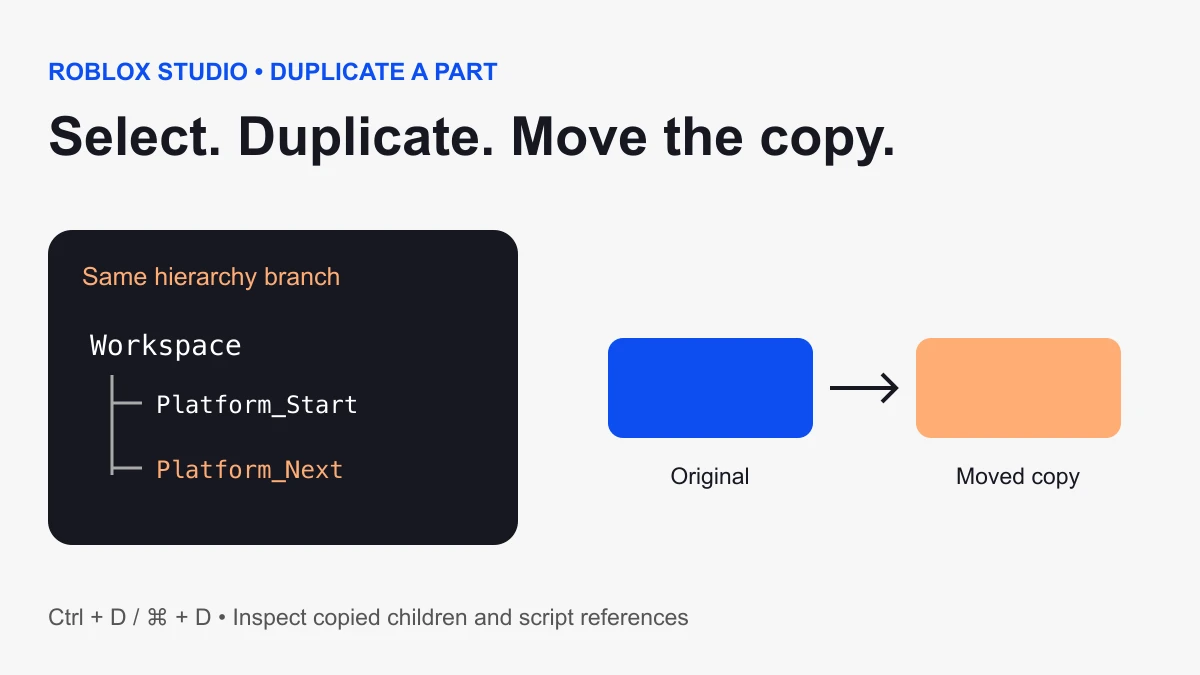
Select the Part in Roblox Studio’s Explorer and press Ctrl + D on Windows or ⌘ + D on Mac. You can also right-click the selected object and choose Duplicate. Then use the Move tool to separate the new copy from the original.
Duplicate one part and verify the copy
- Stop the play test if you want an edit to persist in the project.
- Select the exact Part in Explorer.
- Use the duplication shortcut or context menu.
- Confirm the new object appears in the same hierarchy branch.
- Move it away from the original and give it a useful name.
The official Explorer reference documents duplication and paste actions. The same key combination can behave differently when focus is inside the Script Editor, so select an object in Explorer before using the shortcut.
The copy may be directly on top of the original
Do not assume duplication failed because you see only one shape. Check Explorer for the new instance and move the selected copy along one axis. Look at its Position and parent before deleting anything.
Try a small exercise: create one anchored platform, duplicate it, and move the copy ten studs along the X axis. Rename the two objects Platform_Start and Platform_Next. Select each in Explorer to confirm that you can identify the intended object without relying on which outline happens to be visible.
Inspect names and dependencies
A copied object can carry children such as scripts and textures. Inspect the new hierarchy before running it. A script using script.Parent can operate on the copied parent, while a script hard-coded to a named object elsewhere may still operate on the original target.
Roblox’s parents and children lesson demonstrates reusable parent-based code. Reusability still needs a test: duplicate a simple effect, change only the copy’s appearance, and observe which object the script changes.
Before copying a reward object, decide how duplicate rewards should behave. Two coin Parts with independent scripts may each be collectible; two triggers for the same quest may need one shared completion rule. Duplicating geometry does not automatically define the gameplay state.
Duplicate, Paste, and Paste Into differ
Duplicate places the selected objects into the same branch. Paste puts clipboard contents into Workspace; Paste Into targets selected parents. Choose based on where the copy belongs, then verify the resulting path in Explorer.
If you need the original position while pasting, the Explorer context menu includes Paste Options → Paste Into At Original Location. Confirm the actual placement after the action rather than assuming the viewport chose the intended parent.
Build a repeated row deliberately
For three platforms, keep the first as your reference. Duplicate and move one copy, then check the spacing before producing more. Consistent names and a containing Folder make the result easier to inspect.
For a larger obstacle layout, the course planner produces a bounded anchored-platform plan. It helps compare spacing before you manually place many copies. For floor artwork, use the texture guide to distinguish repeating images from repeated Parts.
When the shortcut does something unexpected
- Click the intended Part in Explorer before pressing the shortcut.
- Check whether a text editor or another tool currently has focus.
- Look for an overlapping copy in the hierarchy.
- Inspect the selected object’s parent and name.
- Check customized shortcuts if the default mapping has changed.
Use Find All to inspect references before renaming a scripted copy. To copy a whole editable place instead, follow the game-copying guide. Sources checked October 6, 2026.