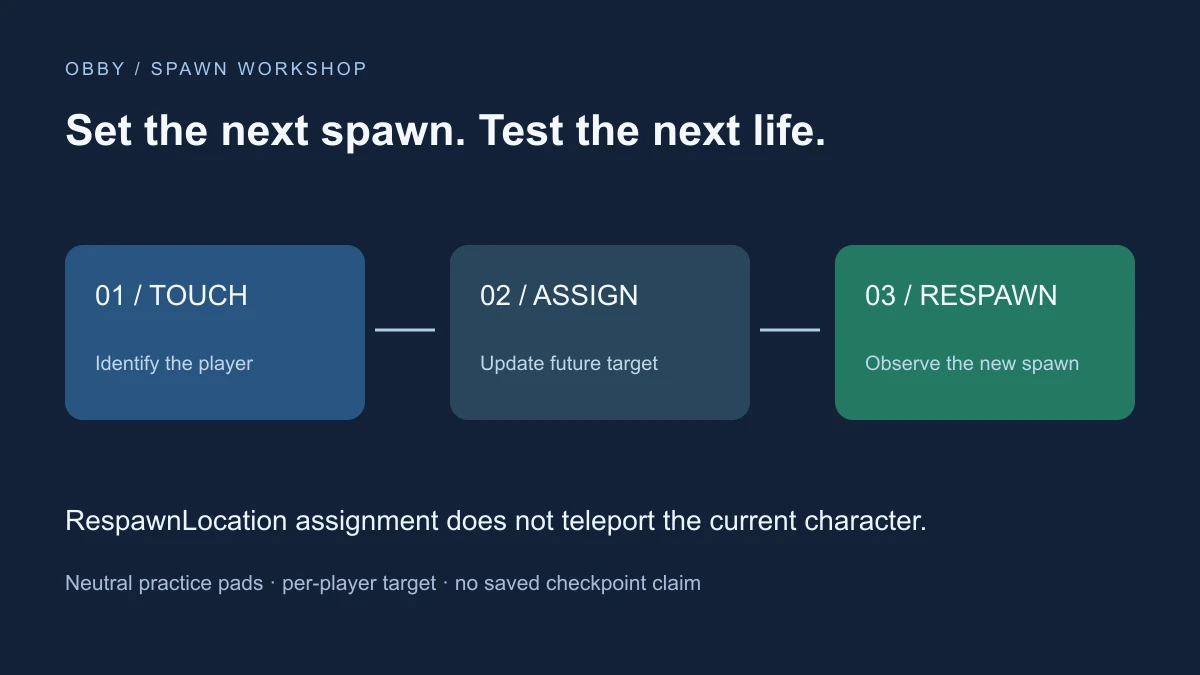
Use a SpawnLocation for a Roblox spawn pad. To choose a particular player’s next spawn, assign that SpawnLocation to Player.RespawnLocation. Assigning the property does not immediately move the character already in the world.
Separate the pad from the player’s target
A SpawnLocation is an object in the world. RespawnLocation is the player’s reference to an intended spawn. Keep those roles separate when debugging: the pad may exist while the player still points somewhere else.
The Player API documents that the assigned target must descend from Workspace and either be neutral or match the player’s TeamColor. The exercise below uses enabled neutral pads and leaves team-changing behavior off.
Create two practice spawns
Use a spare place with a floor supporting the area between x=0 and x=24. Add a regular Script to ServerScriptService and paste the complete example. It creates its own SpawnPractice folder and two pads. Existing spawns are left alone.
This is a documentation-reviewed exercise, not a Studio-executed result. If a character already exists when the Script assigns the initial target, do not assume it will relocate. Check the assignment and use the next normal respawn to observe the effect.
-- Regular Script in ServerScriptService, in a spare place with a floor.
-- Documentation-reviewed; not Studio-executed.
local Players = game:GetService("Players")
local folder = Instance.new("Folder")
folder.Name = "SpawnPractice"
folder.Parent = workspace

local function makeSpawn(name, x, color)
    local spawn = Instance.new("SpawnLocation")
    spawn.Name = name
    spawn.Size = Vector3.new(8, 1, 8)
    spawn.Position = Vector3.new(x, 1, 0)
    spawn.Anchored = true
    spawn.Enabled = true
    spawn.Neutral = true
    spawn.AllowTeamChangeOnTouch = false
    spawn.Color = color
    spawn.Parent = folder
    return spawn
end

local start = makeSpawn("PracticeStart", 0, Color3.fromRGB(70, 140, 220))
local nextSpawn = makeSpawn("PracticeNext", 24, Color3.fromRGB(60, 190, 120))

local function setup(player)
    player.RespawnLocation = start
    print(player.Name, "next spawn set to PracticeStart")
end
Players.PlayerAdded:Connect(setup)
for _, player in Players:GetPlayers() do
    setup(player)
end

nextSpawn.Touched:Connect(function(hit)
    local character = hit:FindFirstAncestorOfClass("Model")
    local player = character and Players:GetPlayerFromCharacter(character)
    local humanoid = character and character:FindFirstChildOfClass("Humanoid")
    if not player or not humanoid or humanoid.Health <= 0 then
        return
    end
    if player.RespawnLocation == nextSpawn then
        return
    end
    player.RespawnLocation = nextSpawn
    print(player.Name, "next spawn set to PracticeNext; current character not moved")
end)
Test assignment and respawn separately
- Start Play and inspect the server Output for the initial target message.
- Inspect the Player’s RespawnLocation reference.
- Walk onto the green PracticeNext pad and check its assignment message.
- Confirm the character stays where it is after the assignment.
- Use the normal reset flow, when available, and observe the next spawn.
The expected final target is PracticeNext. Landing position and clearance depend on the actual scene, so inspect obstructions around and above both pads. A correct property reference alone does not demonstrate that a cramped spawn area is playable.
Read the three-stage result
| Stage | Check | What it establishes |
|---|---|---|
| Touch | Server identifies the character’s Player | The introductory contact handler ran |
| Assign | RespawnLocation references PracticeNext | A future spawn target is set |
| Respawn | Character appears at the intended pad | The next spawn used the expected location |
Repeat with two players if you intend to use per-player checkpoints. Each Player owns their reference; changing one is not a global switch. Inspect both references rather than inferring the second player’s state from the first player’s Output.
Check neutral and team behavior
The SpawnLocation reference describes Enabled, Neutral, TeamColor, and AllowTeamChangeOnTouch. These are different controls. A pad’s visible Color is not a substitute for setting its team eligibility.
The sample chooses Neutral=true so its introductory test does not depend on teams. For a team-based game, plan the intended team assignment and eligible pads together. Do not change those rules at random just because a pad has the right appearance.
Keep checkpoint progress separate from contact
This example recognizes contact and assigns a future target. It does not establish that a player legitimately completed an obstacle, preserve ordered checkpoint progress, or save a checkpoint between sessions. Use server-owned progression rules before treating a touch as a valuable achievement.
Repeated contacts with the same target return early. That prevents duplicate assignment messages for the same pad; it is not a complete rate-limiting or progression system. Other scripts can also change RespawnLocation, so choose one owner for the final behavior.
Troubleshoot an unexpected spawn
- The character did not move immediately: assignment is for a future spawn, not a teleport command.
- The wrong pad is selected: inspect the Player reference and other scripts that write it.
- The target is in storage: the documented target must descend from Workspace.
- Team restrictions disagree: check Neutral and TeamColor independently of the visible color.
- The character is stuck: inspect clearance and nearby collidable geometry.
For related world setup, use the collision settings guide. For a displayed session progress value, see the leaderstats guide; displaying progress does not save it. Documentation reviewed November 17, 2026.
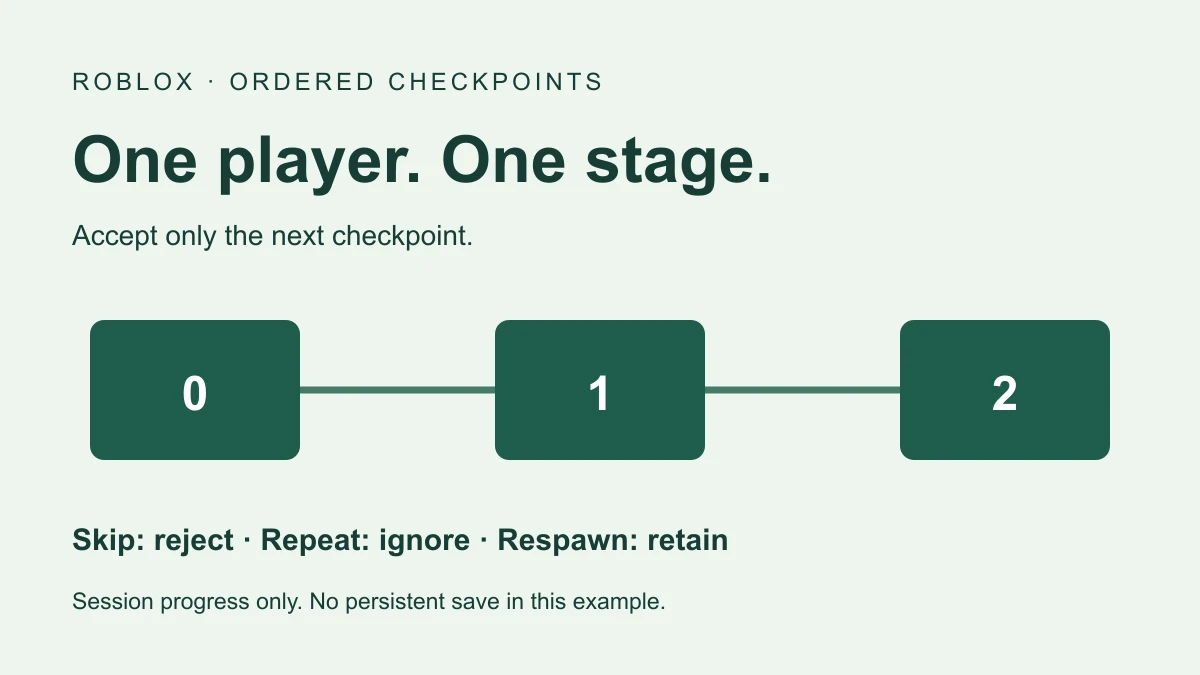
For ordered per-player stages with skip, repeat, and backtrack rules, continue to the checkpoint script guide. It extends the future-spawn concept with separate session progression.