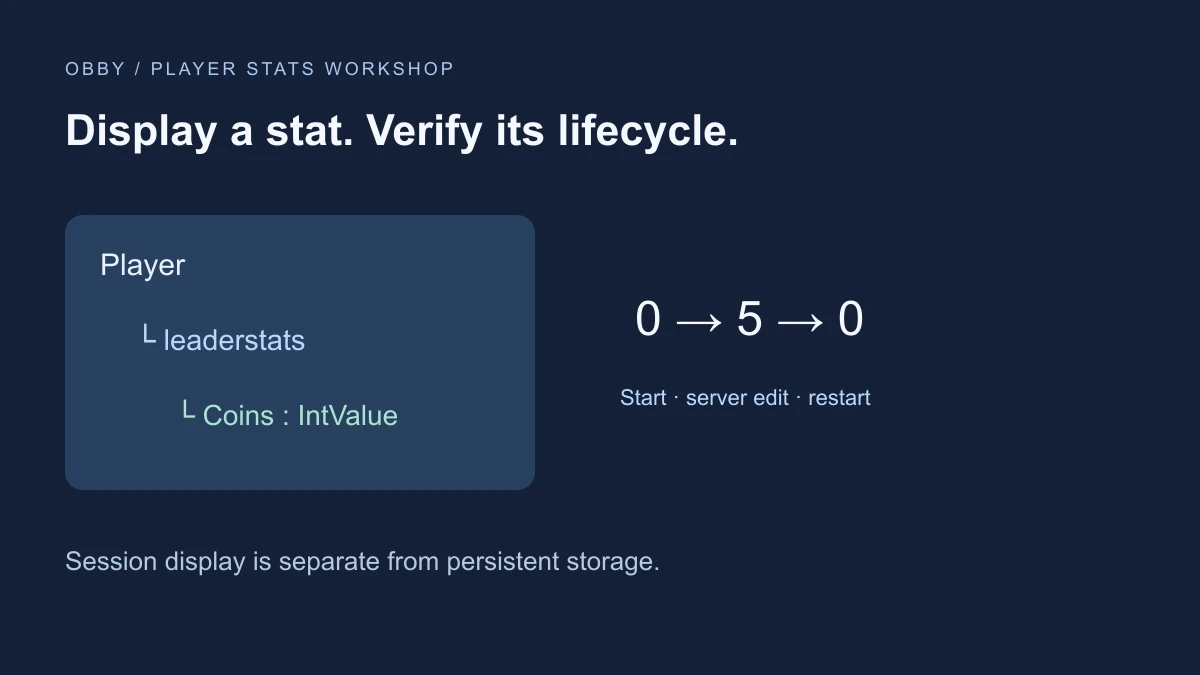
To show a stat in Roblox’s built-in player list, create a Folder named exactly leaderstats under the Player and place a supported value object inside it. Start with one server-owned IntValue named Coins. Creating a displayed number does not save it between sessions.
Current documentation calls the session leaderboard view Here. Friends and Global use a separate persistent leaderboard configuration; this exercise does not populate those views.
Start with one owner
Use a clean practice place and insert a regular Script in ServerScriptService. Keep the default server execution context. Paste the complete example below. It handles PlayerAdded and players already present, and leaves an existing leaderstats object alone with a warning instead of adding a competing folder.
This duplicate check is a practice policy, not an automatic migration. In an existing game, inspect the script that already owns the stats and integrate deliberately. Do not delete an existing folder just to make a second tutorial run.
-- Regular Script in ServerScriptService. Session-only practice.
-- Documentation-reviewed; not executed in Studio for this guide.
local Players = game:GetService("Players")

local function setup(player)
    if player:FindFirstChild("leaderstats") then
        warn("Existing leaderstats found for", player.Name, "- inspect its owner")
        return
    end
    local stats = Instance.new("Folder")
    stats.Name = "leaderstats"
    local coins = Instance.new("IntValue")
    coins.Name = "Coins"
    coins.Value = 0
    coins.Parent = stats
    stats.Parent = player
    print("Session Coins initialized for", player.Name)
end

Players.PlayerAdded:Connect(setup)
for _, player in Players:GetPlayers() do
    setup(player)
end
Check the runtime hierarchy
Start Play with a player. In Explorer, expand Players, select the Player, and look for leaderstats → Coins. Confirm that Coins is an IntValue with Value zero. The folder name is lower-case leaderstats; the displayed stat name can be Coins.
Look at the player list separately. The hierarchy confirms the data exists; the visible column confirms the interface is displaying it. If a custom interface replaces or hides the default player list, diagnose that UI layer rather than repeatedly creating the data.
Make one controlled update
During the playtest, use the server-side Explorer/Properties context to change that runtime Coins value to five. Observe the player list. This is a manual diagnostic edit, not a player earning rule. Restart the test and verify that the practice setup starts at zero again.
Record three observations: initialized zero, edited five, restarted zero. Keep expected values separate from results you actually observed. This sequence has not been executed in Studio for this guide.
Distinguish respawn from rejoining
The folder belongs to the Player, not the character model. A character respawn and a new player session are different lifecycle events. This script initializes when its player setup runs; it contains no CharacterAdded reset handler and no data-store loading.
If another script resets a value during respawn, inspect that owner. A displayed number alone does not explain which script changed it. Add focused Output messages near the actual update before introducing a second reset system.
Avoid turning a display into authority
This example does not accept client requests or award currency. When you later add a legitimate server-side earning rule, update the value after checking the game condition. Do not let a client pick an arbitrary balance and treat that as earned progress.
Leaderstats is a presentation convention. Persistence, purchase receipt handling, and transaction consistency are separate responsibilities. Use the existing rank guide when you are ready to connect XP and rank rules, rather than interpreting the Coins label as a complete economy.
Troubleshoot a missing stat
Check Script execution and Output first, then the exact folder name, its parent Player, the value object's class and Value property, and whether another script already created the setup. Finally inspect whether the built-in player list is visible. Change one cause at a time.
Documentation reviewed November17,2026. See the official leaderboard documentation. Proposed exercise is not Studio-tested.
For the next progression step, use the XP and rank guide.
For character recovery, compare the spawn-location guide. A displayed progress value and a future spawn target are separate pieces of state.