Roblox sound rolloff controls how a positional Sound becomes quieter as its listener moves away. Start with RollOffMinDistance, RollOffMaxDistance, and RollOffMode. Then confirm where the sound is parented and which listener your game uses. Increasing Volume alone does not explain a distance problem.
Check whether the Sound is positional
The Sound reference distinguishes a Sound under a BasePart or Attachment from one placed elsewhere for place-wide playback. A distance setting only makes sense once the object is using the positional arrangement you intend.
This guide covers Sound objects and their RollOff properties. Roblox’s advanced audio system uses objects such as AudioEmitter and AudioListener with a different configuration workflow. Inspect the class you are actually using before copying a property name into a script.
Minimum distance, maximum distance, and fade shape
| Property | Question it answers | Practice value |
|---|---|---|
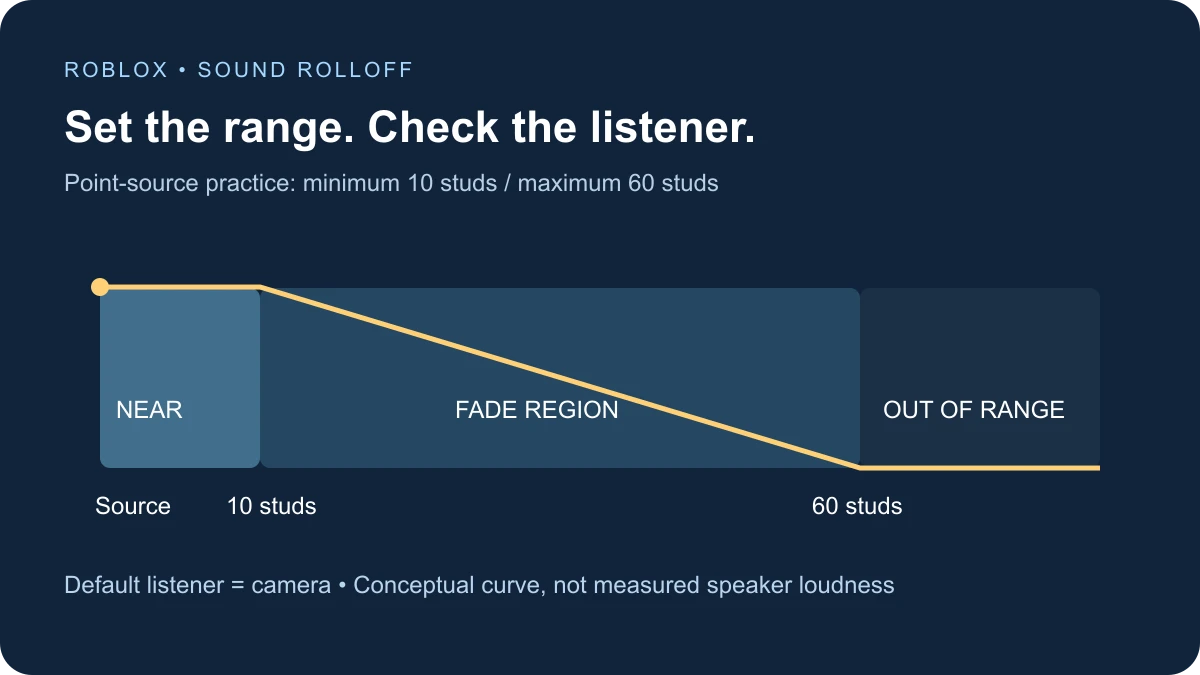
| RollOffMinDistance | Where does distance attenuation begin? | 10 studs |
| RollOffMaxDistance | Where does the hearing range end? | 60 studs |
| RollOffMode | How does the sound fade across that range? | Linear |
Roblox’s Sound objects guide describes four fade modes. Linear fades linearly across the range. Inverse drops more sharply near the minimum and more gradually farther out. LinearSquare uses a squared relationship. InverseTapered combines an inverse-style near region with a linear-square-style far region.
Choose a mode by testing the listening experience rather than selecting the most complicated name. Keep a clear gap between your minimum and maximum for the first experiment. If those distances are almost identical, there is very little space in which to hear a gradual fade.
Use an Attachment for a clean point-source exercise
Roblox distinguishes point and volumetric audio behavior. A large sound-emitting BasePart can cover an area, so its size matters when interpreting distance. An Attachment gives this exercise a definite world position and keeps that variable out of the first test.
Choose a short audio asset that the experience is allowed to use. A file can exist and still be unavailable to your game. Our audio library guide and audio upload guide cover asset discovery and preparation separately.
Run a temporary local listening test
In a spare place, add a LocalScript under StarterPlayer → StarterPlayerScripts. Replace the zero placeholder with a permitted numeric audio ID. The example creates one point source near 0, 4, 0, loops the audio, prints diagnostic information for thirty seconds, then removes the objects it created.
Move toward and away from the yellow source while testing. Keep your listening volume comfortable. The script does not change the global listener or move your camera. Its distance log uses the camera as a proxy for the default listener, not as proof of a custom audio setup.
The example is documentation-reviewed but has not been executed in Studio for this guide. You must verify the actual audio load, fade, and cleanup in your own test. This local exercise does not establish multiplayer replication.
-- LocalScript in StarterPlayer > StarterPlayerScripts, in a spare place.
-- Documentation-reviewed example; not executed in Studio for this guide.
local AUDIO_ID = "0" -- Replace with a permitted audio asset's numeric ID.
if not AUDIO_ID:match("^%d+$") or not AUDIO_ID:match("[1-9]") then
    warn("Set AUDIO_ID to a permitted audio asset ID")
    return
end

local source = Instance.new("Part")
source.Name = "RolloffPracticeSource"
source.Size = Vector3.new(1, 1, 1)
source.Anchored = true
source.CanCollide = false
source.CanTouch = false
source.Color = Color3.fromRGB(255, 195, 80)
source.Position = Vector3.new(0, 4, 0)
source.Parent = workspace

local attachment = Instance.new("Attachment")
attachment.Name = "PointSource"
attachment.Parent = source
local sound = Instance.new("Sound")
sound.Name = "RolloffPracticeSound"
sound.SoundId = "rbxassetid://" .. AUDIO_ID
sound.Volume = 0.3
sound.Looped = true
sound.RollOffMode = Enum.RollOffMode.Linear
sound.RollOffMinDistance = 10
sound.RollOffMaxDistance = 60
sound.Parent = attachment
sound:Play()

-- Camera distance is a listener-distance proxy only with the default listener.
for second = 1, 30 do
    task.wait(1)
    local camera = workspace.CurrentCamera
    if camera then
        local distance = (camera.CFrame.Position - attachment.WorldPosition).Magnitude
        print("Second", second, "camera distance:", math.round(distance),
            "loaded:", sound.IsLoaded, "playing:", sound.IsPlaying)
    end
end
sound:Stop()
source:Destroy() -- Also removes the Attachment and Sound created here.
print("Rolloff practice cleaned up")
Measure from the listener, not automatically from the character
The SoundService reference says the default listener is Workspace.CurrentCamera. In a third-person view, that camera may be behind the character. Measuring only the HumanoidRootPart’s distance can therefore disagree with what the player hears.
If your game changes its listener, the sample’s camera distance is no longer the relevant measurement. Inspect that configuration before changing the source range. A cinematic camera or spectator view is a useful reason to include listener checks in your audio test plan.
Compare three listening regions
- Near the point source: verify the asset can load and be heard before evaluating the range.
- Between the minimum and maximum: move steadily and listen for the fade. Record camera distance only if the default listener remains in use.
- Beyond the maximum: confirm that this positional source is no longer audible. Check for a second copy if audio continues.
The printed loaded and playing flags help separate stages, but neither is a recording of what reached your speakers. Check game audio settings, device output, and other sound sources when a flag and your listening result disagree.
Account for global sound settings
SoundService.RolloffScale can make spatial Sound attenuation steeper or gentler. Roblox documents that the maximum range still bounds audibility. It also notes that this property does not control advanced AudioEmitter behavior.
The sample leaves that global setting untouched. Record its value if you compare the same source in two places. Also inspect the source Volume, any SoundGroup assignment, and the mix around it before deciding that a rolloff mode is defective.
Do not turn the diagram into a promise of exact speaker loudness. Source amplitude, the mix, listener configuration, and global attenuation settings all matter. Test with the actual asset your players will hear.
Debug the symptom you actually have
- No audio even at the source: verify the ID, experience access, Output errors, loaded state, and audio output before changing distance.
- Audio is equally loud everywhere: inspect the Sound’s parent and whether another non-positional copy is playing.
- The cutoff feels abrupt: compare the fade mode and width of the attenuation range.
- The character seems close but the sound is faint: measure from the listener and inspect the camera position.
- A large object behaves differently: distinguish a point Attachment from volumetric BasePart behavior.
- One client’s test works: that does not prove another client received or played the intended source. Run a separate multiplayer test.
Keep one controlled comparison
After the first pass, change only RollOffMode and repeat the same path with the same asset, source location, minimum, maximum, and listener configuration. Then change the distances in a separate pass. That gives each listening difference a useful explanation.
For a finished scene, test quiet and loud sections of the clip, several approach directions, and the camera modes your game actually supports. Replace the temporary thirty-second exercise with a lifecycle appropriate to the effect: an ambient loop, a short impact, and a moving vehicle need different cleanup and playback rules.
Documentation reviewed November 17, 2026.