CollectionService lets one script find and manage Roblox Instances that share a tag. A tag answers “which objects belong to this group?” An attribute can then describe each member’s state. This guide builds one temporary marker to make the difference visible.
What CollectionService does
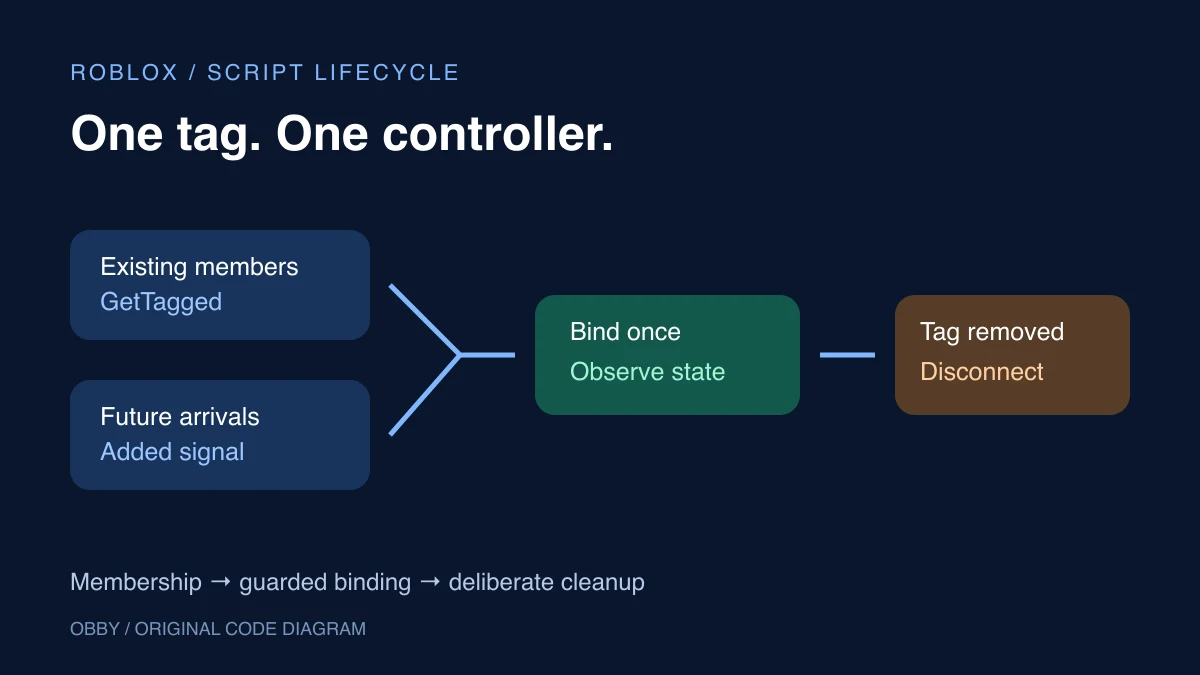
The CollectionService reference documents GetTagged for current members, GetInstanceAddedSignal for arrivals, and GetInstanceRemovedSignal for departures. AddTag and RemoveTag change membership. HasTag checks one object.
Imagine several switches spread across a map. Their names and parents may differ, but your switch controller still needs to discover them. Give that controller a deliberate tag such as PracticeSwitch. Avoid giving every unrelated object the same broad tag just because it is interactive.
Add tags in Roblox Studio
Select an Instance and find Tags near the bottom of Properties. Use the plus control to enter a name or select an existing tag; use the removal control to remove it. Roblox’s Properties guide describes tags as sets of strings, saved with places and replicated from server to client.
Use exactly the same spelling and capitalization in your script. Put the tag on the object the controller expects: a Model and the Part inside it are distinct Instances. The example deliberately accepts BaseParts, so tagging a Model alone will not color its descendants.
Choose tags for membership and attributes for values
| Data | Example | Purpose |
|---|---|---|
| Tag | ObbyPracticeMarker | Opt a Part into the controller |
| Attribute | IsActive = true | Choose that member’s display |
| Object reference | marker | Identify the exact Instance being changed |
Read the Roblox attributes guide for missing values and Boolean changes. Here only the Boolean true chooses green. False, a missing attribute, or another type chooses blue while the Part remains bound. That is an explicit display rule for this exercise.
Run a complete tags and cleanup exercise
Use a separate practice place. Insert a regular Script in ServerScriptService, paste the complete example, open Output, and run. It creates its own non-collidable Part and destroys its own folder at the end. Reserve the tag ObbyPracticeMarker for this exercise so an existing object does not unintentionally join the demonstration.
local CollectionService = game:GetService("CollectionService")
local TAG = "ObbyPracticeMarker"
local bindings = {}

local function unbind(instance)
    local record = bindings[instance]
    if not record then return end
    bindings[instance] = nil
    record.connection:Disconnect()
    if instance.Parent then
        instance.Color = record.originalColor
    end
    print("Unbound:", instance.Name)
end

local function bind(instance)
    if not instance:IsA("BasePart") or bindings[instance] then
        return
    end
    local originalColor = instance.Color
    local function render()
        if instance:GetAttribute("IsActive") == true then
            instance.Color = Color3.fromRGB(36, 168, 118)
        else
            instance.Color = Color3.fromRGB(13, 78, 241)
        end
    end
    bindings[instance] = {
        originalColor = originalColor,
        connection = instance:GetAttributeChangedSignal("IsActive"):Connect(render),
    }
    render()
    print("Bound:", instance.Name)
end

-- Subscribe before the initial scan; bind's guard handles duplicates.
local added = CollectionService:GetInstanceAddedSignal(TAG):Connect(bind)
local removed = CollectionService:GetInstanceRemovedSignal(TAG):Connect(unbind)
for _, instance in CollectionService:GetTagged(TAG) do
    bind(instance)
end

-- Own a small practice scene; no pre-existing objects are required.
local folder = Instance.new("Folder")
folder.Name = "CollectionPractice"
folder.Parent = workspace
local marker = Instance.new("Part")
marker.Name = "PracticeMarker"
marker.Size = Vector3.new(4, 2, 4)
marker.Position = Vector3.new(0, 4, 0)
marker.Anchored = true
marker.CanCollide = false
marker.Color = Color3.fromRGB(140, 140, 140)
marker:SetAttribute("IsActive", false)
marker.Parent = folder
CollectionService:AddTag(marker, TAG)

task.wait(2)
marker:SetAttribute("IsActive", true)
task.wait(2)
CollectionService:RemoveTag(marker, TAG)
task.wait(2)
-- The removed marker should stay gray: its observer was disconnected.
marker:SetAttribute("IsActive", false)
task.wait(2)

added:Disconnect()
removed:Disconnect()
-- Copy the keys before unbind removes dictionary entries.
local remaining = {}
for instance in bindings do
    table.insert(remaining, instance)
end
for _, instance in remaining do
    unbind(instance)
end
folder:Destroy()
The intended sequence is blue after tagging, green after IsActive becomes true, and original gray after tag removal. The later attribute change should leave it gray. Finally the temporary folder disappears. The waits provide viewing time; they are not precise scheduling guarantees. This code has been reviewed against documentation but has not been executed here in Roblox Studio.
Why scan existing objects and listen for new ones?
A current membership snapshot does not install a watcher for later objects. Conversely, waiting only for future additions misses objects already present when your controller starts. The example connects both signals before scanning and guards bind against a second registration for the same Instance.
To exercise the initial-scan path separately, stop the test, add an anchored Part in Studio, and assign the reserved tag before running again. It should be bound by the initial scan. The script restores its original color at shutdown but does not destroy that editor-created Part. Stop the test between runs.
The membership API also covers objects entering or leaving the DataModel with a tag. Do not interpret an added callback as proof that your own AddTag call just ran. With client streaming, availability needs separate testing; this server exercise does not demonstrate streamed client behavior.
Disconnect the per-object observer on removal
The dictionary owns one attribute connection and one original color per bound Part. unbind removes that record, disconnects the observer, and restores the color when the object still has a parent. The top-level added and removed subscriptions are disconnected at the end as well.
For a long-lived controller, keep those top-level subscriptions for its intended lifetime and perform the same cleanup when it shuts down. If another system also writes Color, agree which system owns the presentation before adapting this restoration behavior. Restoring an earlier value can otherwise overwrite a legitimate later change.
This demonstration intentionally finishes after a short sequence. A manually changed attribute after shutdown should not update the display. That is expected cleanup, not a broken signal.
Debug the tag, reference, and lifetime
- Check the tag text in Properties against TAG.
- Verify that the tagged Instance passes the BasePart guard.
- Look for one Bound message per object, rather than duplicate observers.
- Confirm the initial scan handles a pre-tagged test Part.
- Remove the tag and confirm later attribute changes no longer recolor it.
- Check that another controller is not changing the same color.
Tags do not grant permission to award currency, save progress, or trust a player action. Define those systems separately. For a nearby interaction, continue with the ProximityPrompt guide; for display colors, use the Color3 picker. Find duplicate tag writers with Studio script search. Documentation checked November 8, 2026.