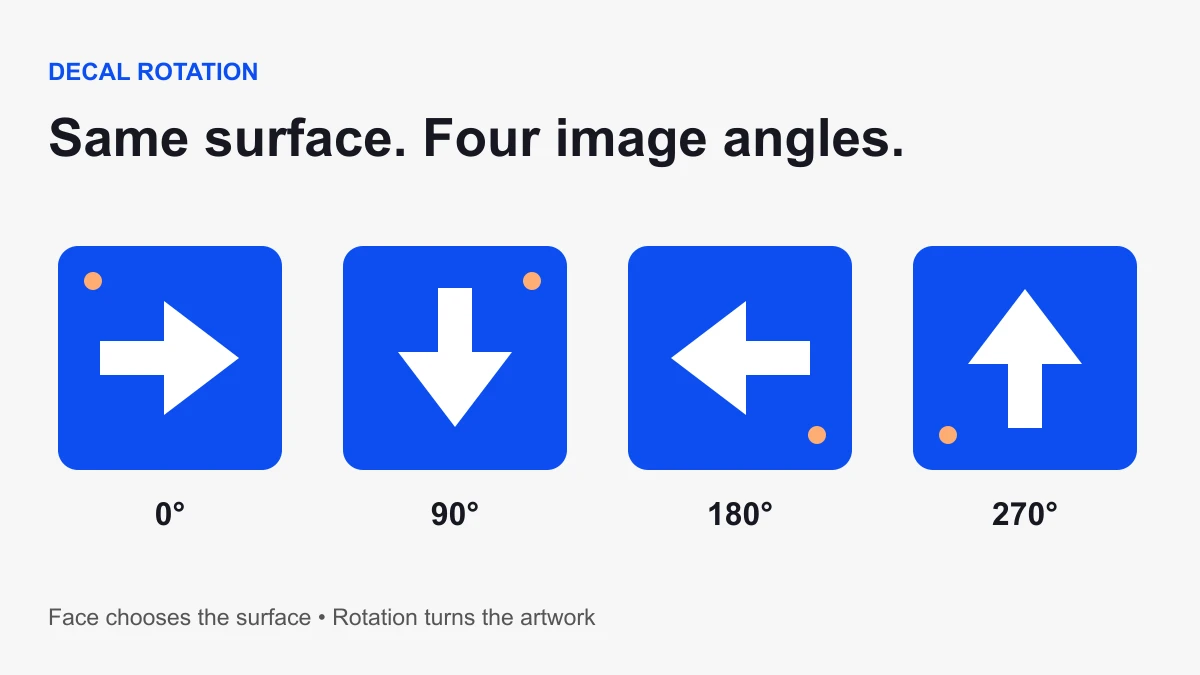
To rotate a decal’s image in Roblox Studio, select the Decal in Explorer and change its Rotation property in Properties. Roblox’s current API supports native decal rotation in degrees. Use Face to choose the surface that holds the image; use Rotation to turn the image on that surface.
Change the image angle without turning the part
- Open a practice place with one plain Part and a working Decal beneath it.
- Select the Decal object, rather than its parent Part.
- In Properties, confirm the intended Face.
- Set Rotation to 90 for a quarter-turn, 180 for a half-turn, or 270 for three quarter-turns.
- Inspect the result from the player’s intended viewing position.
The Decal API reference says Rotation applies a clockwise angle to the texture’s UV coordinates. Use a labeled test image when checking the apparent direction on a particular face.
Face, image rotation, and part orientation do different jobs
| Goal | Control | What to inspect |
|---|---|---|
| Move the image to another side | Decal.Face | The visible surface |
| Turn the image on its surface | Decal.Rotation | The arrow’s direction |
| Turn the whole object | The Part’s orientation | The object and all attached decoration |
Suppose a wall sign appears sideways. Rotating the wall can disturb its placement and other attached objects. First check whether the wall itself is correct. If only the artwork needs turning, adjust the Decal. If the sign is on the wrong side of the wall, fix Face before deciding its angle.
Run a four-angle arrow test
Use an image with one arrow, a small label reading TOP, and a dot in one corner. A circle or symmetric pattern can hide a rotation error. Keep the source artwork unchanged while you test the property.
Record the visible arrow direction at 0, 90, 180, and 270 degrees. Then return to zero and confirm the starting result. Repeat on the target face of your actual object. This exercise gives you a reference for that object and camera view without guessing from the surface name.
For a course sign, stand at the point where a player must decide which way to move. An arrow can be mathematically rotated correctly and still communicate the wrong route. Ask a tester which platform it indicates before describing the intended answer.
Set Rotation from a Script
After the image works through Properties, place a normal Script directly beneath the Decal for this small example. The parent check makes a misplaced Script fail with a clear message.
local decal = script.Parent
assert(decal:IsA("Decal"), "Place this Script beneath a Decal")
decal.Rotation = 90
Run a play test and inspect the result. This example changes one property; it does not upload an image, select an asset, or continually animate the angle. For production behavior, connect the property change to your intended event and test it separately.
If Rotation seems to do nothing
- Wrong selection: check that you selected the Decal, not the Part or a Texture-like object you assumed was the same setup.
- Symmetric image: swap in the asymmetric arrow test before concluding the angle did not change.
- Wrong face: walk around the Part and verify which side carries the image.
- Image is missing: solve asset loading and visibility before diagnosing rotation.
- Value changes back: search scripts for Rotation assignments and inspect whether another system controls the property.
Use Find All in Studio to locate competing assignments. Save a copy before changing a shared sign system.
What about older SurfaceGui workarounds?
Older advice can predate the native Rotation property. A SurfaceGui with an ImageLabel is still useful when the surface needs UI layout, multiple elements, or interaction. It is a different setup with its own sizing and input behavior. The SurfaceGui reference covers those features.
For one existing decal, start with the native property. For a screen that combines text, icons, and controls, choose the UI container based on the complete design. Avoid replacing a working decal system merely because an old tutorial says rotation is impossible.
Need the image first? Follow our decal creation and placement guide. Sources checked October 6, 2026. The diagram is an orientation aid; verify your particular surface in Studio.