If your Roblox Studio camera moves too fast, first confirm you are navigating the editor viewport, then release Shift and check the camera speed controls. Test movement and scroll-wheel zoom separately. A fast editor camera does not require changing your game’s player-camera Script.
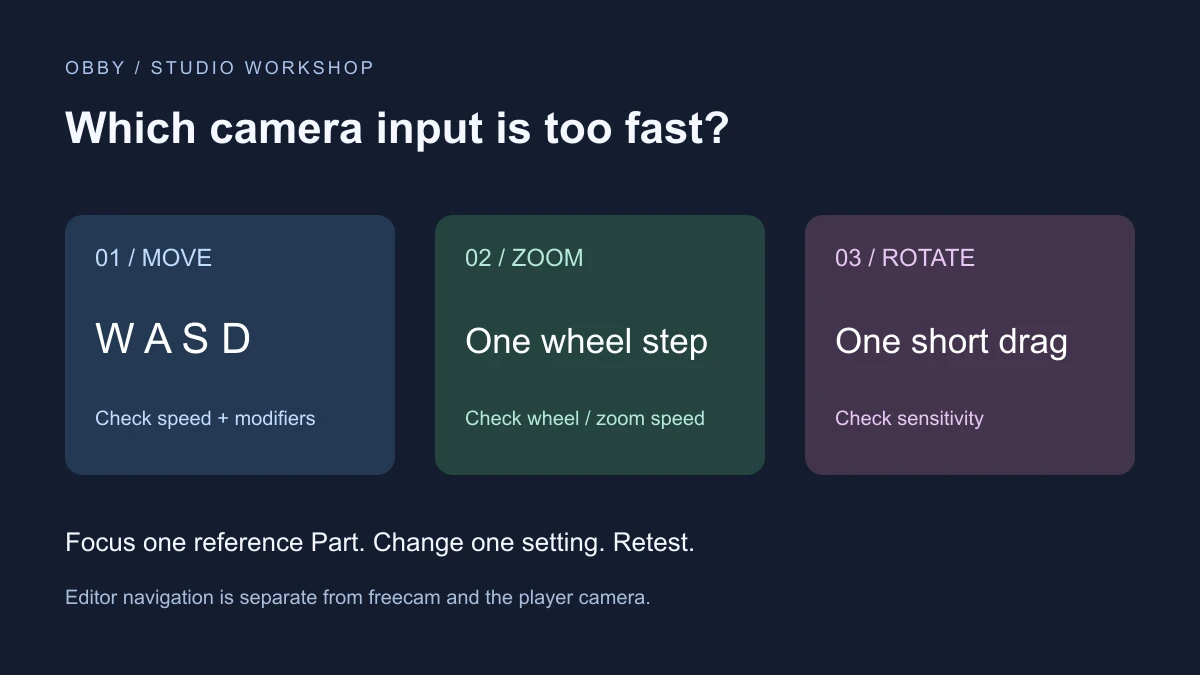
Start with a controlled comparison
- Stop the playtest so you are using the editor viewport.
- Select a familiar Part and press F to focus it.
- Release Shift and briefly press W, then S.
- Try one scroll-wheel step without holding a mouse button.
- Record which action feels too fast before adjusting anything.
Use a medium-sized object you can recognize from several angles. A tiny detail in an enormous landscape makes a poor reference. Return to the same selected Part after each adjustment so you are comparing the same task.
Identify which movement needs fixing
| Symptom | First check | Retest |
|---|---|---|
| WASD moves too far | Movement speed and Shift modifier | Brief W press from the same view |
| One wheel step jumps too far | Mouse-wheel or zoom speed | One step with no button held |
| Dragging swings the view | Rotation or orbit sensitivity | Short drag over a fixed distance |
| Only Play mode is affected | Player-camera configuration | Stop Play and compare editor navigation |
Roblox’s Studio camera controls reference lists WASD translation, Q/E vertical movement, F focus, and Shift as a speed modifier. Treat Shift as a modifier to investigate rather than assuming its effect is identical in every navigation configuration.
Check the viewport speed control
The viewport’s Visualization Options menu includes a camera scroll-speed control. Open it and inspect its current value. Change it by a small amount, return to the reference Part, and repeat the same input.
The current interface documentation also describes holding the right mouse button while scrolling down to reduce camera scroll speed, and scrolling up to increase it. It labels that shortcut as part of the New Studio Camera Controls beta. If the shortcut is unavailable, check your current navigation configuration and use the visible control instead of assuming the mouse is broken.
Inspect Studio settings when the symptom persists
Open Studio Settings and search for camera. Record the existing value before editing a speed or sensitivity setting. Change one setting at a time and repeat the matching test from the table.
The Studio settings reference distinguishes Camera Speed, Camera Mouse Wheel Speed, and Camera Pan Speed. It also documents navigation-model settings and adaptive speed, which can change movement based on nearby objects. Available controls and labels can differ with the navigation model.
If speed changes as you approach or leave a surface, inspect adaptive speed rather than repeatedly adjusting a fixed speed value. For a rotation problem, inspect the relevant sensitivity control. A translation-speed change is an unreliable fix for a view that merely turns too quickly.
Use a short before-and-after record
Make two observations for each adjustment: a close inspection around the reference Part, and a longer move toward a second landmark. A useful setting should let you inspect the object without making ordinary scene navigation frustrating.
Write down the setting name, old value, new value, input tested, and result. For example: “wheel zoom, one step, overshoots the selected Part.” This describes the symptom without inventing a universal numeric setting for every mouse and scene.
If the adjustment makes the wrong action slower, restore the recorded value and choose the matching control. Avoid resetting all Studio settings as the first experiment; it changes several variables and makes the original cause harder to identify.
Keep editor navigation separate from freecam
Creator freecam during a playtest has its own activation and controls. Use the free camera guide when you are capturing footage with that mode. This page addresses the editor view you use to build the place.
Likewise, an in-game first-person or following-camera issue belongs to the player-camera setup. Roblox’s camera customization guide describes that separate system. Identify the mode before changing project code.
Final checks before returning to building
- WASD is manageable without an accidental modifier.
- A wheel step does not repeatedly overshoot the reference object.
- Rotation and panning feel usable independently of translation.
- The chosen settings work near a small object and across a larger scene.
- You recorded any changed settings so you can restore them.
For the rest of the editor layout, see the Studio workspace guide. Documentation reviewed November 17, 2026. This diagnostic sequence has not been run in a native Studio session for this guide.