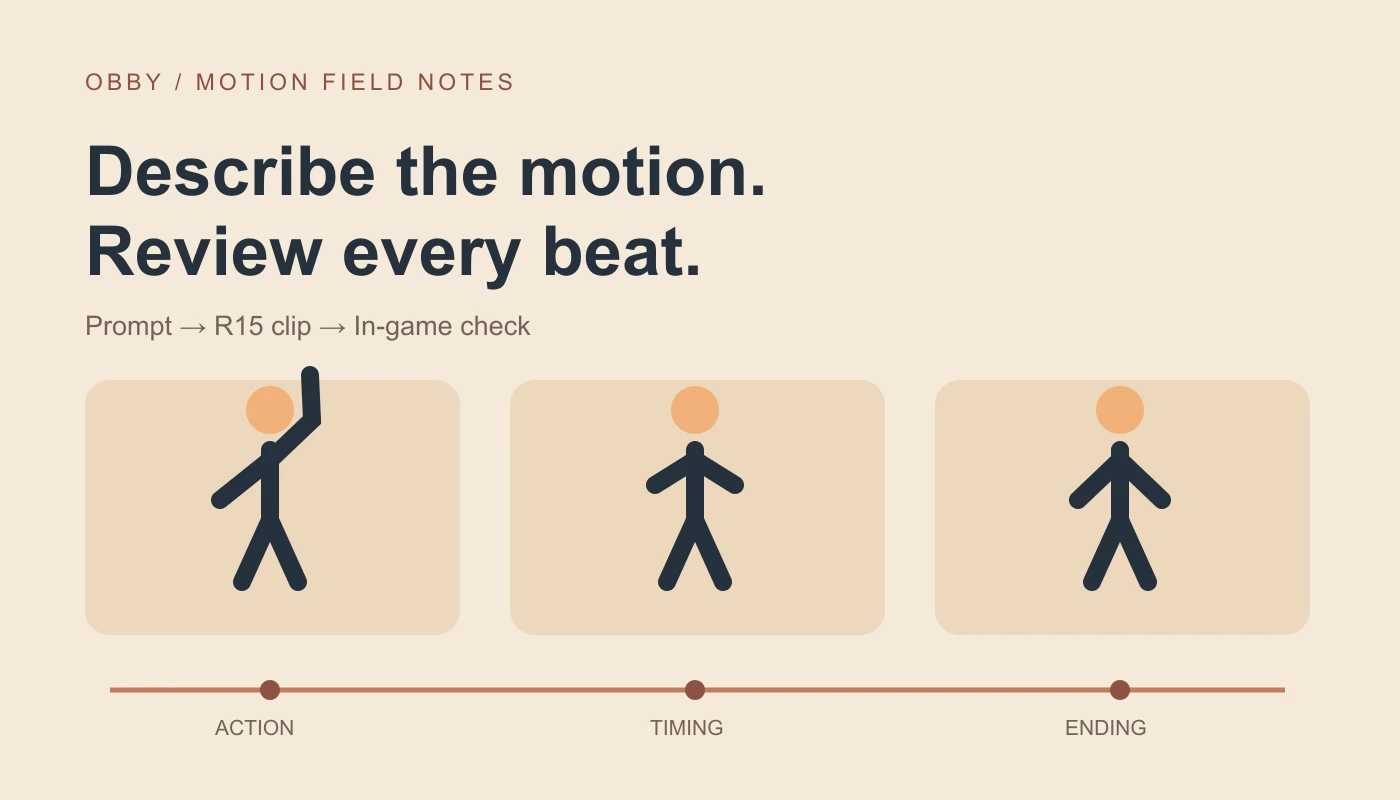
Roblox Studio AI animation now includes the Prompt to Animation beta: describe motion in Assistant and generate a standard R15 clip. Start with a small action, inspect the result, then test the saved animation in your actual experience.
Open Prompt to Animation in Studio
- Under File → Beta Features, enable Animation Generation in Assistant.
- Open Assistant, enter
/generate_animationand press Enter. - Choose New Animation for a prompt, or Upscale Animation for R6 conversion.
- Review the result and use Save to Roblox when ready.
These steps come from Roblox’s November 5, 2026 beta announcement, reviewed November 25. It describes standard humanoid R15 output; R6 playback and Advanced R15 are not supported by that announced workflow. Check your target rig before building a sequence around the result.
Choose the animation workflow you mean
| Starting point | Workflow | Review next |
|---|---|---|
| A motion description | Prompt to Animation beta | Generated movement and target rig |
| An existing R6 clip | Motion Rebuilder conversion | New R15 result |
| A performance video | Animation Capture | Captured keyframes |
| Specific authored poses | Manual Animation Editor work | Timing and transitions |
The announcement says Motion Rebuilder creates a new R15 animation while leaving the original R6 asset unchanged. For a separate video-based input, Roblox’s Animation Capture documentation covers recorded facial motion and uploaded full-body video. A video capture workflow is different from writing a text prompt.
For manual authoring, use our first Animation Editor clip guide. The useful choice depends on whether you already have a performance, want to explore a motion idea, or need direct control of a particular pose.
Four original prompts to adapt
These are proposed practice briefs, not tested generation results. Choose a standard R15 practice rig, record the intended duration and compare what the tool actually produces. Start with one candidate before asking for a complete character behavior set.
A small greeting — 4 seconds
A cheerful humanoid stands in place, raises its right hand for a small greeting, then lowers the arm and finishes standing comfortably with both feet planted.
Review whether the hand reads clearly from the gameplay camera. Check whether the feet drift while the upper body moves. Compare the finish with the stance you want before another action begins.
A nervous idle — 4 seconds
A nervous humanoid stands in place, glances left and right with a small shoulder movement, then returns to its initial standing pose.
Watch whether the motion is readable without becoming distracting. A lobby NPC may need a quieter idle than a close-up story character. Record the intended context so you have a reason for the next edit.
A heavy lift — 6 seconds
A humanoid bends its knees, reaches downward with both hands, then straightens slowly as though lifting a heavy weight and ends upright with elbows bent.
This brief describes body motion. It does not create a prop, attach an item or implement an interaction. Inspect the hands and knees before designing a separate object relationship around the motion.
A relaxed jog loop — 6 seconds
A humanoid jogs in place at a relaxed, even pace with a small alternating arm swing. Make a repeating loop with a smooth return to the initial stride.
Scrub the last-to-first transition and inspect the feet from the side. Record the seam you actually see rather than assuming the word “loop” guarantees a clean cycle. For a player locomotion change, use the separate custom walking animation guide.
Download a prompt and review worksheet
Download the plain-text prompt review sheet. It contains these four briefs and fields for your rig, observed motion, one planned change and runtime test results. It is an original planning file, not an animation asset, plugin or generation service.
Use a new record for each meaningful revision. “Right foot drifts during the return” is more actionable than “looks bad.” Keep the camera and intended context consistent while comparing two versions.
Using an AI client through Studio MCP
Roblox’s current Studio MCP documentation lists generate_animation for prompt generation or R6-to-R15 conversion, with a target rig and duration up to 10 seconds. Follow the relevant client setup before expecting an agent to operate the open Studio session.
The existence of that tool does not establish that a particular client is connected or that an animation was generated. Keep connection, generation and actual playback as separate results in your project notes.
Validate the motion before using it in a game
- Review front and side views for unwanted travel and clipping.
- Compare the start and finish with the next intended action.
- Check a loop seam when the clip should repeat.
- Record the saved asset, owner and intended rig.
- Test the real trigger and inspect competing animation tracks.
Our AnimationTrack guide covers runtime loading and playback. Use the animation priority guide when simultaneous motion needs investigation. A successful preview does not prove the runtime trigger or track blending.
For a setting to stage an NPC in Obby, try: “Create a small welcome area with a safe spawn, a clear path and space for one greeter.” Inspect the layout and character setup in Studio before adding the saved animation. This brief does not guarantee a generated animation or particular native rig.
Sources reviewed November 25, 2026. Beta availability and behavior can change; the linked official announcement describes its release scope. The prompts, worksheet and diagram are original editorial material. No native beta setting, animation generation, conversion, upload or runtime playback was performed for this article.