To mirror an object for a Roblox Studio build, first decide whether you need a symmetrical placement, a flipped mesh shape or a live editing relationship. Duplicating and rotating an object does not generally create its reflected geometry. For a plain block layout, you can calculate the opposite-side position; for mesh symmetry, use a geometry workflow such as Blender’s Mirror modifier.
Choose what “mirror” means for your build
| Goal | Suitable starting point | Limit to check |
|---|---|---|
| Place matching plain blocks on opposite sides | Duplicate and calculate reflected positions | Position alone does not reflect an asymmetric shape |
| Edit two sides together in Studio | A mirroring plugin’s documented workflow | Actual object support and behavior need testing |
| Create symmetrical mesh geometry | Blender Mirror modifier | Origin, axes, export and reimport |
| Make a shiny surface | Material and appearance workflow | That is a rendering question, not object mirroring |
Mirror a plain block’s position across an X plane
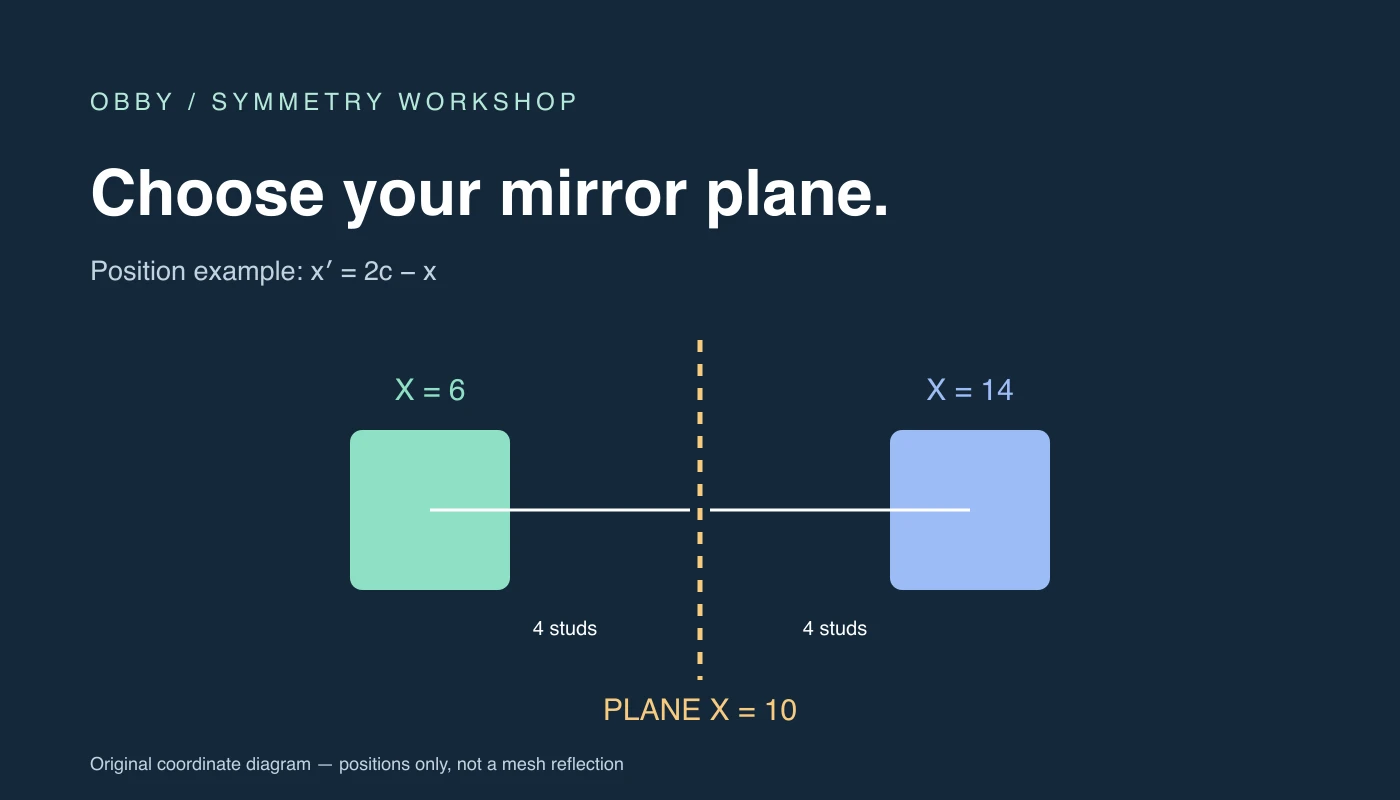
Choose a world-space symmetry plane X = c. Reflect a point with x′ = 2c − x, keeping its Y and Z values unchanged. This is a coordinate calculation. It does not change rotation, reverse a mesh’s vertices or remap a model’s pivot.
For example, use a plane at X = 10 and an unrotated rectangular block centered at (14, 3, 2). Its opposite-side center is (6, 3, 2), because 2 × 10 − 14 = 6. Both centers are four studs from the plane. Copy the block’s dimensions and compare the two positions in Properties.
- Work in a spare place or a saved copy.
- Choose one plain, unrotated rectangular Part and note its Position and Size.
- Duplicate it using the Part duplication workflow.
- Set the duplicate’s X position to the calculated value while preserving Y and Z.
- Compare equal distances from the chosen plane. Keep the original and the copy clearly named.
This narrow exercise works as a layout study because the block is symmetric. Do not extend the position-only method to claim that an angled stair, wedge, detailed mesh, rig or whole Model has been geometrically mirrored.
Download four coordinate examples
Download the mirror-position practice CSV. It includes a plane at zero, an offset plane, a point on the plane and a source on the opposite side. The file contains only numeric examples and labels; it imports nothing into Studio and executes no commands.
Use each row to check two facts: the midpoint of source X and reflected X equals plane X, and reflecting the result again returns the original X. Those are arithmetic checks, not evidence that a plugin or imported mesh behaves correctly.
Use a documented Studio plugin workflow
The Creator Store listing for Live Mirror by Dued1 describes a live plane-based workflow: create a mirror, select a Part or Model and use Mirror Selected. The listing says using Mirror Selected again ends the connection for the selected part.
These are the creator’s published instructions, not our hands-on test result. We did not install or run the plugin. Before relying on it, follow the plugin management guide, confirm the listing’s creator and test a small disposable selection.
Start with a plain block and then one asymmetric test object. Check which side updates, whether the plane is where you expect, and what remains after ending the connection. Record the result before trying a large building. A plugin’s name or description does not establish compatibility with every instance type.
Mirror mesh geometry in Blender
Roblox’s Blender guide documents the Mirror modifier for symmetrical geometry. In Object mode, select your mesh, open the Modifiers tab, add Mirror and choose the desired axis or axes. Edit the source geometry in Edit mode to inspect the mirrored result.
Check the model’s origin and intended symmetry before export. Roblox’s guide also covers coordinate-system and import/export setup. A result that looks correct in Blender still needs inspection after import into Studio. Use our mesh upload guide for the existing import workflow rather than assuming a duplicated MeshPart contains a newly reflected mesh asset.
Why does the result look wrong?
- The object moved to the opposite side but its detail did not flip: you changed placement, not the underlying geometry.
- The copy is equally far from the wrong line: recheck the plane coordinate used in the calculation.
- A 180-degree rotation gives the wrong handedness: rotation and reflection are different transformations.
- The model’s center seems unexpected: inspect its pivot and the workflow’s reference point. Use the pivot offset guide for that separate concept.
- The Studio import differs from Blender: compare orientation and scale settings, then inspect the actual imported geometry.
Plan a symmetrical Roblox build
Try an original brief in Obby: “Create a compact arena with a central objective and matching left and right approach lanes. Keep both routes readable and the first version small.” Review the generated project in Studio and compare distances and obstacles on each side.
Visual symmetry alone does not prove balanced gameplay. Test both routes with the same movement conditions, inspect sight lines and record where players can get stuck. Use a neutral marker for the center plane while reviewing, then remove that marker from the finished presentation if it is only an editor aid.
Sources and review scope
Semrush demand, the linked Creator Store instructions and official Roblox Blender guidance were reviewed November 25, 2026. The diagram and coordinate CSV are original learning aids. Their arithmetic was checked; no native Studio mirroring, plugin execution, Blender export or mesh import was performed for this article.