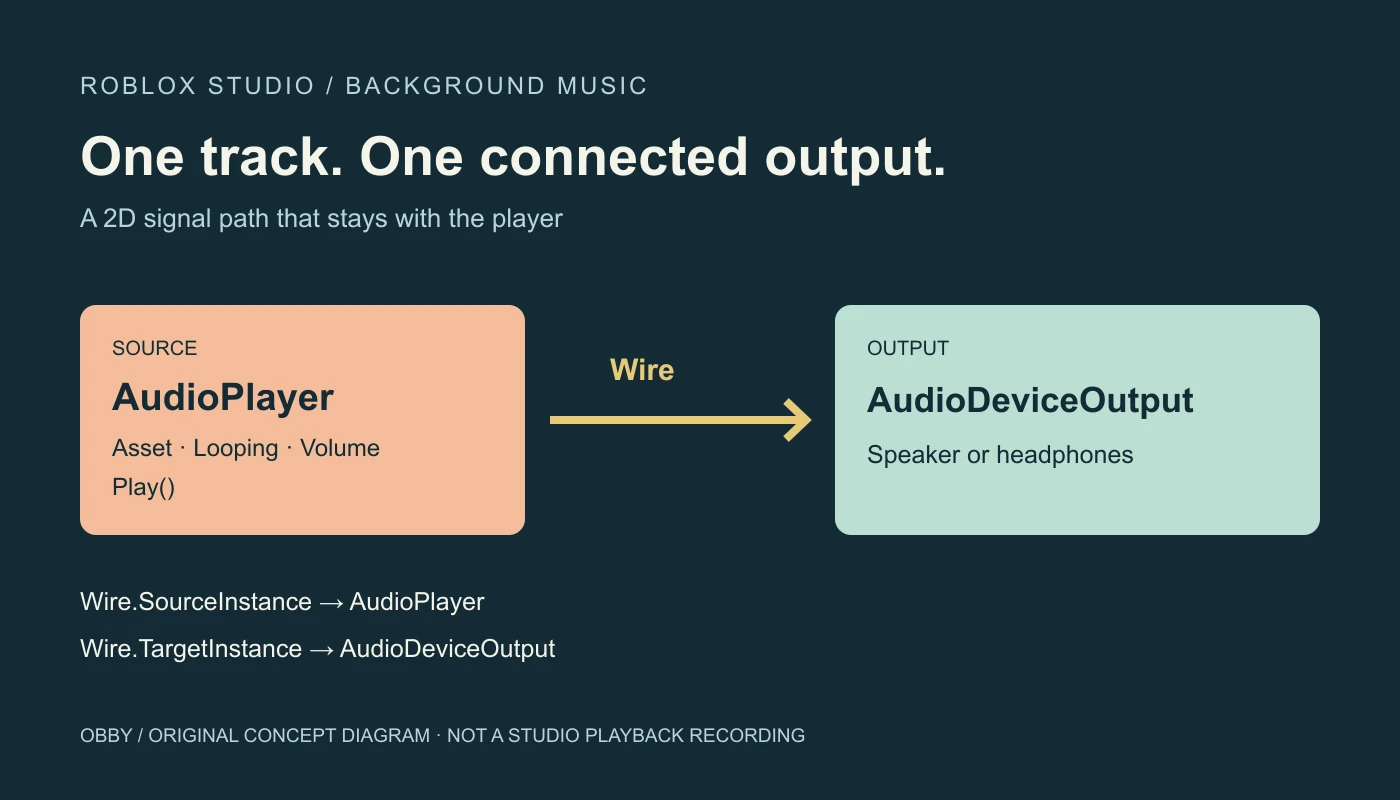
To add background music in Roblox Studio, create an AudioPlayer, connect it through a Wire to an AudioDeviceOutput, choose an available audio asset and start playback. Use Looping for a repeating track. This 2D setup keeps the music independent of the player's position.
Choose background music or sound from a location
A soundtrack that follows the player is a different design from a radio in a room. Roblox's audio objects guide describes 2D audio as non-directional. Its modular 3D path adds emitters and listeners for sound associated with the world. Start with one 2D track if your goal is background music.
Write one sentence before searching: “A quiet, steady loop for a building area, leaving room for interaction cues.” That brief gives you a way to compare candidates. A dramatic track may work for a boss encounter but overwhelm a calm lobby.
Find an audio asset and copy its ID
- In Toolbox, choose Creator Store and its Audio category.
- Search by mood or purpose, then narrow the candidates.
- Right-click the chosen asset and select Copy Asset ID.
- Keep that reference with your test notes so you can identify the exact track later.
The official audio assets guide documents this flow. Clicking an audio result inserts a legacy Sound instance; copying the ID lets you configure an AudioPlayer instead. Private imported audio also needs appropriate usage permissions for the experience. An ID alone does not establish access.
For a fuller selection process, use our Roblox audio library guide. If you are creating and importing a file, use the separate audio creation guide. This page covers playback after you have selected a usable asset.
Connect the three objects in SoundService
- Under SoundService in Explorer, insert an AudioPlayer, an AudioDeviceOutput and a Wire.
- Name the player BackgroundMusic and the output MusicOutput so they are easy to distinguish from other audio objects.
- On the Wire, set SourceInstance to BackgroundMusic and TargetInstance to MusicOutput.
- On the AudioPlayer, set Asset to your chosen content ID, such as
rbxassetid://YOUR_AUDIO_ID, replacing the placeholder with the real numeric ID. - Enable Looping and choose a restrained Volume for the first comparison.
The current AudioPlayer API reference lists Asset; its older AssetId property is deprecated. Some tutorial wording still says AssetID. Use the current property name and verify the actual selected object rather than mixing AudioPlayer and Sound properties.
Objects being siblings in Explorer does not create a signal connection. Inspect both Wire endpoints explicitly. You should be able to trace one source to one output before introducing extra tracks or effects.
Start music when the player joins
Following Roblox's 2D audio tutorial, insert a Script inside BackgroundMusic, set its RunContext to Client and use:
local music = script.Parent
music:Play()
This small snippet assumes you completed the three-object setup and assigned the audio asset. It does not create that hierarchy or select a track. Use a fresh playtest to check whether the intended client hears the loop. It is documentation-reviewed; no native Studio playback was performed for this article.
Do not add several startup scripts while diagnosing one silent source. Keep one playback trigger in the practice scene, then change one setting at a time. A script executing without an error does not prove that a track is audible on the player's device.
Keep modern and legacy property names separate
| Task | AudioPlayer setup | Legacy Sound setup |
|---|---|---|
| Choose an asset | Asset | SoundId |
| Repeat a track | Looping | Looped |
| Start playback | Play() | Play() or configured Playing |
| Background output | Wire to AudioDeviceOutput | Sound under SoundService |
Roblox now discourages Sound objects in favor of modular audio objects. For an existing project that already uses Sound, the legacy background-audio guide documents a Sound under SoundService, a valid SoundId and optional Playing and Looped settings. Identify the existing system before changing it. For legacy positional behavior, see our Sound rolloff guide.
Diagnose music that does not play
Use this proposed inspection order to isolate the failing layer. It is a troubleshooting worksheet, not a report of an engine test performed here.
- Asset: record the exact ID and confirm the experience can use it. Do not cycle through unrelated IDs without identifying why the chosen one failed.
- Graph: inspect the intended AudioPlayer and both Wire endpoints. Check that the output you inspected is the one connected to that player.
- Trigger: verify the Script's parent and Client RunContext. Check Output for errors before rewriting playback logic.
- Level: inspect the player's Volume alongside Roblox, operating-system and device volume. Increasing one setting cannot diagnose every other muted layer.
- Duplicates: if music is doubled, inventory players, outputs and startup triggers before deleting objects. Keep a copy of the practice place.
Test the soundtrack as a player
Use the same short route for each comparison: join, wait through the opening, move away from spawn, reset, and leave and rejoin. Record whether music starts once, remains audible along the route and loops without an obvious unwanted seam. A loop setting repeats a file; it does not repair the file's edit.
Then compare two clients with the multiplayer testing checklist. Separate “the script ran” from “each intended player heard the expected track.” For the eventual game, include a clear music control and test whether important gameplay cues remain understandable when music is muted.
Build a scene around the soundtrack brief
Try an original brief in Obby: “Create a compact nighttime building lobby with a safe spawn, a clearly marked workshop entrance and a quiet resting area. Keep the first route short enough to test while comparing background tracks.” Inspect the generated project, then configure audio and test playback in Studio. This proposed brief does not establish a completed or tested audio system.
Documentation and current API names reviewed November 25, 2026. No track was uploaded, purchased or played in native Studio for this guide.