If an F3X export is invisible in Roblox Studio, first establish what arrived: no imported container, an empty BTExport Model, or a Model containing objects you cannot see. Those observations lead to different checks. Do not treat an invisible viewport and a failed download as the same result.
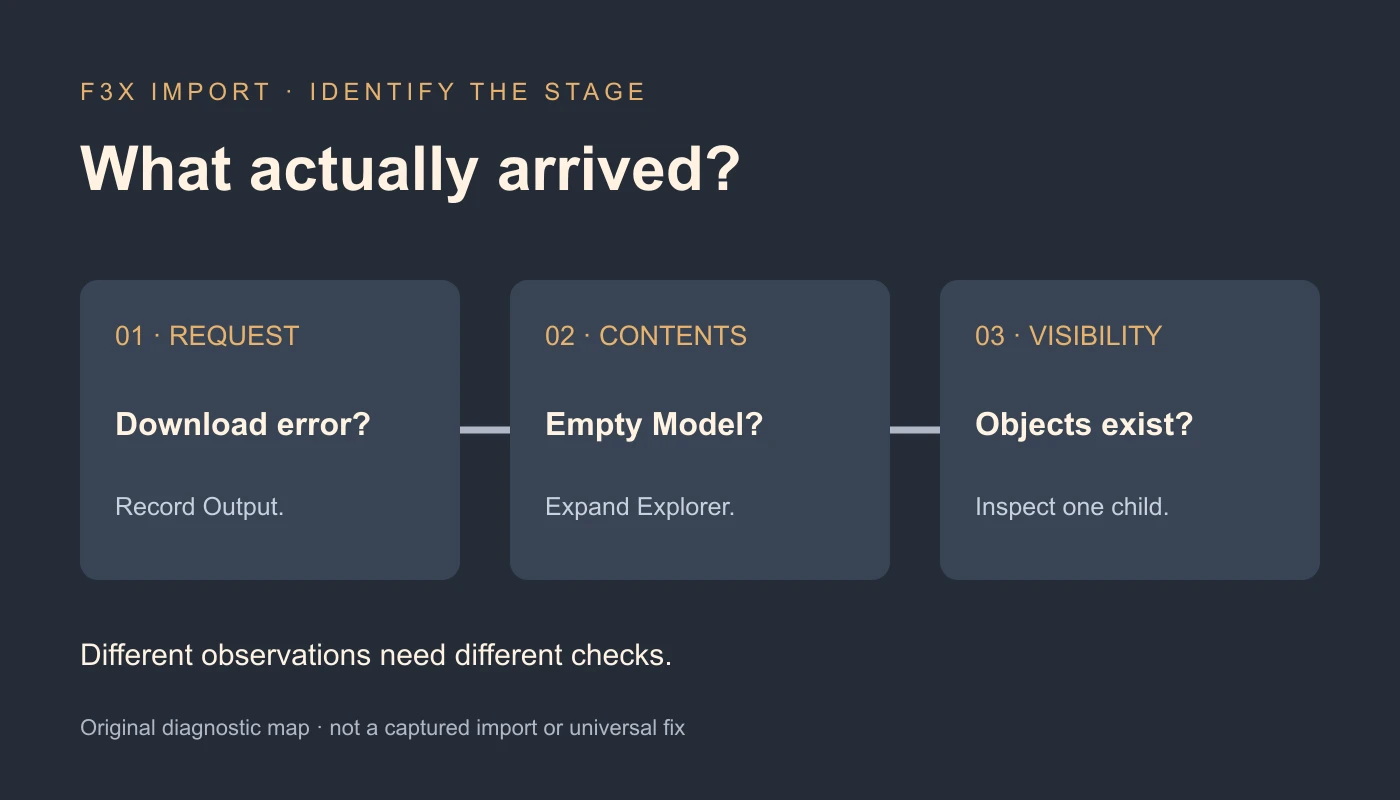
Identify the stage before changing settings
| Observation | Inspect next | Do not infer yet |
|---|---|---|
| Download or request error | Exact Output message and importer identity | That the geometry is transparent |
| BTExport exists with no expected children | Container contents and import errors | That a successful import is merely off-camera |
| Expected objects exist | Selected object, appearance and transform | That the export service failed |
| Only part of the build appears | Expected versus observed objects | That repeating the full import will explain the difference |
What the reviewed F3X source establishes
The original F3X repository describes exporting with Shift+P and importing through its linked plugin. The bundled importer snapshot reviewed here downloads data, decodes JSON, creates a BTExport container and branches on serialization versions 1, 2 or 3. It also has distinct download-error handling.
That source order supports one narrow conclusion: the presence of a Model named BTExport alone is not proof that the expected objects were reconstructed. This is a source review of a pinned repository snapshot, not proof that your installed plugin matches it or that the export service is currently healthy.
Inspect the container in Explorer
- Keep a saved working copy and note the time of the import attempt.
- Open Explorer and locate the result under the intended parent.
- Expand the container, including nested branches, and identify whether expected objects exist.
- Select one recognizable object and record its class and name.
- Keep the relevant Output message alongside that observation.
Roblox’s Explorer documentation describes the parent-child hierarchy. The Part selection guide can help you inspect a child rather than only the enclosing Model.
Write a specific result: “BTExport exists, but I cannot find the expected wall Part inside its branches” is different from “the wall Part exists and is selected, but I cannot see it.” That distinction makes the next step reviewable.
If objects exist, inspect one object first
Use Properties on the selected child, rather than treating the whole container as a visible surface. Record its appearance and transform settings before editing. Compare its position with the area where you expected the build, and inspect whether its appearance explains the missing surface.
The Properties documentation distinguishes a selected object’s class and settings, including appearance and transform sections. A property value is evidence about that object; it does not explain an earlier network request by itself.
For a complex prop, compare one obvious structural object and one decorative object. If the structure exists but decoration does not, keep those observations separate. Avoid changing every descendant to the same values merely to make something appear.
For a BasePart, check Transparency explicitly: Roblox documents 0 as fully visible and 1 as fully transparent in its Part properties guide. If a wall that should be solid has a value of 1, record it and compare changing that one object to 0 in your practice copy. Also record Position and Size. This checks a specific visibility hypothesis; it does not establish why the value was imported.
If the import reports a request error
Record the exact message, the importer’s creator and version, the source experience and whether this attempt produced a new container. Compare the installed tool with the original project’s linked importer before following instructions intended for another version.
An error mentioning a request belongs in a different investigation from an existing Part with unexpected appearance. This guide does not establish a universal permission toggle, a service outage or an export-size limit. Do not describe a setting change as a fix until the same small test succeeds afterward.
Compare a small build with the original
If you control the source build and its export workflow, make a small recognizable test object in a saved practice project. Keep its shape and expected contents simple enough to describe. Record the export reference and importer result without publishing a private build reference in a public report.
Compare that test with the original attempt using the same importer version. A small test succeeding while the original fails narrows the investigation; it does not by itself prove a particular part-count limit. If both fail, preserve the exact messages before trying another change.
For your notes, use five fields: source tool/version, expected object, export reference, observed hierarchy and exact error. Keep a screenshot of the relevant Explorer branch and Output text. This is an original proposed diagnostic record, not a recovery guarantee.
Keep export, mesh import and publishing separate
An F3X export reference, a local 3D file and a published Roblox experience are different artifacts. Use the mesh upload guide for local 3D assets, the save and backup guide for place files, and the publishing guide for experience access.
For a fresh layout in Obby, try: “Create a compact workshop with a safe spawn, one simple wall and a display area for props I will add later.” Review the generated project and test in Studio. Obby does not retrieve or repair an F3X export through this brief.
Sources and validation scope
The source snapshot and linked Roblox workspace documentation were reviewed November 25, 2026. No F3X plugin was installed or executed, no private export was fetched and no native Studio import was performed. The matrix and comparison sequence are proposed diagnostics; a particular build’s cause remains unproven until its evidence is checked.