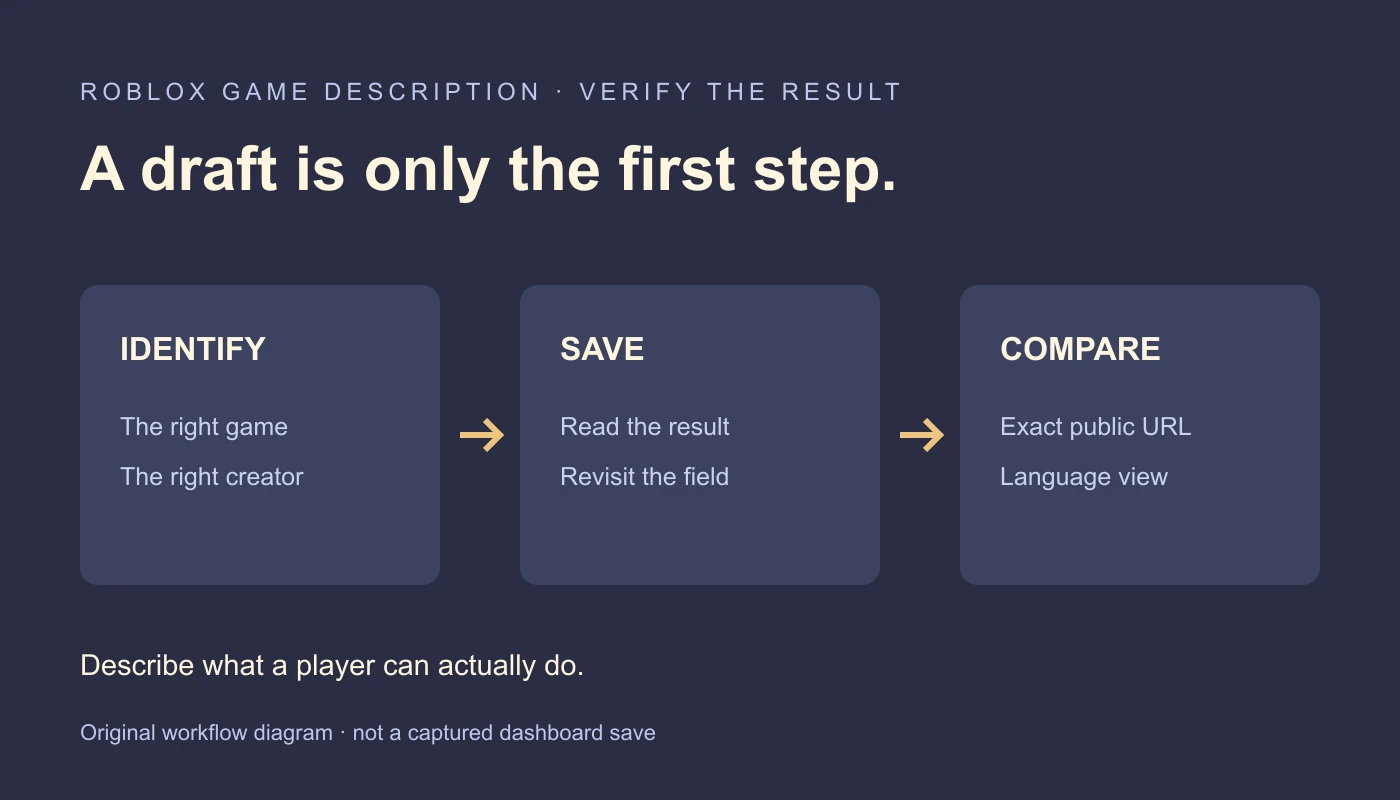
If you can’t change your Roblox game description, start with the exact game, the current editing page and the result of saving. A missing field, an error when saving and a different description on the public page are separate observations. Record which one you see before changing other settings.
Use the current Game details editing path
- Open Creator Dashboard and select the intended game’s thumbnail.
- In the game’s navigation, open Publish settings → Game details.
- Edit the Name / Description fields as intended.
- At the bottom, select Save Changes and read the resulting message.
This path appears in Roblox’s current Game details instructions. The description should tell a potential player what to expect. A local draft and a successfully saved listing are different states.
Identify where the change stopped
| What you see | Record | Inspect next |
|---|---|---|
| Expected game or editing controls missing | Selected account, creator and game | Identity and available permissions |
| Save displays an error | Exact message and attempted text | The error’s specific instruction |
| Draft appears saved but public text differs | Saved value and exact public URL | Same game and same language view |
| Text reads differently than expected | Expected sentence and displayed sentence | Meaning, language and claimed features |
Check the game and creator identity
Write down the game title, creator identity and exact dashboard item before editing. If your account can access several projects, a familiar thumbnail or similar name is not enough to identify the intended one.
For group collaboration, Roblox’s configuration guide explains that group members’ abilities depend on role permissions and that access can be configured per game. Inspect the access you actually have rather than assuming membership alone grants every editing ability.
This article does not change roles or grant access. If the intended control is absent, capture that observation with the game identity before asking the project owner to review it.
Verify a save against the actual listing
After reading the save result, revisit the editing page and compare the field with the sentence you intended to save. Then open the exact game’s public landing page. Roblox’s landing-page instructions describe hovering over a game’s thumbnail, opening its menu and choosing Copy URL.
Keep both observations in your notes. If the editor retains the new sentence while the public page differs, that is more specific than “saving is broken.” Compare the URL and language view before overwriting the text repeatedly. This guide does not establish a universal propagation delay or promise that waiting fixes every case.
If you are reviewing another language, consult Roblox’s localization documentation. It explains that a player’s automatic translation setting can translate game names and descriptions even when the creator has not explicitly enabled translation. Record the viewed language as part of your comparison.
Prepare a clear description before retrying
Use a small factual draft that describes the current playable loop. Identify the first action, the setting and one real objective. Remove claims about features that you have only planned, such as a trading system, team mode or daily reward that is not implemented.
For a hypothetical completed workshop challenge, a draft might be: “Explore a compact workshop and deliver the marked crate to the display area. Follow the signs, test the short route and try again.” Use that wording only if those actions are actually available in your game.
A useful review asks three questions: Can a player understand the first action? Does each claimed feature exist? Does the description match the game linked from this page? A generator can propose wording, but it cannot establish those facts by itself.
Keep a reproducible save record
- Identity: intended game and creator.
- Draft: the exact text you attempted to save.
- Action: the editing page and save control used.
- Result: the exact message and field after revisiting.
- Public view: the copied URL, viewed language and displayed text.
Follow any specific message shown by Roblox. Do not infer a particular cause from a missing update alone. This record helps distinguish the wrong project, unavailable editing controls, an explicit save failure and a public-view mismatch.
Describe the project you actually built
After creating a prototype in Obby, inspect and test the generated project before drafting its listing. Try a small brief such as: “Create a workshop with a safe spawn, a marked delivery route and one crate destination.” Then describe the behavior you verified in Studio, not the behavior you hoped the brief would produce.
Use the publishing guide for public access and release requirements, and the save and backup guide for place files. Editing listing text does not by itself prove a new place build is published or accessible.
Sources and validation scope
The editing path, collaboration notes, landing-page link and translation behavior were checked against the linked official Roblox documentation on November 25, 2026. The diagnostic table and writing example are original proposed workflows. No description was changed in a live Roblox project for this article, and no universal save-error fix is claimed.