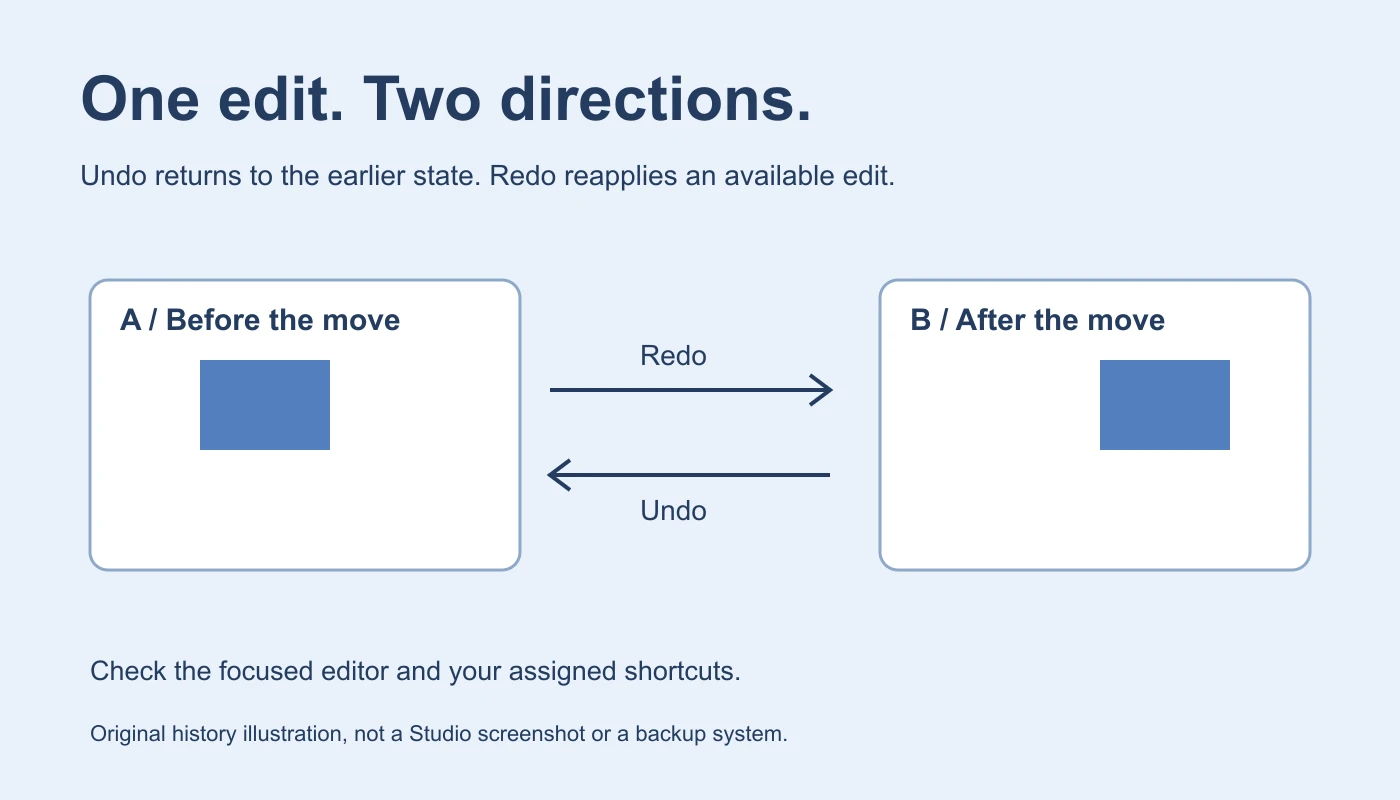
To undo in Roblox Studio, try Ctrl + Z on Windows or Command + Z on Mac. To redo an action you just undid, try Ctrl + Y or Command + Y. If the shortcut does not affect the edit you intended, check which editor has focus and inspect your assigned Undo and Redo shortcuts before pressing it repeatedly.
Undo and redo shortcuts on Windows and Mac
| Action | Windows | Mac |
|---|---|---|
| Undo the previous edit | Ctrl + Z | Command + Z |
| Redo an undone edit | Ctrl + Y | Command + Y |
Bindings can be customized, and a focused editor or plugin can handle input differently. Treat the shortcut shown in your installed Studio as authoritative. Roblox's setup guide points to File → Customize Shortcuts for viewing and editing bindings. In some interface layouts, the command is under File → Advanced. Find Undo and Redo there and read their current assignments.
Roblox also documents Ctrl/Command + Z and Ctrl/Command + Y for undoing and redoing slider steps in its face-animation workflow. That is an editor-specific example; it does not mean every plugin uses identical history or shortcuts.
Try one reversible edit in a spare place
- Save a copy of your place before experimenting.
- In edit mode, insert a plain Part and give it a recognizable name.
- Move it a short distance. Observe its position before doing anything else.
- Focus the 3D editing area and invoke Undo once.
- Confirm that the move was reversed. Then invoke Redo once and confirm the move returns.
- If the result is different, inspect the current command and focus instead of adding more edits.
This small exercise lets you distinguish a binding problem from an unexpected history action. It is a documentation-based procedure, not a claim that this guide was tested inside your installed Studio. Avoid using a complicated plugin operation as the first check.
How to undo an undo
Use Redo immediately after undoing an edit you wanted to keep. For example, if Undo moved the Part back to its earlier position, Redo should reapply that pending move when it is still available in the relevant history.
Check the result one action at a time. A long sequence of repeated Undo commands can reverse more than the mistake you meant to fix. If you have already made another edit, do not assume the earlier redo branch is still available. Inspect the command's availability before relying on it.
Undo history is an editing tool, not a permanent backup. If the desired state is no longer available, compare a saved copy or version instead of promising that another shortcut will recover it.
When the shortcut changes script text instead of a Part
Check where your keyboard input is going. If you are editing a script, Undo may apply to the text edit in that editor. Finish or cancel an active property field, then focus the context whose edit you want to reverse. Confirm the command and resulting change before continuing.
The Script Editor guide describes multi-cursor edits as one action: undoing or redoing that edit affects all cursors involved. If several text changes reverse together, inspect whether they came from a single multi-cursor edit.
For finding the affected code, use the search-all-scripts guide. For an object edit, use the individual part selection guide and inspect the selected instance and its actual properties rather than judging only by the camera view.
When Undo or Redo is unavailable
- No applicable action: check whether that context has an edit or pending redo to apply.
- Wrong keyboard focus: leave an active text field and select the intended editing context.
- Customized shortcut: find Undo and Redo in Customize Shortcuts and inspect the assigned combinations.
- Plugin-specific behavior: test a plain Part edit separately before blaming the whole Studio history.
- Different place or session: do not assume its history contains an earlier edit from elsewhere.
- Already made a new edit: check whether the desired redo remains available; use a saved version if it does not.
Record the smallest reproduction: the editing context, the exact change, the command used and the observed result. That is more useful for debugging than “Undo does nothing.” Avoid resetting every shortcut or changing unrelated settings before isolating the failing action.
Stopping a playtest is different from undoing an edit
Roblox's testing-mode guide says Stop ends simulation and restores objects and instances to their pre-playtest state. That is different from selecting an earlier authoring action with Undo.
If you changed an object's position while testing, first identify whether you were changing simulation state or the saved editing state. Keep important intended edits in a saved practice copy and verify the result after stopping. Do not use Undo as a substitute for understanding client/server playtest context or as a way to reverse live player activity.
Plugin developers need recorded changes
If your plugin changes the place, consult ChangeHistoryService. Roblox's plugin guide describes beginning a recording before changes and finishing it afterward so Studio can support undo and redo for that operation.
This is plugin-authoring infrastructure, not a general gameplay rollback system. The service is not enabled at runtime. A player-facing rewind mechanic, transaction reversal or inventory recovery requires separate game rules and state handling.
Use saved versions when history is not enough
If you need an earlier saved state, preserve your current work before examining a backup or version. Compare the specific objects or scripts you want to recover. Restoring an entire older place can also remove unrelated newer work, so review the scope of that change deliberately.
The Studio save and backup guide covers the separate save workflow. Undo reverses available editing actions; saving and version recovery protect work across a different timescale. Neither replaces checking that the recovered state is the one you intended.
When iterating on an Obby project, keep a saved checkpoint before a substantial change, describe one edit at a time, and inspect the resulting Studio scene and scripts. Documentation reviewed November 25, 2026.