Roblox's current general modeling specifications set a maximum of 20,000 triangles per individual mesh. That is not a total budget for every mesh in a Model, a whole game, or an avatar item. Use the checker above to compare your entered counts, then inspect the actual import and test the asset in your game.
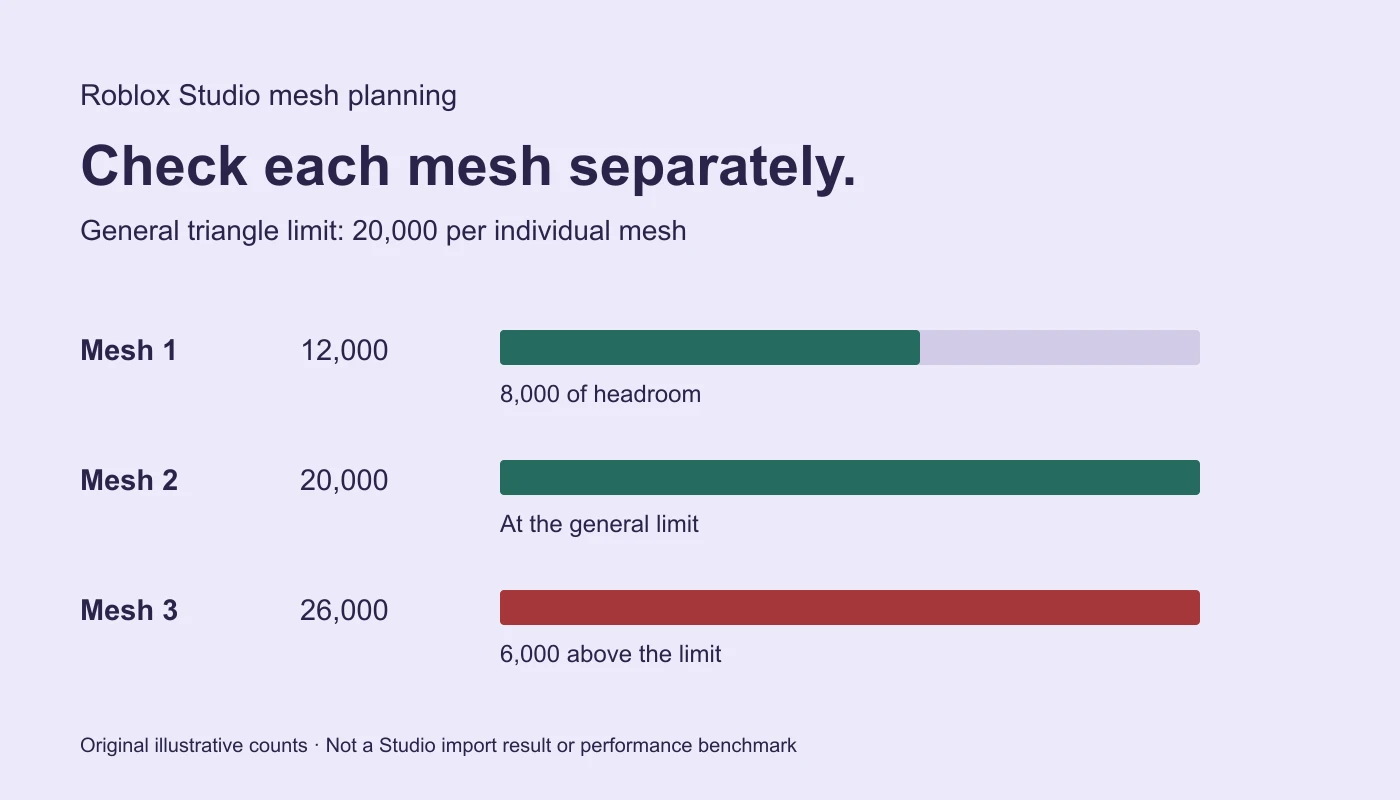
The general limit is per individual mesh
The official modeling specifications state that an individual mesh cannot exceed 20,000 triangles and point to separate requirements for avatar bodies and accessories. A Model containing several meshes is not the same unit as one mesh.
For example, two separate meshes of 12,000 triangles each total 24,000, while neither individual mesh exceeds 20,000. Combining their geometry into one 24,000-triangle mesh changes that comparison. The total is useful context, but it cannot answer the per-mesh question on its own.
Read the checker as a count comparison
Enter one whole-number triangle count per line, in the same order as your asset notes. The tool labels them Mesh 1, Mesh 2 and so on, reports each overage or remaining headroom, and totals the entries. It accepts up to 20 counts between 1 and 1,000,000 so that oversized examples can still be compared.
The input limits belong to this tool. It does not parse an OBJ, FBX or glTF file, inspect topology, upload an asset or predict whether Studio will accept the whole model. A row with no overage means only that the entered count is at or below this one general threshold.
| Entered counts | Total | Per-mesh result |
|---|---|---|
| 12,000 and 12,000 | 24,000 | Neither exceeds 20,000 |
| 20,000 | 20,000 | At the general triangle limit |
| 26,000 | 26,000 | 6,000 above the limit |
Inspect the individual object in the Importer
Roblox's Importer guide distinguishes File Geometry, which describes the full model, from Object Geometry, which describes the selected child object. Inspect the object hierarchy and the selected object's information instead of treating the file total as every child's count.
The same guide explains that Merge Meshes combines MeshParts into a single MeshPart. Check this setting when the imported structure differs from the separate pieces you expected. For the general import sequence and a small practice asset, follow our existing mesh upload guide.
Record the exact source file, selected child, reported count and warning text. This makes the next export comparable. A screenshot of an unrelated object or a count from a different saved version cannot establish what the selected import contains.
What happens when a mesh is over the limit?
Roblox's artist onboarding guide says Studio automatically decimates an over-limit import to fit. It recommends reducing the count yourself when you want control over the result. An imported object appearing in the scene therefore does not prove the original geometry arrived unchanged.
Keep the source model and make a separate reduced export. Compare the silhouette, openings, edge details and texture appearance at the distance where players will use the object. Those are proposed visual acceptance checks, not an assertion that a particular reduction method will preserve every asset.
If you separate geometry into purposeful pieces, check each resulting mesh and how the assembled object behaves. Splitting solely to get every row below a number does not establish that the result is efficient or suitable for gameplay.
Avatar items have separate requirements
The general 20,000 figure is not permission to submit any accessory or avatar body with that count. Choose the applicable rigid accessory, layered accessory or character body specification for the item you are creating. The checker does not validate those category-specific budgets.
For attaching an existing accessory to a character, use our Accessory Inserter guide. Keep the item's category, source mesh and validation result together rather than applying a general environment-prop limit to every kind of upload.
A triangle limit is not a performance target
Roblox's performance guidance covers multiple sources of runtime cost, including rendering, memory and script work. A triangle-count comparison alone cannot show the frame rate a player will get. Do not interpret “below 20,000” as a benchmark or a recommendation to use the maximum everywhere.
Try an original comparison exercise: keep one practice scene and player route fixed, replace only the prop variant, then record visible differences and actual device behavior. Compare at the intended gameplay distance. Keep the version that meets the visual requirement with evidence from the scene you will ship.
Plan a small prop test in an Obby project
Try a bounded brief in Obby: “Build a compact museum room with a safe spawn, a marked exhibit platform and a short walking route around it. Leave the exhibit space clear so I can compare two versions of one prop.” Inspect the generated project, then import and evaluate your own mesh variants in Studio. This proposed brief does not generate or validate a particular triangle count.
Official documentation checked November 25, 2026. The checker has independent input and arithmetic checks; no native Studio import, decimation or device-performance test was performed for this guide.